
5 Simple Quiz Types to Check Student Understanding - Quickly and Effectively
Explore five quiz types to check student understanding, with examples, design tips, and tools to create questions and track results in uPresenter
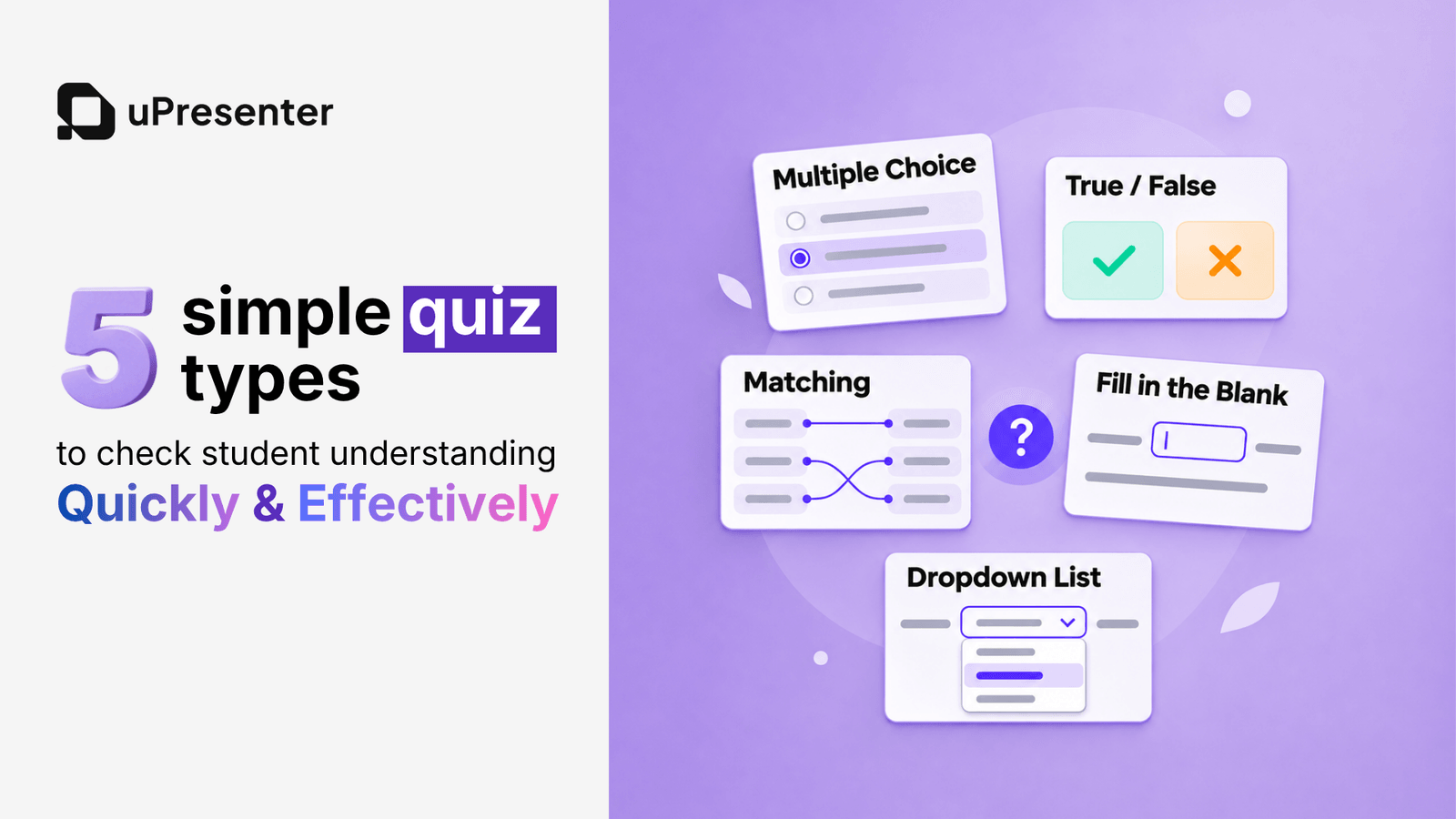
After each lesson, how can teachers tell which concepts students have understood and where they are still confused? A short review activity with suitable questions can help teachers gain a clearer picture of the class’s understanding.
Review quizzes are a simple way to do this. Students’ answers give teachers more information to identify content that needs further explanation, while giving students opportunities to apply and reinforce what they have just learned.
With uPresenter, teachers can create effective quiz types to make review activities more engaging. This article introduces five simple quiz types, with suggestions for activities lasting around five minutes, to help teachers quickly check understanding and identify content that needs reinforcement.
1. Multiple Choice: Quickly Check Key Knowledge
Multiple-choice quizzes ask students to select one correct answer from the available options. This question type is suitable for checking concepts, rules, calculation results, or the application of knowledge to a short scenario.
When designing questions, teachers should base incorrect options on common student mistakes. Each choice can then provide clues about the knowledge that may need further checking.
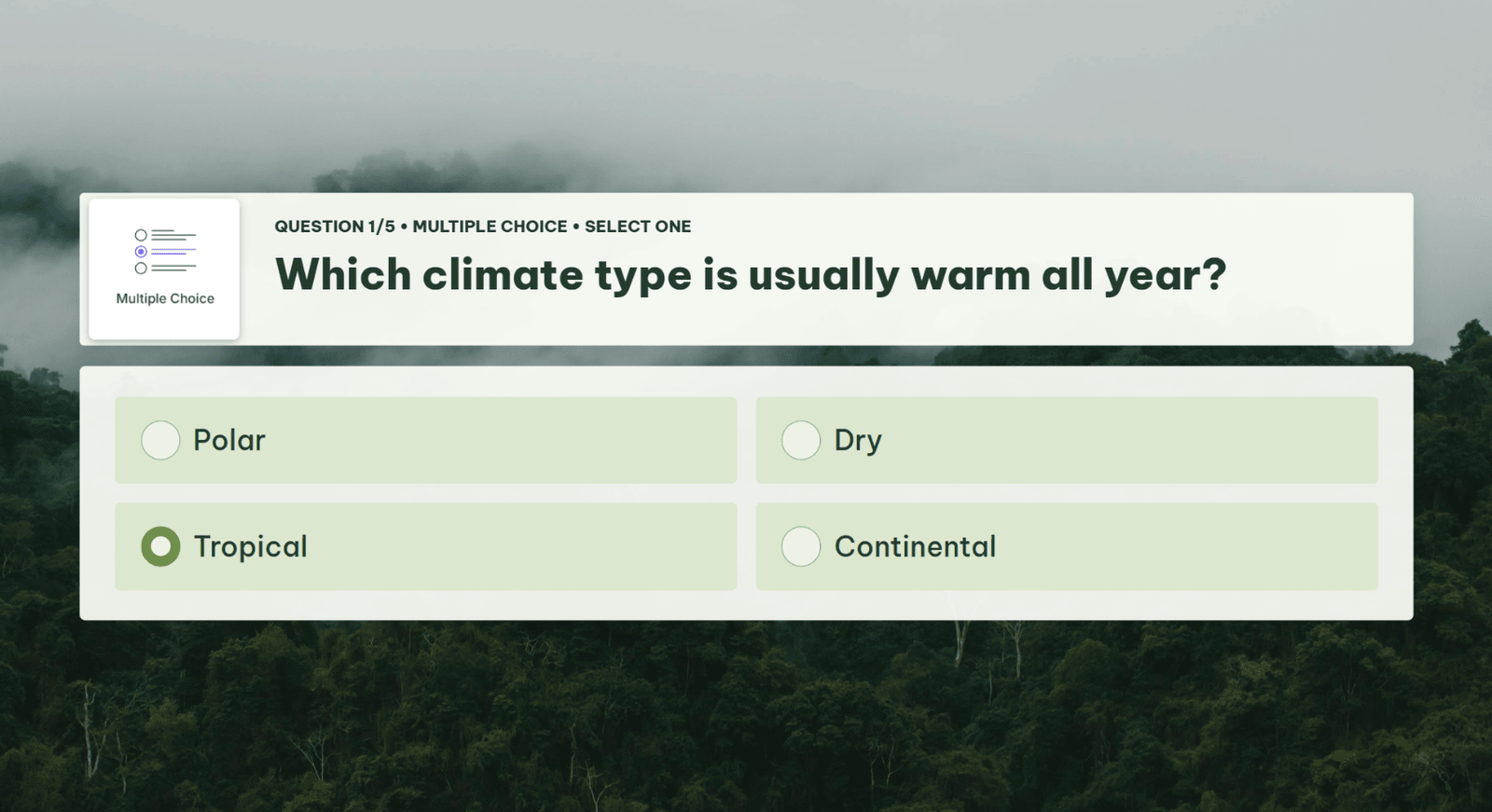
Tips for use: Each question should have only one correct answer, with clear instructions and similarly worded options. Avoid incorrect options that are too easy to eliminate, allowing students to choose correctly without understanding the content.
2. True/False: Identify Common Misconceptions
True/false quizzes ask students to determine whether a statement is accurate based on what they have learned. With two clear options, this question type is suitable for checking how students understand a concept, characteristic, or rule.
This quiz type helps teachers check content that students commonly confuse, such as the conditions for applying a formula or the differences between two related concepts. When evaluating a statement, students need to compare the information with their existing knowledge before making a choice.
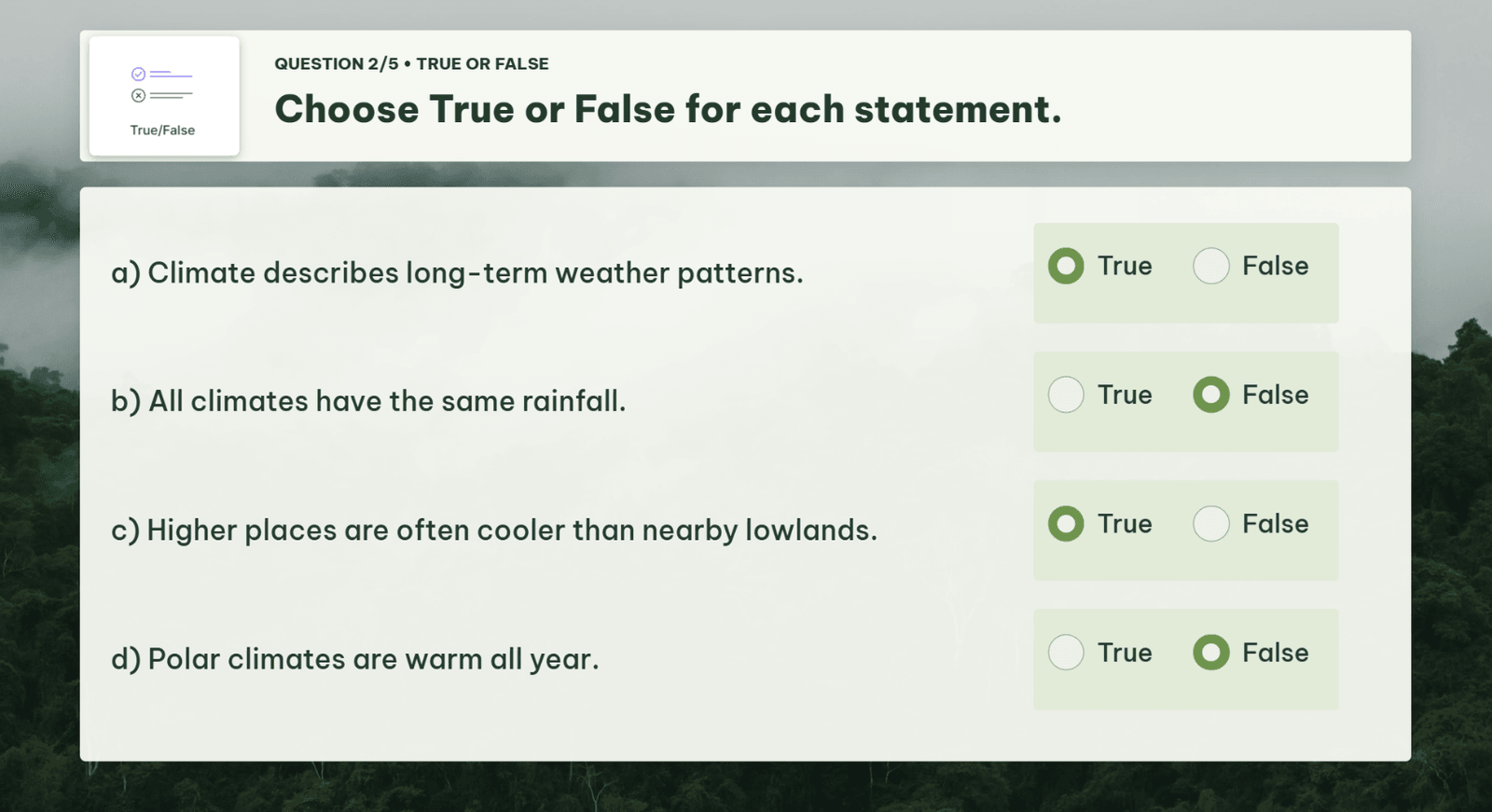
Tips for use:
- Each statement should focus on one idea and be clearly identifiable as true or false. Avoid statements with multiple clauses, double negatives, or missing conditions that could lead to different interpretations.
- For false statements, teachers should explain what is inaccurate or ask students to correct them. This step helps clarify the content rather than stopping at answer selection.
3. Matching: Check Connections Between Ideas
Matching quizzes ask students to connect corresponding items across two groups of information. Pairs may include vocabulary and meanings, concepts and examples, events and dates, or organs and functions. This quiz type is suitable for checking whether students recognize relationships between pieces of knowledge. Students need to understand each item’s characteristics, compare the options, and identify the corresponding match.
Incorrect matches can help teachers identify concepts or groups of information that students are confusing. This activity also supports the organization of knowledge, especially in lessons containing several terms or related ideas.
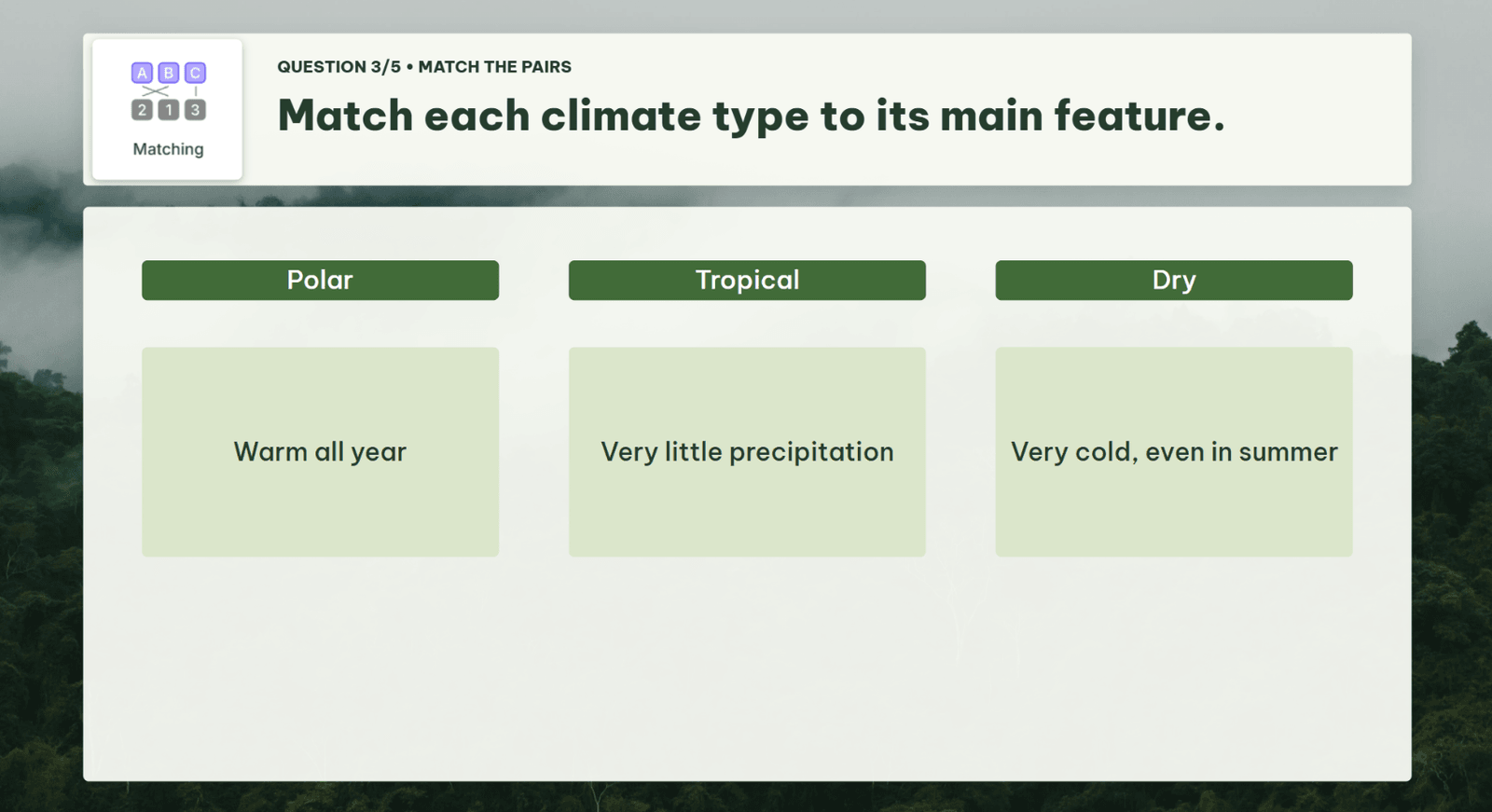
Tips for use: Matching items should belong to the same topic and be expressed concisely. Relationships between the two groups should be clear. Avoid items that could reasonably match more than one answer when the question requires only one corresponding pair.
4. Dropdown: Select Short, Clear Answers
Dropdown quizzes allow students to open a menu and select an answer from the available options. This question type is suitable for short choices, such as words, phrases, numbers, or category names.
Teachers can use this quiz type to check students’ ability to recognize, classify, and select information that meets a requirement. For example, students may choose a measurement unit for a quantity, identify a part of speech, or select the term that matches a definition.
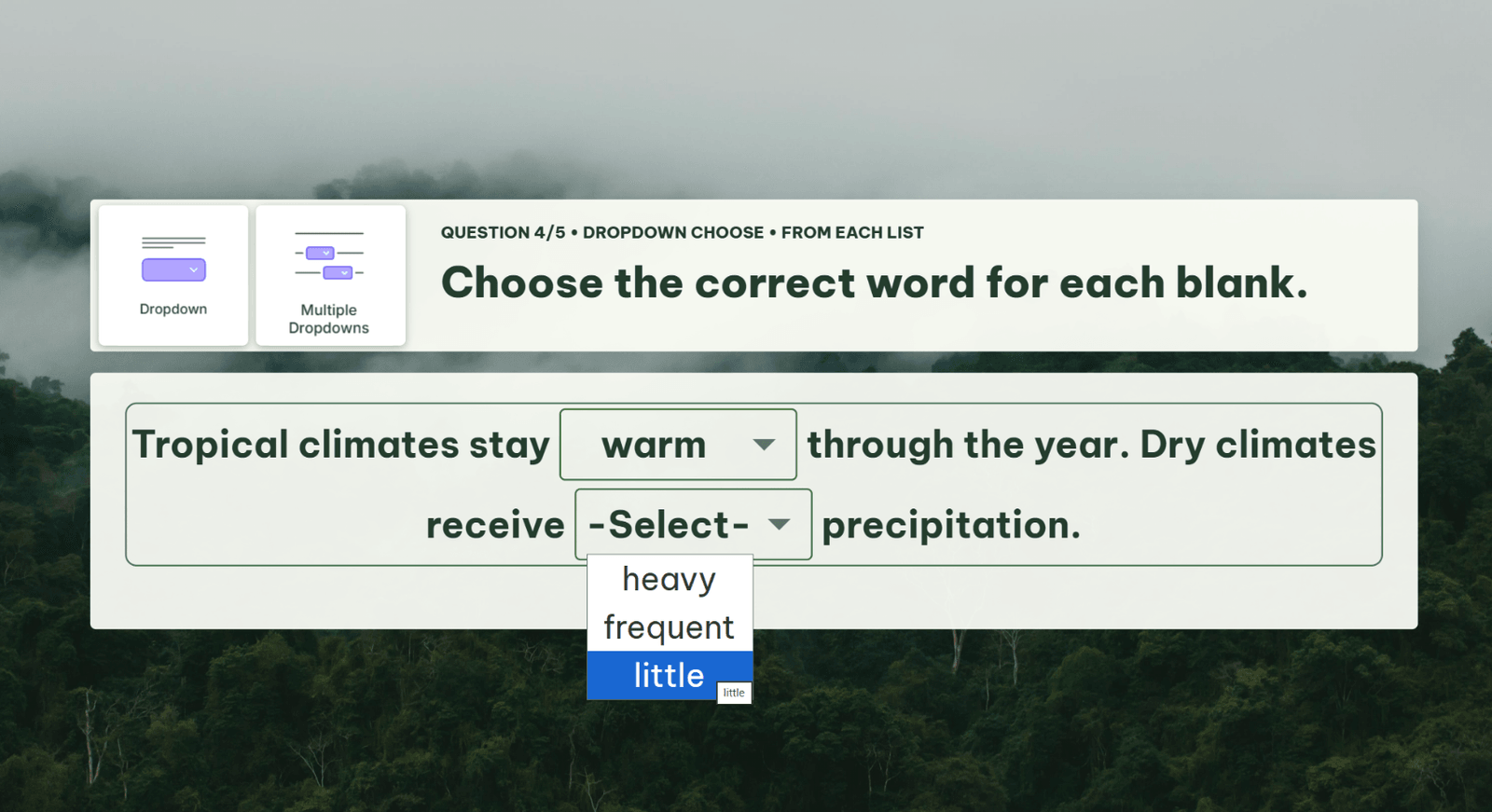
Tips for use: Options should be short, easy to read, and consistent in wording. Avoid overly long lists or answers that require extensive reading and comparison. Questions should provide enough context for students to identify the answer.
5. Drag the Words: Complete Content Through Drag-and-Drop
Drag the Words quizzes in uPresenter allow students to move supplied words into appropriate positions within the content. This quiz type is suitable for reviewing vocabulary, sentence structures, terminology, and lesson summaries. Students need to read the context, distinguish between the words, and identify the correct position to complete each sentence.
Incorrect placements can help teachers recognize whether students are confusing terms, misunderstanding the content, or struggling with sentence structure. However, because the words are provided, the results mainly reflect recognition and contextual use rather than the ability to recall information without prompts.
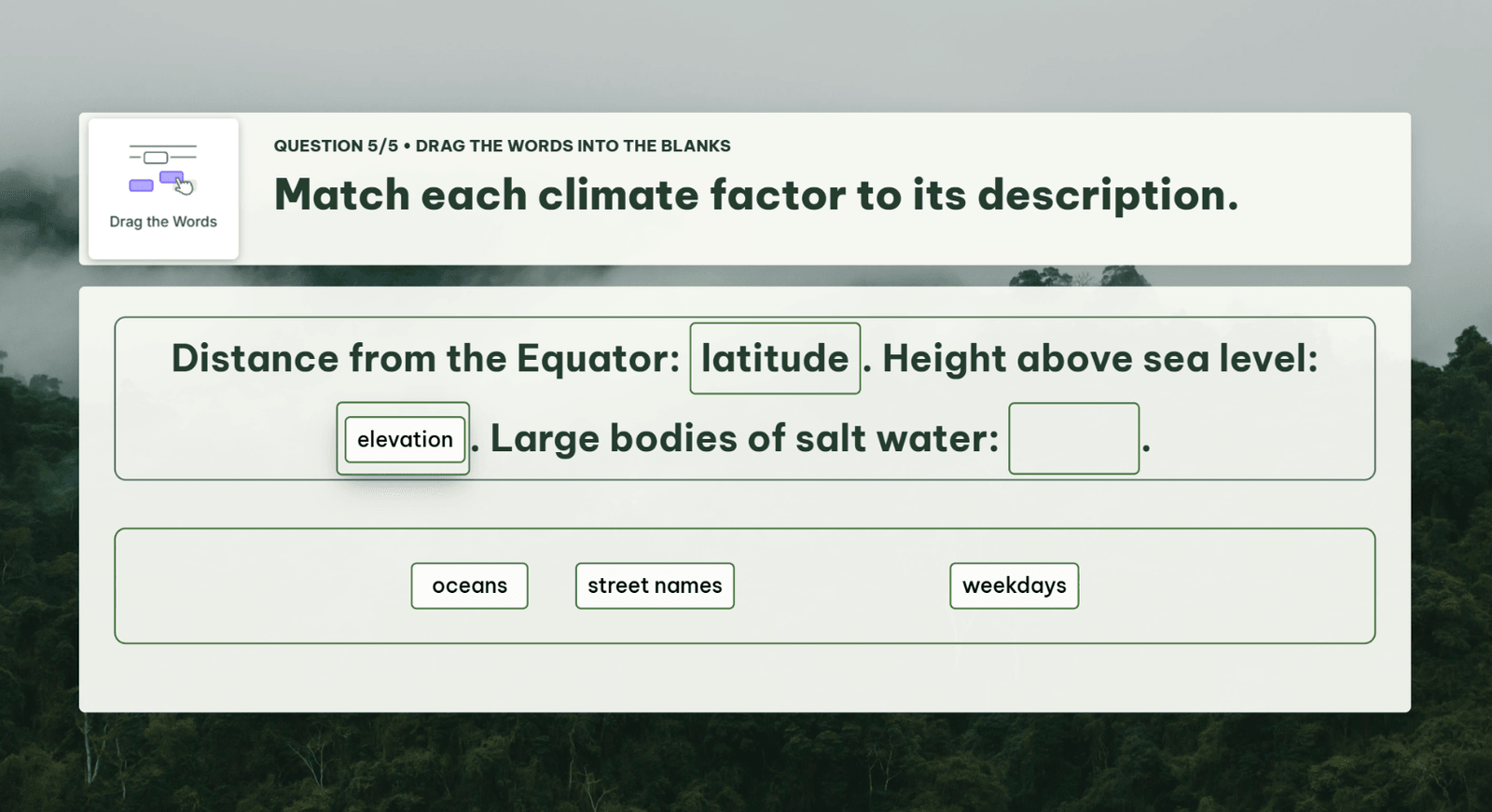
Tips for use:
Choose words that relate to the knowledge being assessed and retain enough context for students to reason through the task. Avoid leaving too many gaps or selecting words that can be identified solely through grammatical clues when the goal is to assess subject knowledge.
Comparison of Five Common Review Quiz Types
Quiz type | How students answer | Suitable for checking | Example application | Key consideration |
Multiple Choice | Select one correct answer from the available options. | Concepts, rules, and the application of knowledge to specific situations. | Choose the correct formula or calculation result. | Base incorrect options on common mistakes and ensure there is only one correct answer. |
True/False | Evaluate the accuracy of a statement. | Understanding of characteristics, properties, and conditions for applying knowledge. | Decide whether a statement about squares and rectangles is true or false. | Include only one idea per statement and ask for reasoning to reduce guessing. |
Matching | Connect corresponding items across two groups of information. | Relationships between terms, definitions, examples, or functions. | Match vocabulary with meanings or organs with functions. | Keep pairs clear, within the same topic, and manageable in number. |
Dropdown | Open a list and select an answer. | Recognition, classification, and selection of appropriate information. | Choose a suitable measurement unit or part of speech. | Keep options short and readable, and avoid overly long lists. |
Drag the Words | Drag words or phrases into suitable positions. | The use of vocabulary, terminology, and structures in context. | Complete an English sentence or a short lesson summary. | Retain enough context and ensure each position has a clear answer. |
Get Started with a Review Quiz in uPresenter
From Multiple Choice and True/False to Matching, Dropdown, and Drag the Words, each quiz type offers a different way to check knowledge. Teachers can choose a format that suits the lesson objectives to help students reinforce their knowledge and recognize areas of confusion.
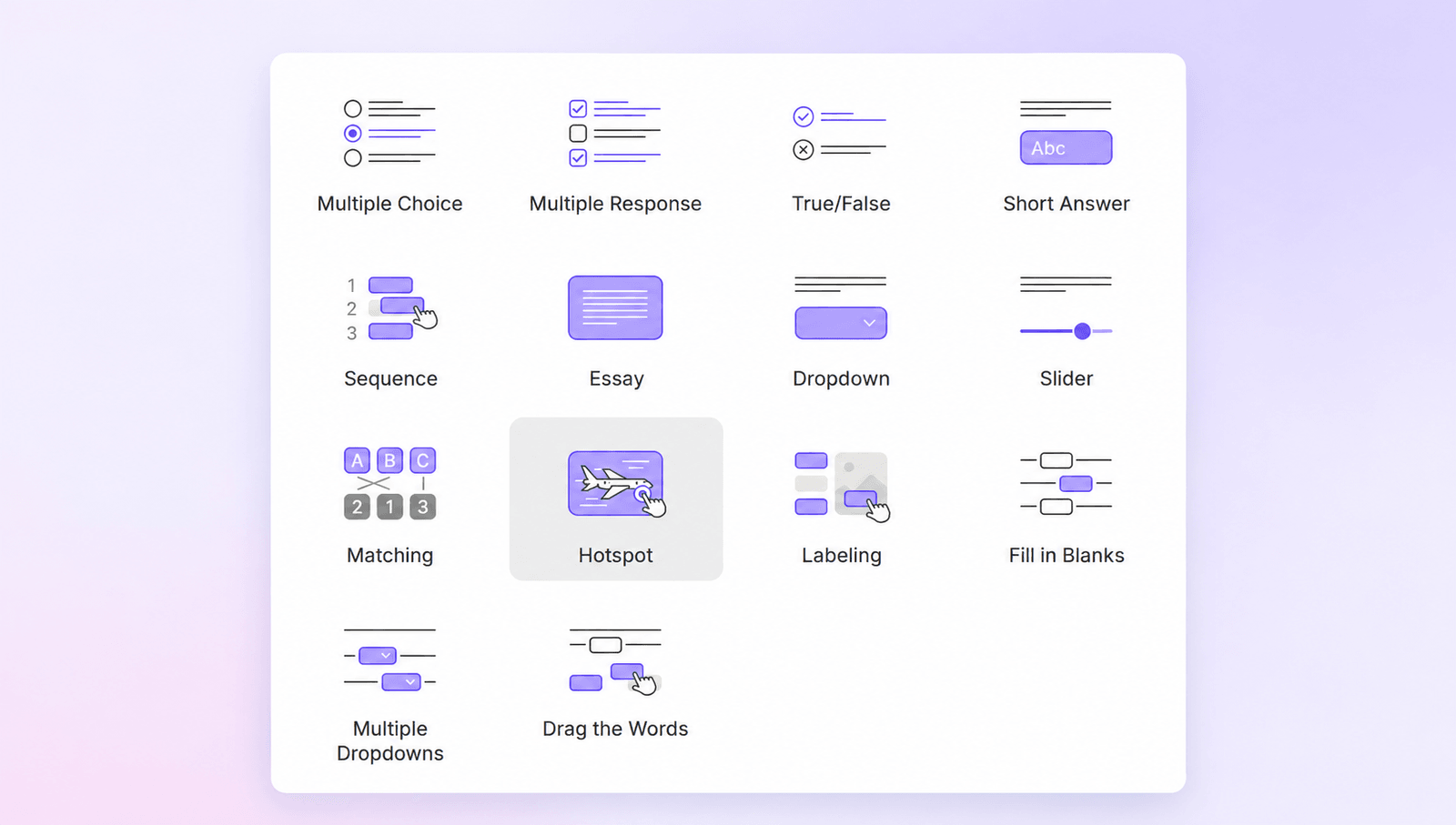
The five quiz types introduced in this article are part of uPresenter’s collection of 14 question types, offering teachers a range of options for designing review activities suited to their content and students.
Create Quiz Questions with AI in uPresenter
uPresenter also supports AI-assisted question creation to give teachers more ideas when building review quizzes. Enter the content or describe the request, then select suitable settings such as the question type, language, and AI model. The system will generate draft questions and answers.
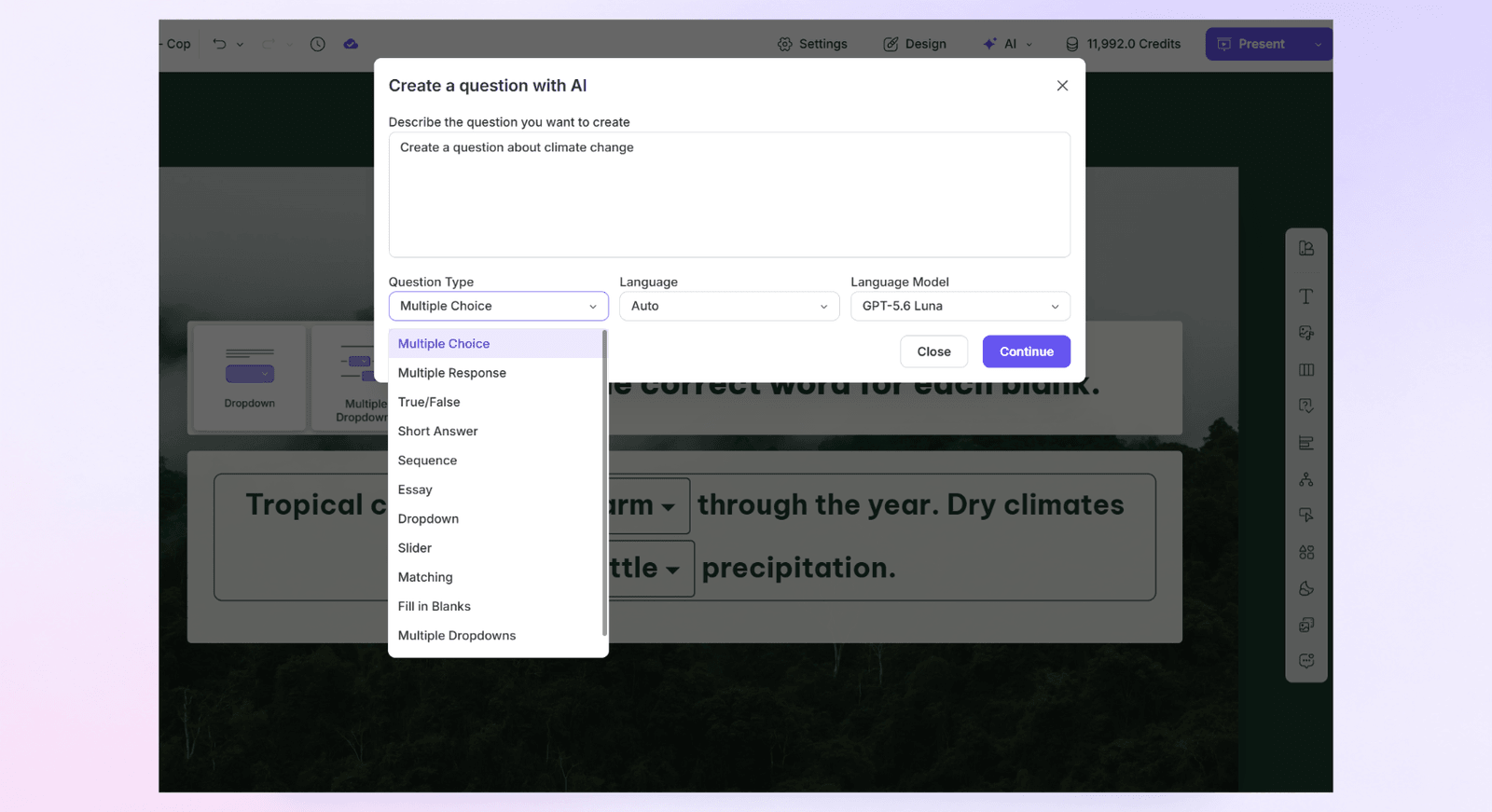
Teachers can review, edit, and add to them to ensure the content is accurate and appropriate for the lesson objectives and students’ level.
Track Student Progress and Results in uPresenter
When sharing lessons by link or assigning them through a class in uPresenter, teachers can monitor learning through Reports. Information such as completion status, scores, pass status, and learning time helps teachers see whether students have participated, completed the lesson, and met the requirements.
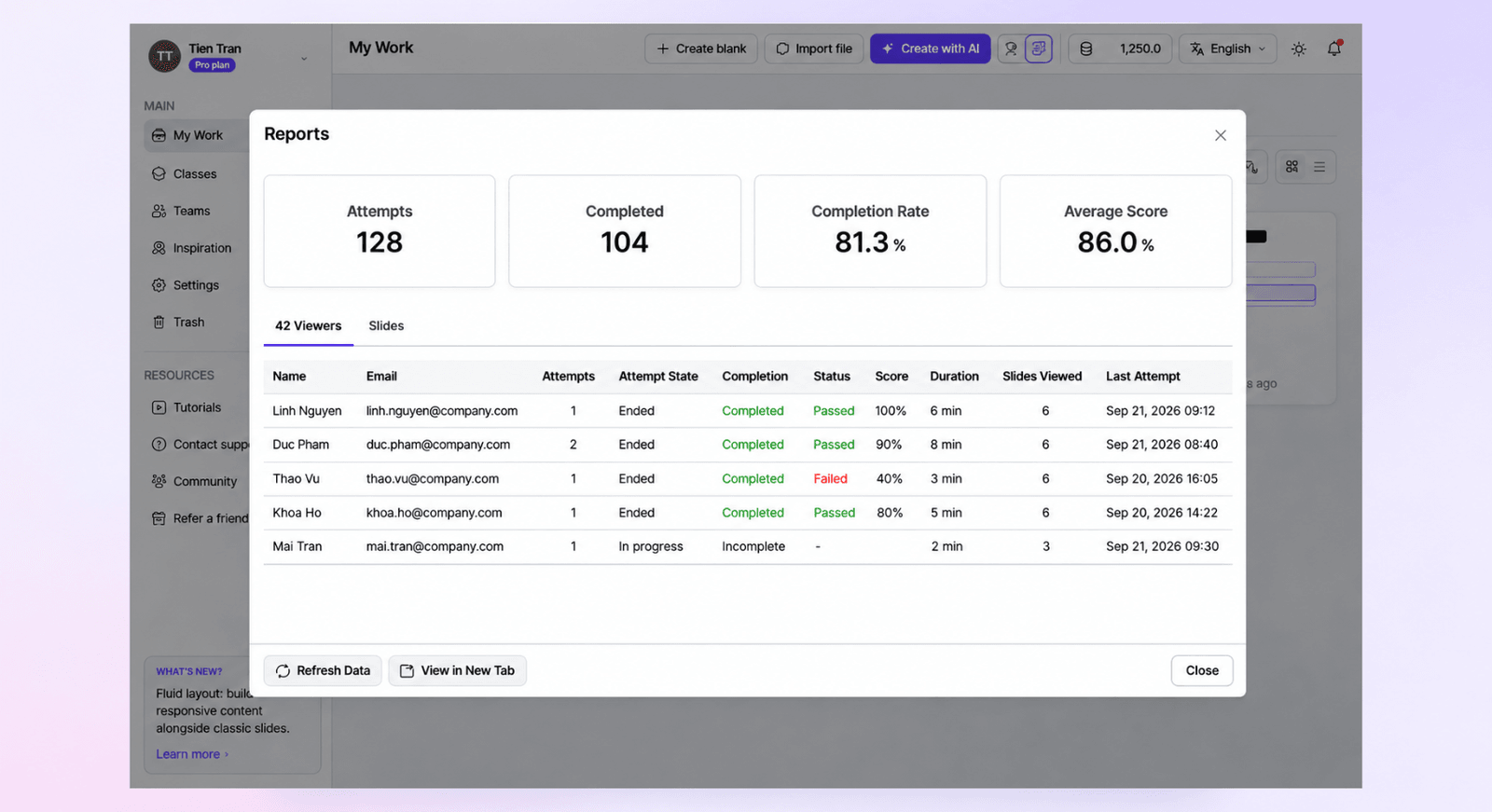
Access to individual answer details depends on the subscription plan. Teachers should distinguish lesson completion from meeting knowledge requirements, as these serve different monitoring purposes.
Conclusion
Review quizzes help students reinforce their knowledge while giving teachers more information to assess understanding. Depending on the objective, teachers can use Multiple Choice and True/False to evaluate statements, Matching to clarify relationships, or Dropdown and Drag the Words to select and complete information.
The effectiveness of the activity depends on question design and how students’ answers are used. By combining quiz results with classroom discussion, teachers can identify areas of confusion and select appropriate content for further review.
Explore uPresenter and start designing a review quiz for your next lesson.