
eLearning vs. PowerPoint: 6 Key Differences
Discover 6 key differences between eLearning and PowerPoint, from interactivity and feedback to self-paced learning and progress tracking.
 Linh Huong Ho10 min read
PowerPoint has long been a go-to tool for teachers to create slides, explain concepts, and guide classroom activities. But as independent learning, online lessons, and assessment become more common, eLearning offers teachers another way to deliver lessons and help students practice what they've learned.
So, what's the difference between eLearning and traditional PowerPoint presentations? Is adding videos, quizzes, or games to a slide deck enough to turn it into an eLearning lesson?
The differences go beyond how content is presented. They also involve how students learn, practice, and receive feedback. In this article, we'll explore six key differences between eLearning and PowerPoint to help teachers decide which approach best fits their lessons.
1. What Are PowerPoint Lessons and eLearning Lessons?
Traditional PowerPoint Lessons
PowerPoint lessons typically consist of slides that combine text, images, charts, audio, and video. Teachers use these slides to present information, explain concepts, and guide classroom activities.
PowerPoint is easy to edit, works well for live teaching, and supports animations and interactive navigation. However, teachers usually need additional tools to automatically grade student responses or track individual learning results.
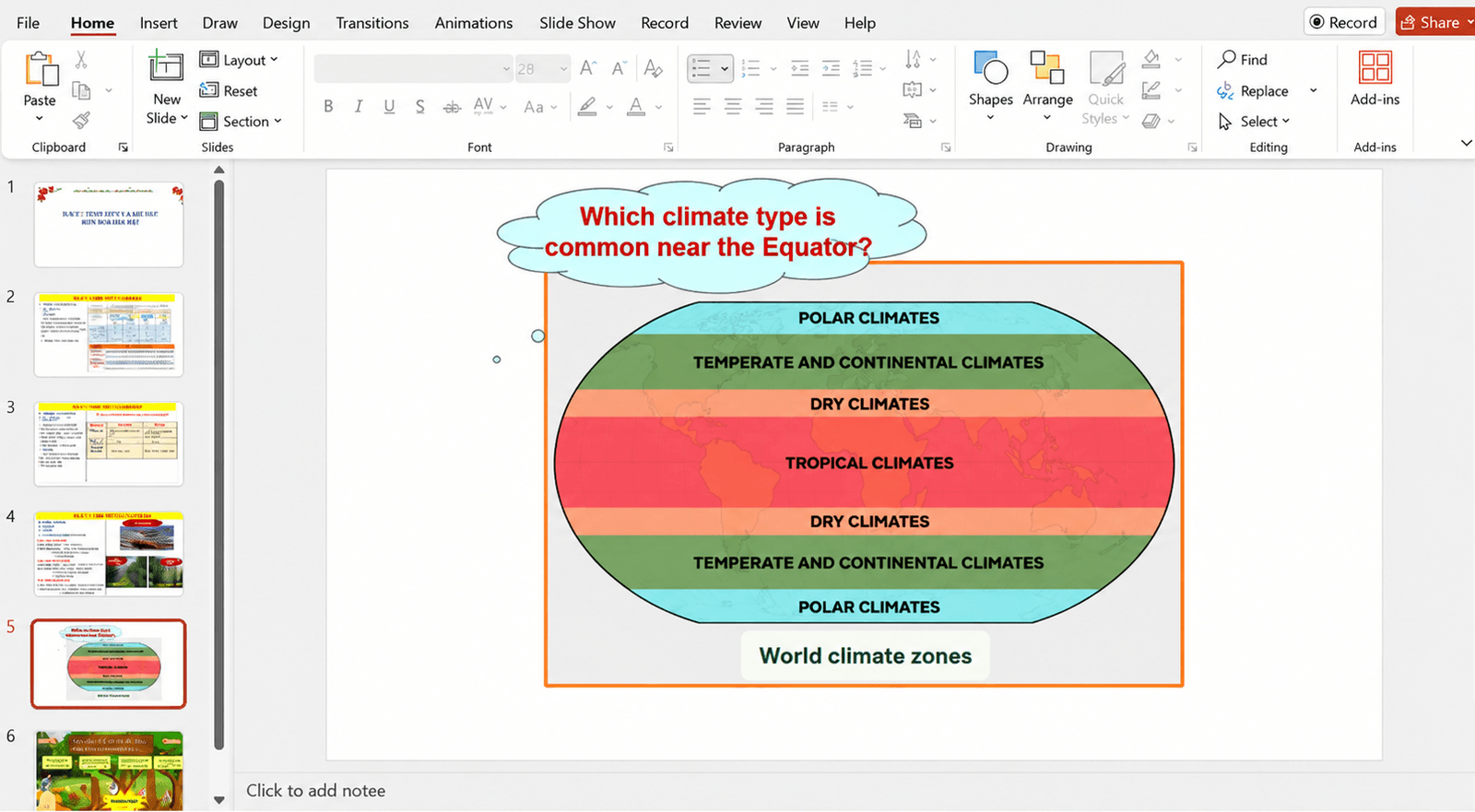
A Geography lesson slide created using PowerPoint.
eLearning Lessons
An eLearning lesson is a digital lesson that students can access on a computer, smartphone, or other compatible device.
Along with text, images, and videos, eLearning lessons can include quizzes, exercises, and practice activities. Depending on the platform, students may also be able to navigate lessons independently and track their progress.
Interactive eLearning lessons go a step further by allowing students to answer questions, complete exercises, or play learning games as part of the lesson rather than simply watching or reading the content.
PowerPoint and eLearning are not mutually exclusive. PowerPoint is primarily a presentation tool, while eLearning is a broader approach to digital learning. Teachers can also use existing PowerPoint content as part of an eLearning lesson.
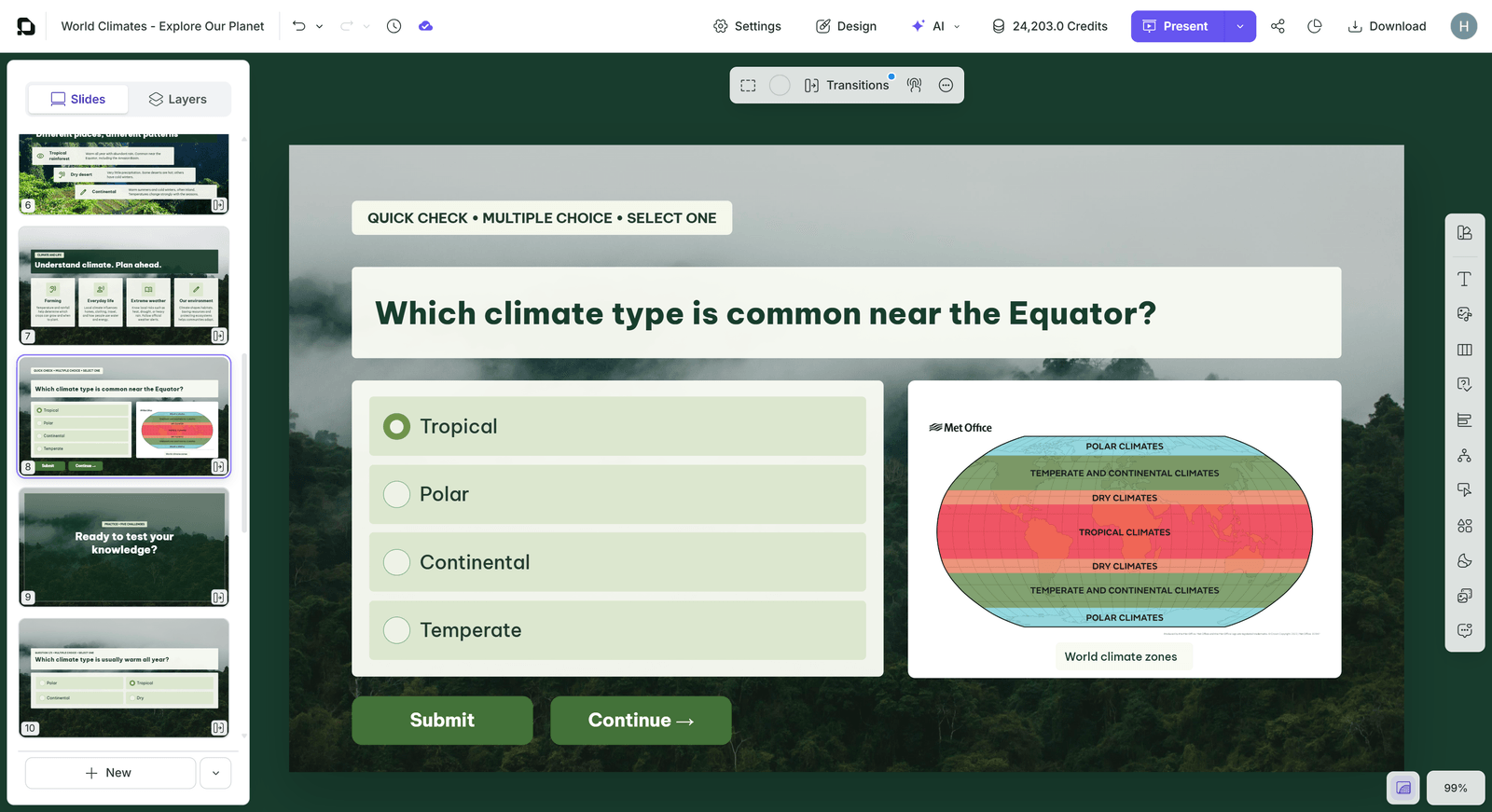
A Geography lesson created with uPresenter, a platform for building interactive eLearning lessons.
2. Six Key Differences Between eLearning and PowerPoint
2.1. Lesson Structure and Learning Activities
PowerPoint is commonly used to present and explain information. Teachers organize content into slides and use them to guide instruction, while students follow along and complete activities as directed.
With eLearning, teachers can bring lesson content, practice activities, and knowledge checks together in a structured learning experience.
For example, students might answer a short quiz after completing a lesson section before moving on to the next topic.
The key difference is how the learning experience is designed, not that one approach is always more effective than the other.
2.2. Interactive Learning Activities
PowerPoint supports animations, navigation buttons, and manually created quiz games. However, many activities in a traditional slide presentation still require teachers to guide students or check their answers.
Interactive eLearning lessons can include activities that students complete directly within the lesson, such as:
- Multiple-choice and true/false questions: Quickly check understanding.
- Fill-in-the-blank and matching exercises: Reinforce concepts and connections.
- Drag-and-drop and sequencing activities: Practice sorting information or putting steps in order.
- Learning games: Review knowledge through interactive challenges.
These activities allow students to practice what they've just learned instead of waiting until the end of the lesson to complete an exercise.
2.3. Assessment and Feedback
With PowerPoint, teachers can display questions, ask students to respond in class, or use tools such as Microsoft Forms. Some compatible versions of PowerPoint also support embedding forms and quizzes directly into slides.
eLearning platforms with assessment features often let teachers assign scores, set the number of attempts, and add feedback to individual questions.
After answering, students may receive immediate results or explanations based on the teacher's settings. This helps them understand their mistakes and identify topics they need to review.
For question types that support automatic grading, teachers can also spend less time checking answers manually.
2.4. Self-Paced Learning and Lesson Navigation
Teachers can share PowerPoint presentations for students to review at home. They can also record narration, link slides together, or export presentations as videos.
With eLearning, lessons can be divided into sections with instructions, exercises, and knowledge checks. Some platforms also let students save their progress or require them to complete certain activities before moving on.
This allows students to learn at their own pace, revisit difficult topics, and pick up where they left off.
These features are especially useful for independent study, homework, and online learning.
2.5. Tracking Student Progress and Results
A standard PowerPoint file does not automatically show teachers which students have completed a lesson or how well they performed. To collect this information, teachers generally need additional forms or learning management tools.
eLearning platforms with tracking features may provide:
- Lesson completion status.
- Quiz scores and assessment results.
- Time spent learning or number of attempts.
- Individual student responses.
Teachers can use these results to see where students are struggling and decide which topics need more explanation or practice.
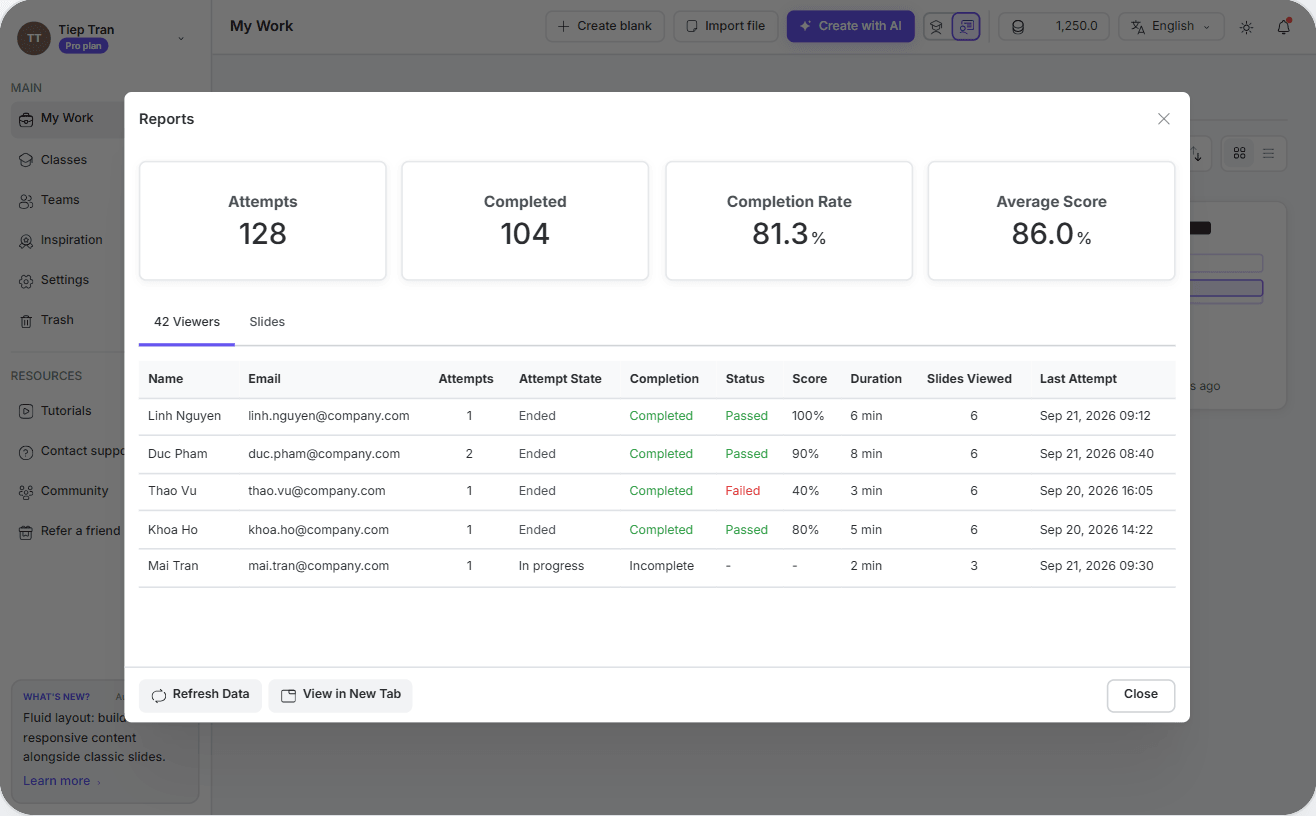
The uPresenter reporting dashboard shows lesson completion, scores, and individual student results.
Keep in mind that not every eLearning lesson automatically records student performance. Tracking capabilities depend on the platform and the features included in each plan.
2.6. Sharing and Delivering Lessons
PowerPoint works well for live presentations, sharing files with students, and exporting content as PDF documents or videos.
With eLearning, teachers may also be able to share lessons through a link, let students access them directly in a browser, or deliver them through a learning management system (LMS), depending on the platform.
Some eLearning authoring tools support standards such as SCORM and xAPI for use with compatible learning systems.
If teachers mainly need to present information and share materials, PowerPoint may be enough. But when lessons require interactive activities, assessment, and progress tracking, an eLearning platform can offer more options.
3. eLearning vs. PowerPoint: Comparison Table
Here's a quick overview of the differences between traditional PowerPoint presentations and interactive eLearning lessons.
Feature | Traditional PowerPoint | Interactive eLearning |
|---|---|---|
Main purpose | Present and explain information | Combine learning content with practice activities |
Interactivity | Can be created manually or added through other tools | Can include built-in quizzes and exercises |
Assessment and feedback | Usually handled by teachers or additional tools | Can support automatic grading and feedback |
Self-paced learning | Students can review slides, videos, or recordings | Can support structured lessons and individual learning progress |
Progress tracking | Usually requires additional tools | Can record scores and lesson completion |
Lesson delivery | Present slides, share files, export PDF/video | Share online or deliver through a compatible LMS |
Note: These comparisons reflect common ways of using PowerPoint and eLearning. Actual features depend on the tools and how lessons are designed.
4. How to Make eLearning Lessons Truly Interactive
Not every eLearning lesson is highly interactive. A lesson made up of documents or videos still counts as eLearning, but students may spend most of their time reading or watching.
To create effective interactive eLearning lessons, teachers should focus on three key practices.
Add Activities at the Right Moments
Instead of presenting all the content and waiting until the end to check understanding, teachers can add short questions after important lesson sections.
For example, after learning about a process, students could arrange its steps in the correct order. After exploring new concepts, they might complete a matching exercise or answer a short quiz.
This gives students a chance to practice what they've just learned.
Give Feedback That Helps Students Learn
Feedback should do more than tell students whether an answer is correct or incorrect.
Teachers can explain why an answer is right or wrong, point out common mistakes, and suggest which part of the lesson students should review.
The goal is to help students understand their mistakes, not just remember the correct answer.
Choose Activities That Match Learning Goals
Different interactive activities work better for different learning objectives.
Multiple-choice questions are useful for quick knowledge checks. Matching exercises help students connect related ideas, while drag-and-drop and sequencing activities work well for sorting information or practicing processes.
Learning games can make review sessions more enjoyable, but they don't need to be part of every lesson.
What matters most is that the activity encourages students to think, practice, and understand the material-not simply click through more screens.
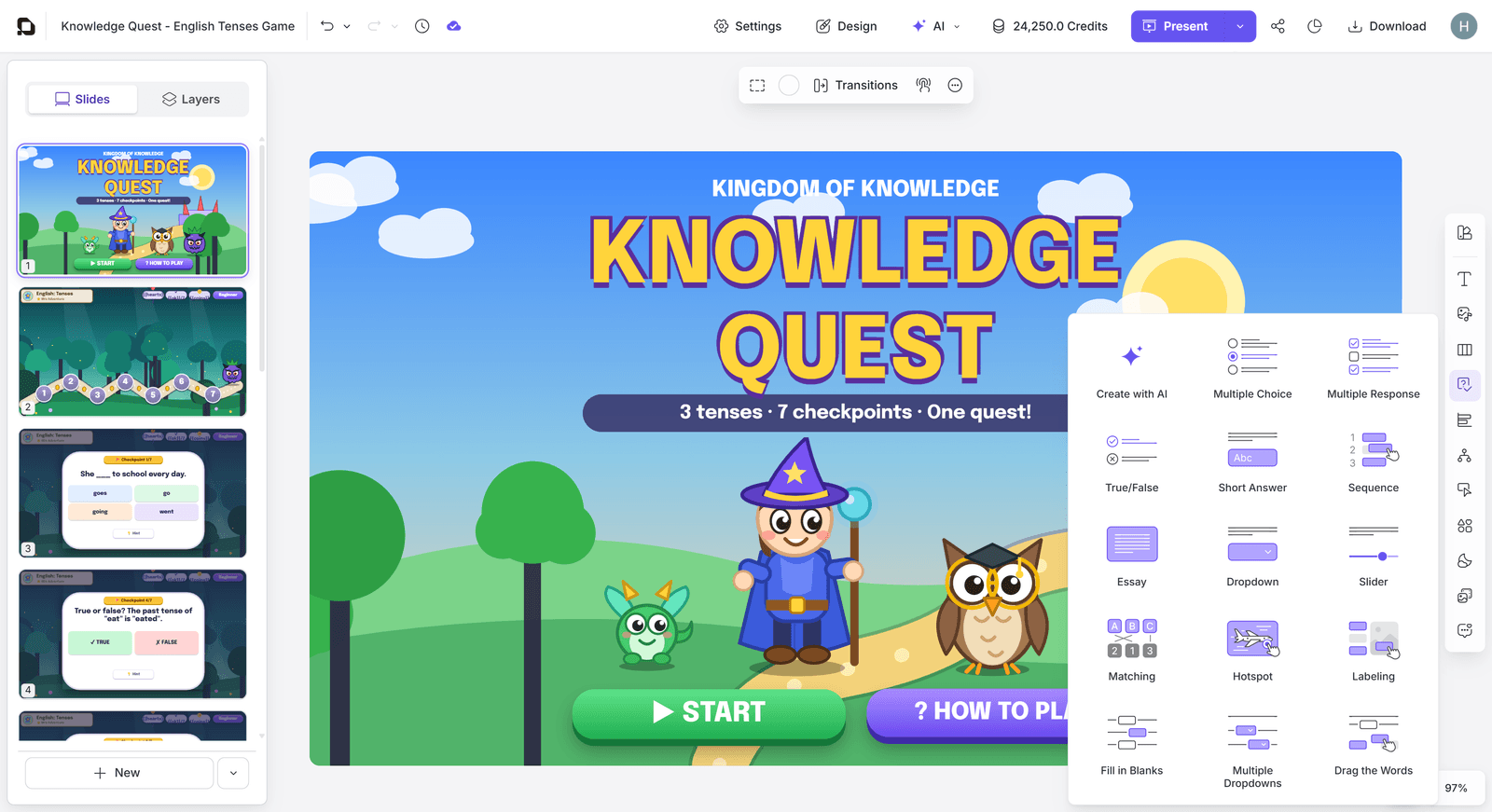
An example of a learning game and interactive question types in uPresenter, an eLearning authoring platform.
5. When Should Teachers Use PowerPoint or eLearning?
The best choice depends on the lesson objectives, students' needs, and teaching environment.
PowerPoint is a good choice when:
- Presenting or explaining concepts during live lessons.
- Leading presentations, discussions, or group activities.
- Providing guidance and feedback directly in class.
- Automatic progress tracking or grading isn't necessary.
Consider eLearning when:
- Students need to study or practice at their own pace.
- Teachers want to include quizzes, exercises, or games within a lesson.
- Automatic grading, feedback, or completion tracking is needed.
- Lessons need to be assigned online or delivered through an LMS.
In practice, teachers can combine both approaches.
For example, a teacher might use PowerPoint to introduce a topic in class, then assign an interactive eLearning lesson for students to review at home.
There's no need to replace PowerPoint entirely. Teachers can choose or combine both approaches depending on what they want students to learn and do.
6. Create Interactive eLearning Lessons from Existing Materials with uPresenter
If you already have PowerPoint slides or other teaching materials, you don't have to start from scratch.
uPresenter is an interactive eLearning authoring platform that helps teachers create lesson content, add interactive questions, and track learning results in one place.
With uPresenter, teachers can:
- Create lessons with AI: Generate lessons from a topic, prompt, or existing PowerPoint, Word, or PDF file, then edit the content to fit their teaching needs.
- Add interactive activities: Choose from 14 question types, including multiple-choice, true/false, fill-in-the-blank, matching, drag-and-drop, and sequencing. Teachers can also create custom learning games using the uPresenter Plugin with compatible AI tools such as Claude or Codex.
- Share lessons and track results: Let students access lessons through a browser and view learning data based on the selected plan. Detailed reports, advanced quiz tracking, and export options such as SCORM and xAPI are available with the Pro plan.
Teachers can upload an existing PPTX file to uPresenter and use AI to help build a new lesson from its content. However, animations and interactive elements from the original PowerPoint file may not be preserved.
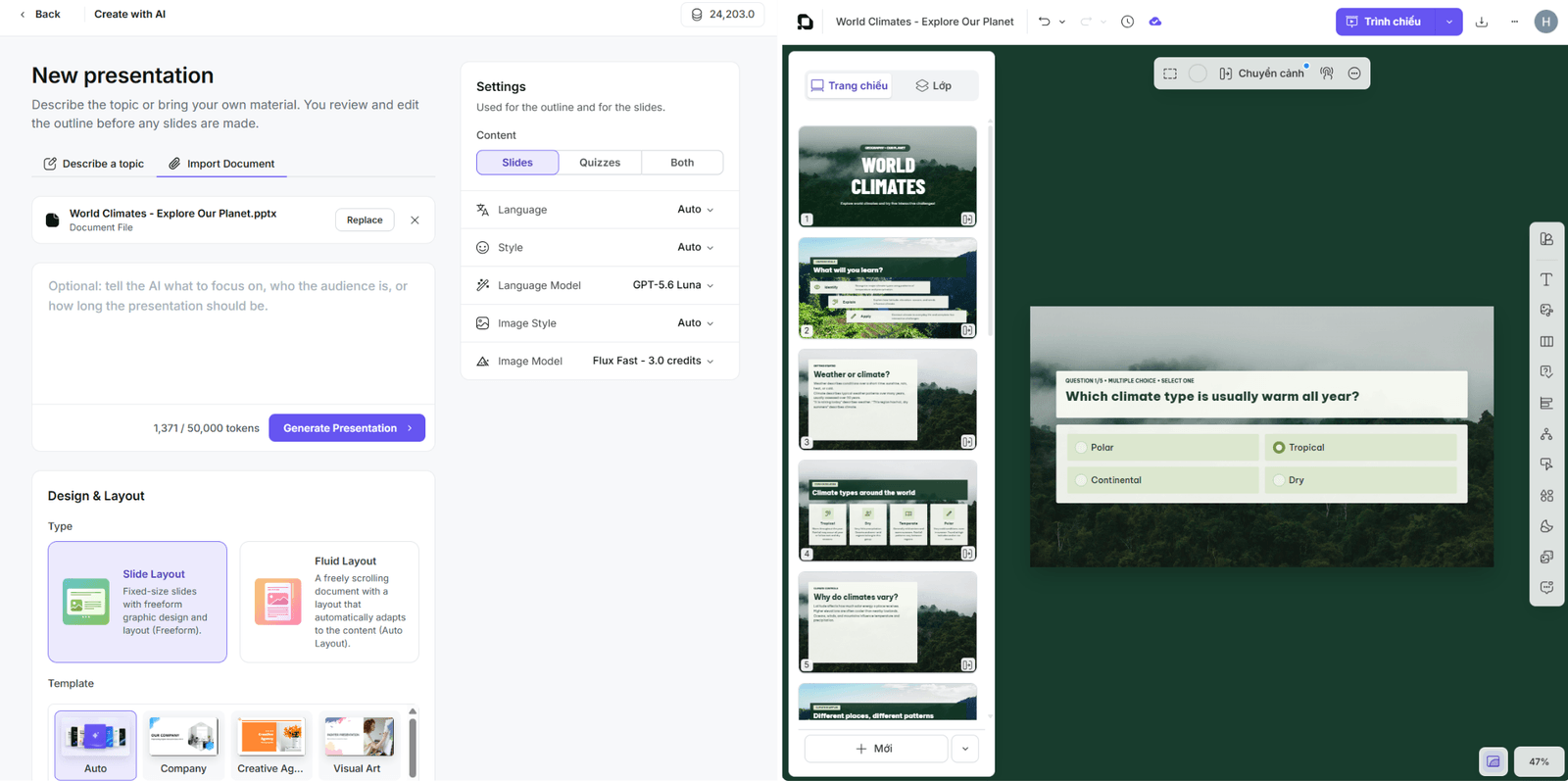
An existing PowerPoint file used to create a new lesson with interactive questions and AI assistance in uPresenter.
This brings lesson preparation, practice activities, and learning assessment together on one platform.
Try creating an interactive eLearning lesson from Word or PowerPoint with uPresenter
7. Frequently Asked Questions
Can PowerPoint be used to create eLearning lessons?
Yes. PowerPoint can be used to create digital learning materials, record narration, and design certain interactive activities. Teachers can also combine it with other tools when they need more advanced grading or student management features.
Do eLearning lessons have to include quizzes?
No. eLearning lessons can include text, images, videos, and other digital materials without quizzes. However, adding questions and interactive activities gives students more opportunities to practice and check their understanding.
Do teachers need programming skills to create interactive eLearning lessons?
No. Many eLearning platforms offer visual editors, ready-made templates, and AI-powered features that help teachers create lessons, add questions, and build interactive activities without any programming knowledge.
Conclusion
PowerPoint and eLearning each have their strengths. PowerPoint is a practical choice for presenting and explaining concepts, while eLearning can bring lesson content, practice, assessment, and progress tracking together.
Interactive eLearning also gives students more opportunities to practice, receive feedback, and check their understanding. Teachers can use either approach—or combine both—to create lessons that best support their learning goals.