
How to Create an Interactive Quiz from PowerPoint, PDF, or Word with AI
Use uPresenter AI to create interactive quiz questions from PowerPoint, PDF, or Word. Follow five steps and try a sample prompt with your class.
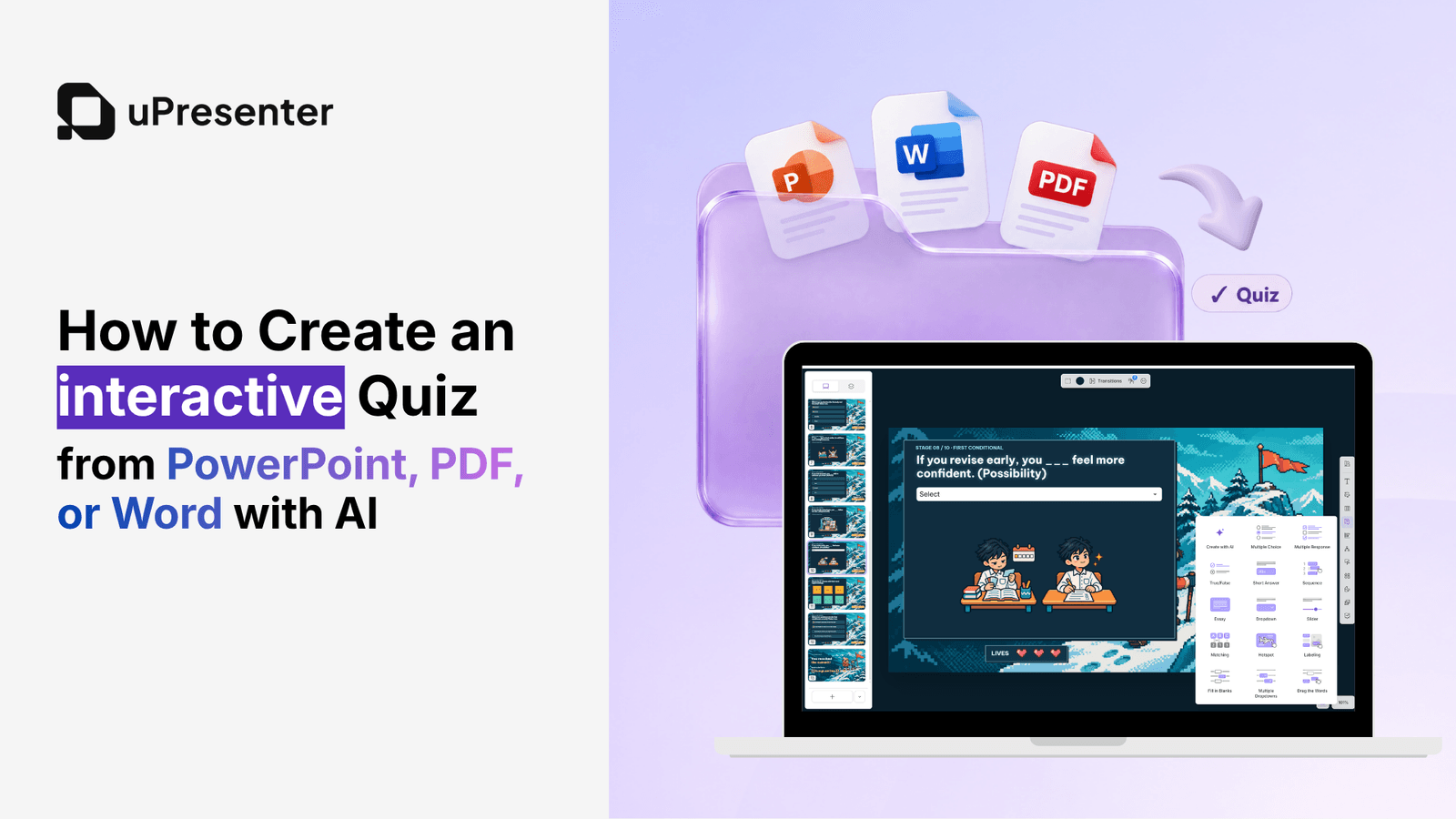
A quick end-of-class quiz might have just five questions, but putting it together still takes time. You have to revisit the lesson, decide what to check, and write the questions and answer choices. For an interactive quiz, you also have to add the questions to slides, set the correct answers, and write feedback.
With uPresenter, you can use AI to create quiz questions from lesson materials you already have in PowerPoint, PDF, or Word. For example, after an English lesson, students can review vocabulary and practice first conditionals right on the slides. This guide walks you through the process and includes a sample prompt you can adapt for your class.
What files can you use to create an interactive quiz?
Source file | How to use it |
PowerPoint (.pptx) | Turn the slides you just taught from into five questions to check understanding at the end of class. |
PDF (.pdf) | Choose a chapter from a PDF and ask AI to draft five multiple-choice questions based on that chapter. |
Word (.docx) | Use a Word lesson plan or outline to write review questions tied to the lesson’s learning objectives. |
uPresenter also accepts Excel (.xlsx) and plain-text (.txt) files. If your PDF is an image-only scan, you may need to run optical character recognition (OCR) first so uPresenter can read the text.
Howto create an interactive quiz from lesson materials using uPresenter AI
Step 1: Sign in and import your file
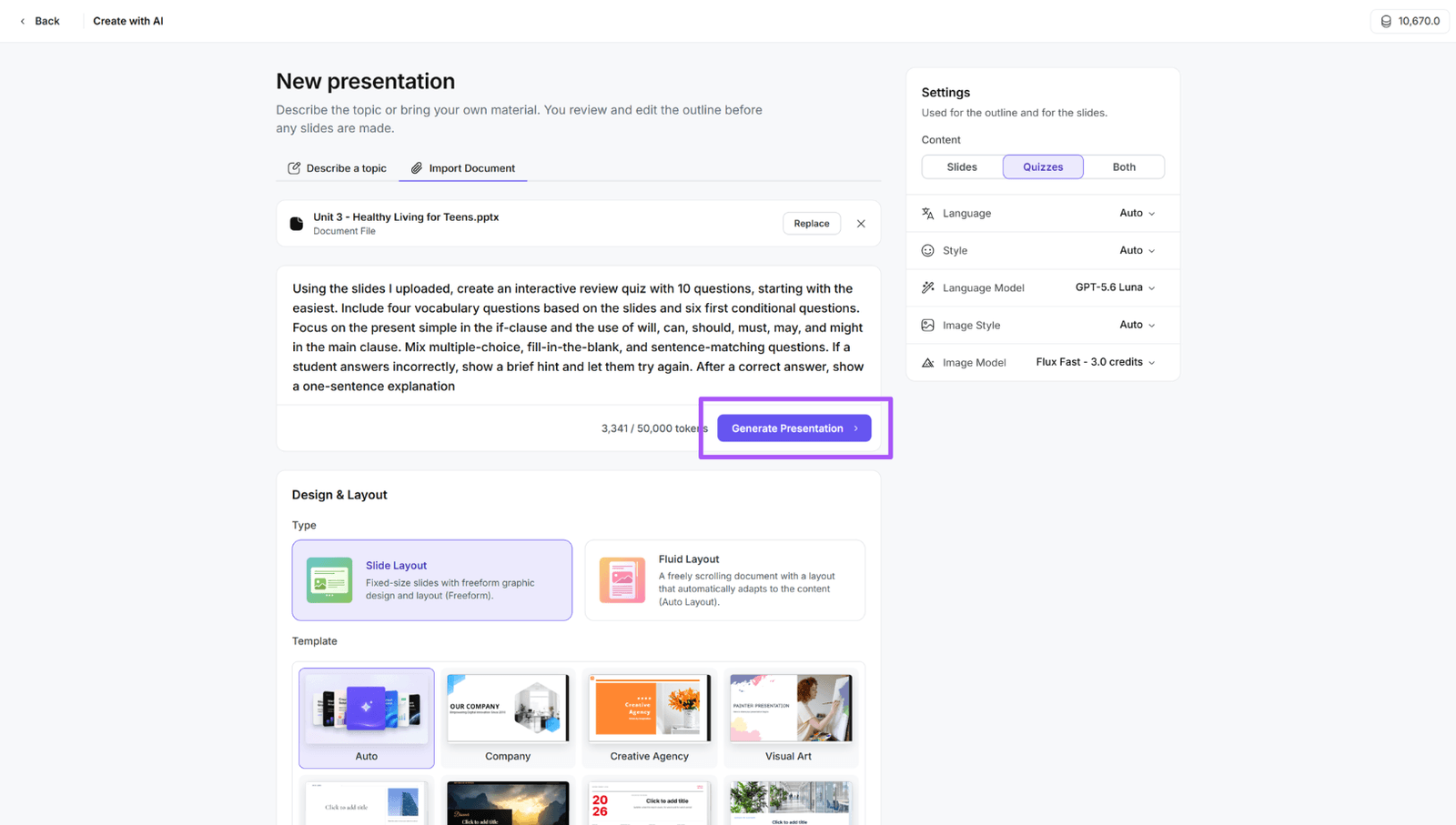
Open uPresenter in your browser and sign in. In My work, select Import Document and upload the PowerPoint, PDF, or Word file you want to use. Once the file name appears, you can tell AI what questions to create.

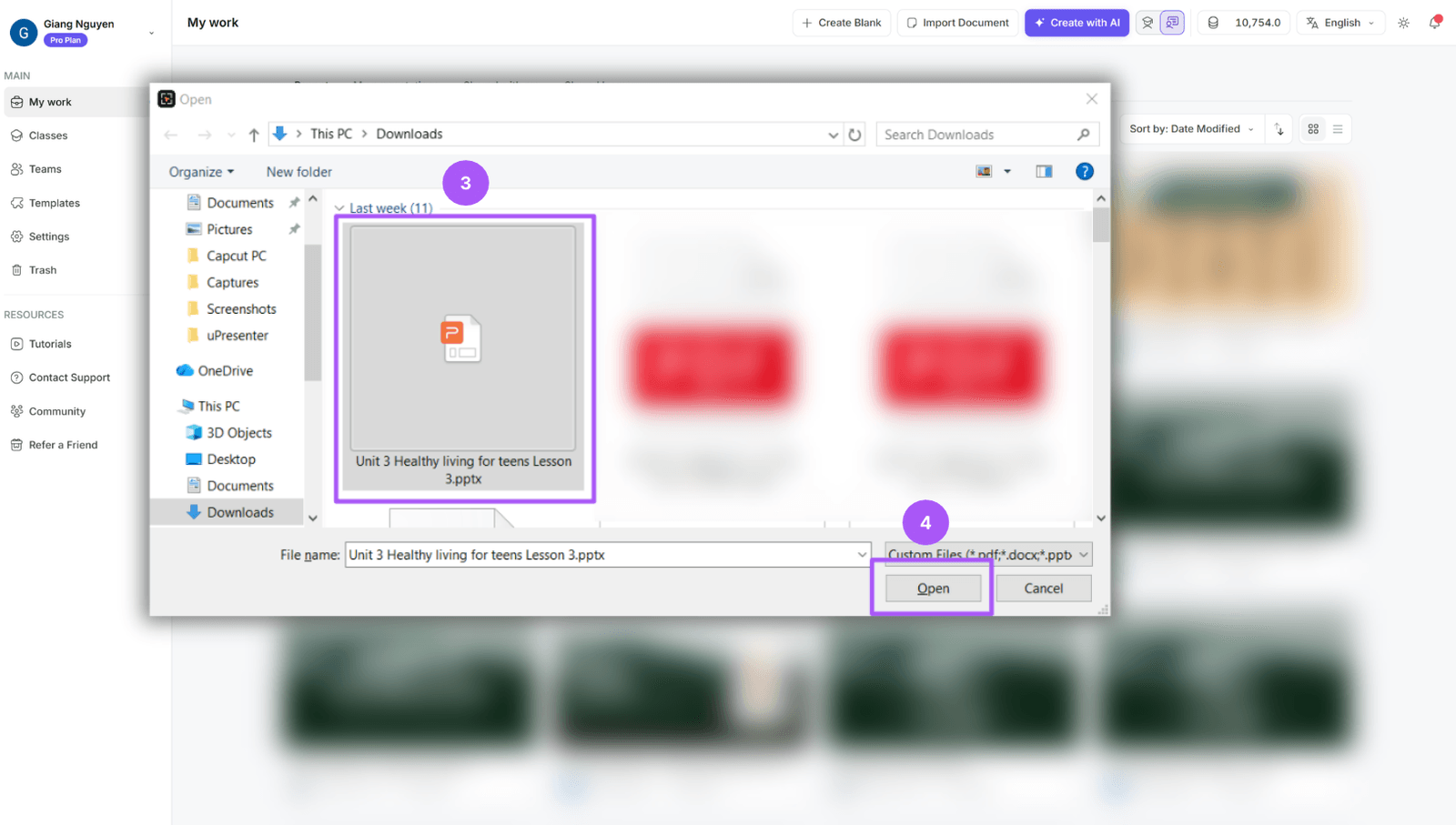
Choose a file with clear content that covers what you want students to review. The upload limit per file is 5 MB on the Free plan and 100 MB on the Pro plan.
Step 2: Write a prompt and choose quiz mode
In the Prompt field, specify the topics to review, the learners’ level, and how many questions of each type you want.
Sample prompt: “Using the slides I uploaded, create an interactive review quiz with 10 questions, starting with the easiest. Include four vocabulary questions based on the slides and six first conditional questions. Focus on the present simple in the if-clause and the use of will, can, should, must, may, and might in the main clause. Mix multiple-choice, fill-in-the-blank, and sentence-matching questions. If a student answers incorrectly, show a brief hint and let them try again. After a correct answer, show a one-sentence explanation.”
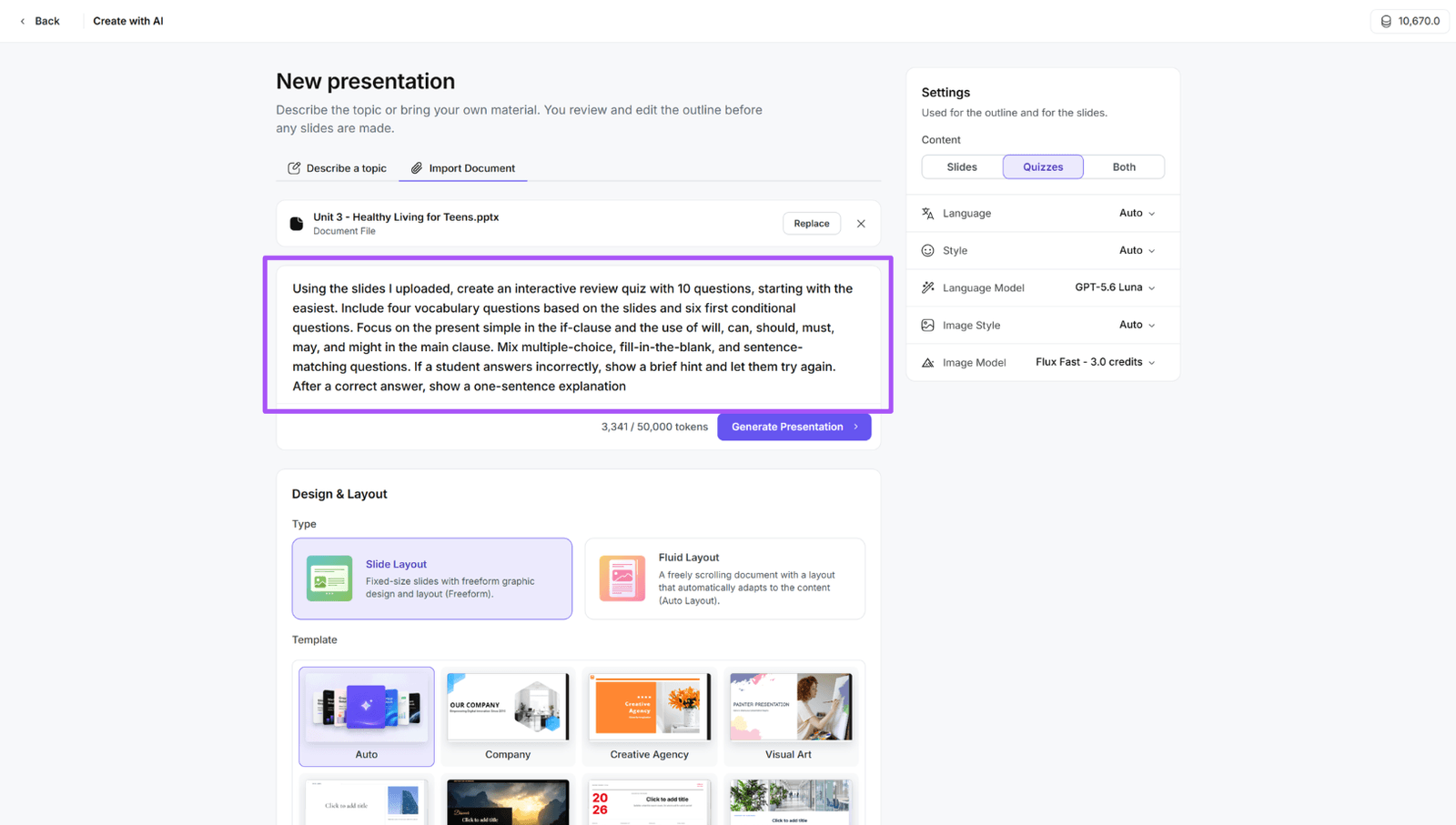
Under Settings, choose the quiz-only content option. You can also adjust the language, style, language model, image style, and image model. Under Design & Layout, choose a layout and a template that suit your quiz.
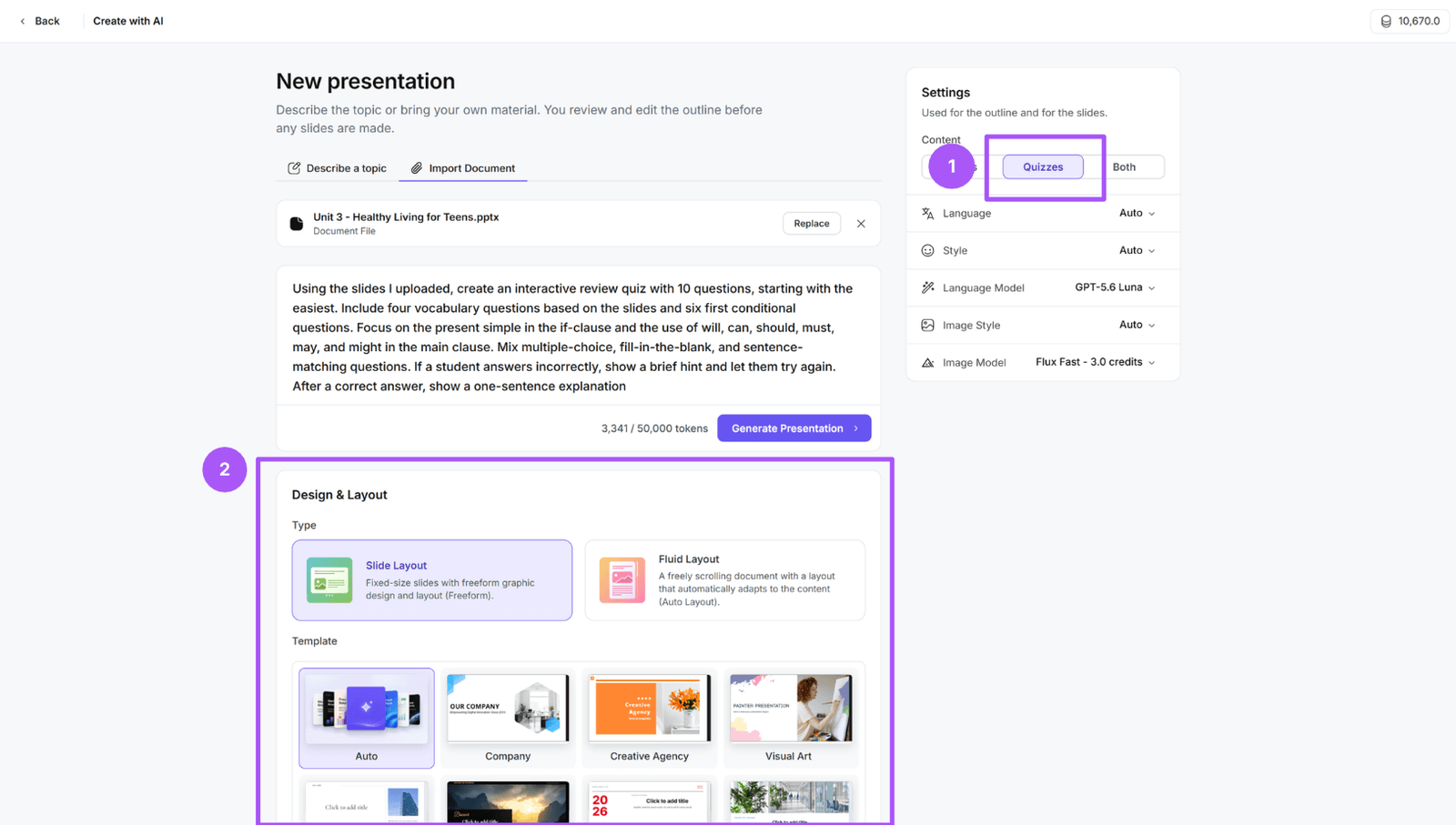
Step 3: Generate the interactive quiz
Select Generate Presentation to create quiz slides from your document and prompt. When the draft opens in the editor, scan the slide list to check the number, order, and types of questions. Then open each question to review its content.
Step 4: Edit the questions
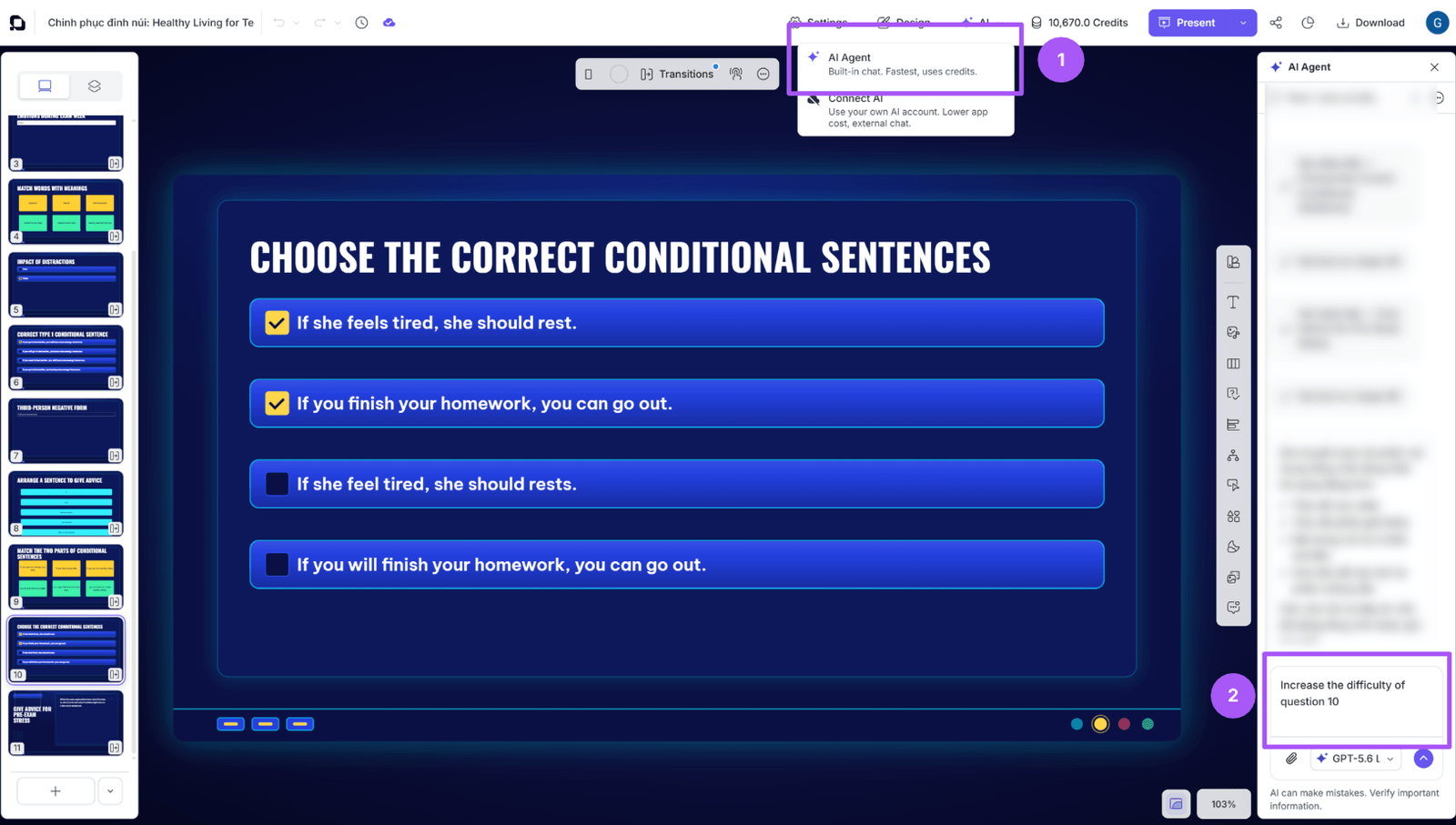
Once the quiz is ready to review, you can edit the questions, answer choices, correct answers, scores, and feedback.
You can revise the draft in two ways.
- Edit manually: Change the text, images, layout, questions, and answers directly in the editor.
- Edit with AI: Open AI → AI Agent and describe what you want to change in the lesson content or design.
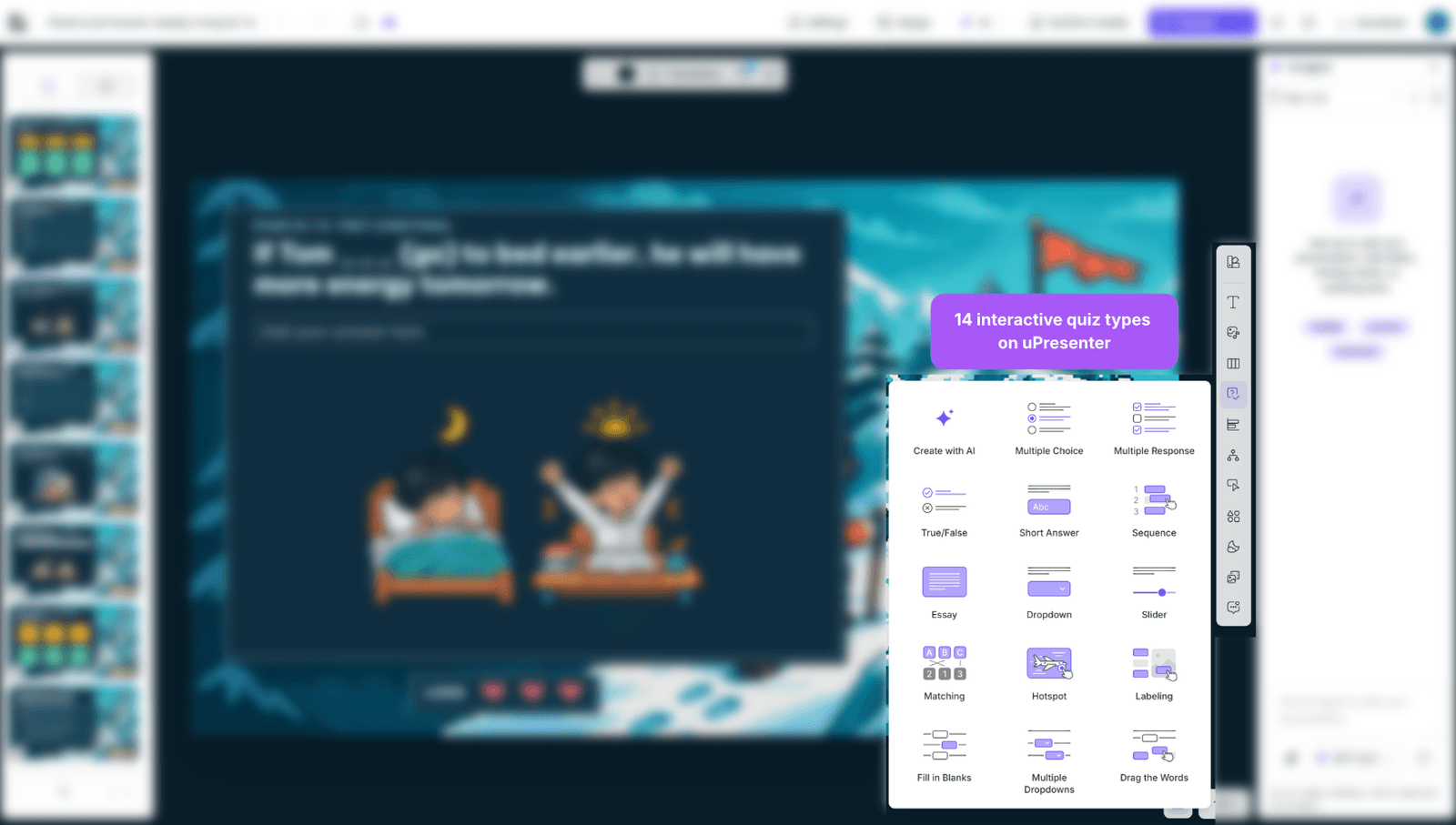
Open Questions in the editor to add any of uPresenter’s 14 interactive question types. For questions with predefined choices, you can use Multiple Choice, Multiple Response, True/False, Dropdown, or Multiple Dropdowns. For typed responses, choose Short Answer, Fill in Blanks, or Essay. You can also use Sequence, Matching, Drag the Words, Slider, Hotspot (select an area on an image), or Labeling.
Step 5: Preview and finalize your quiz
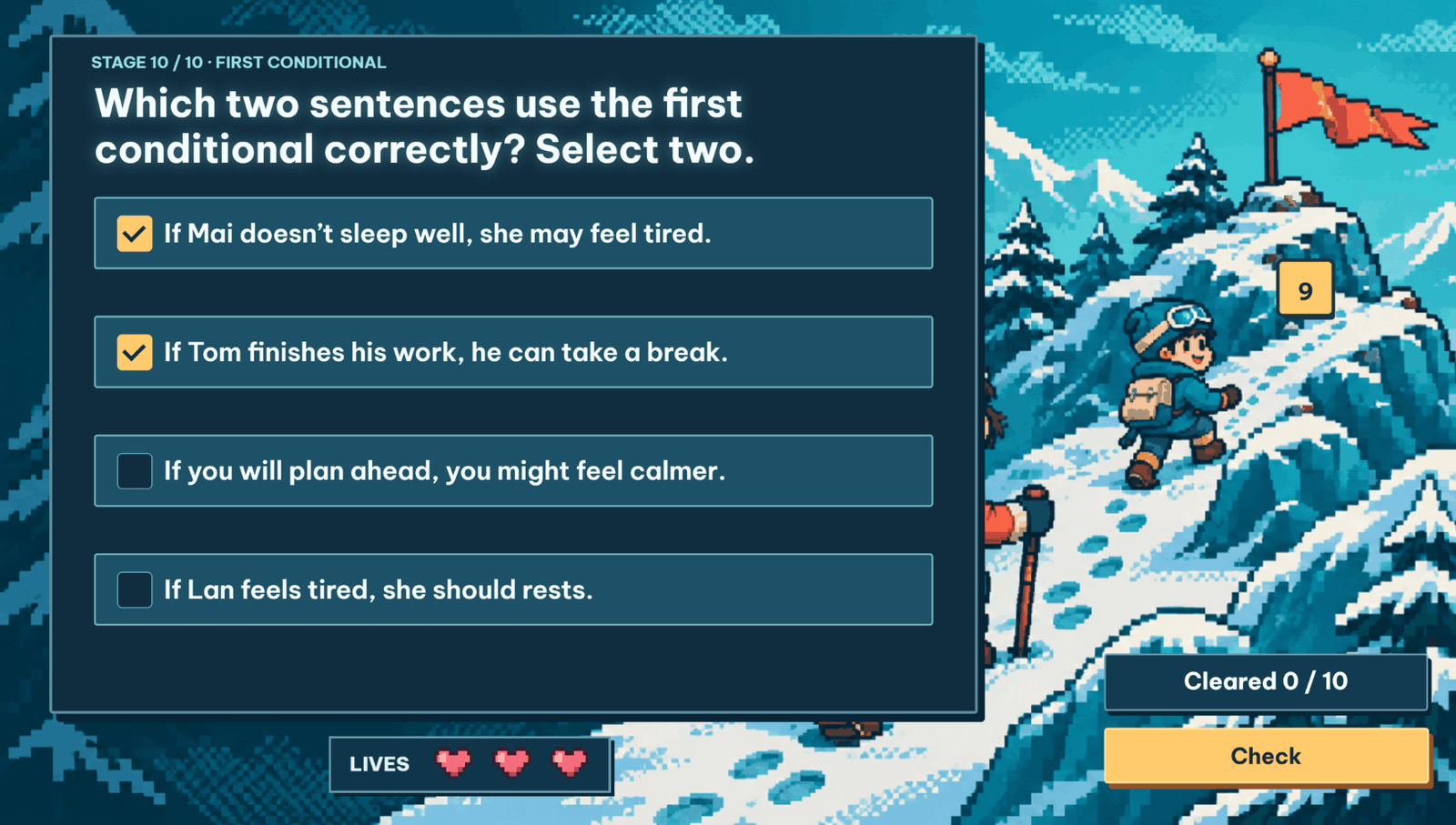
Select Present and take the quiz as a student would. Check that the questions match the lesson, the correct answers are set, and the feedback helps learners understand their mistakes. When the quiz is ready, run it at the end of class or share it for independent practice.
Track class progress and quiz scores
After previewing the quiz, assign it to your students in uPresenter Classes. In Teacher View, open the class and select the Students tab to see the class completion rate, pass rate, and average score.
To check the quiz you just assigned, open the Lessons tab and select Report next to the quiz. You can see who has started or finished, along with each learner’s score and number of attempts.
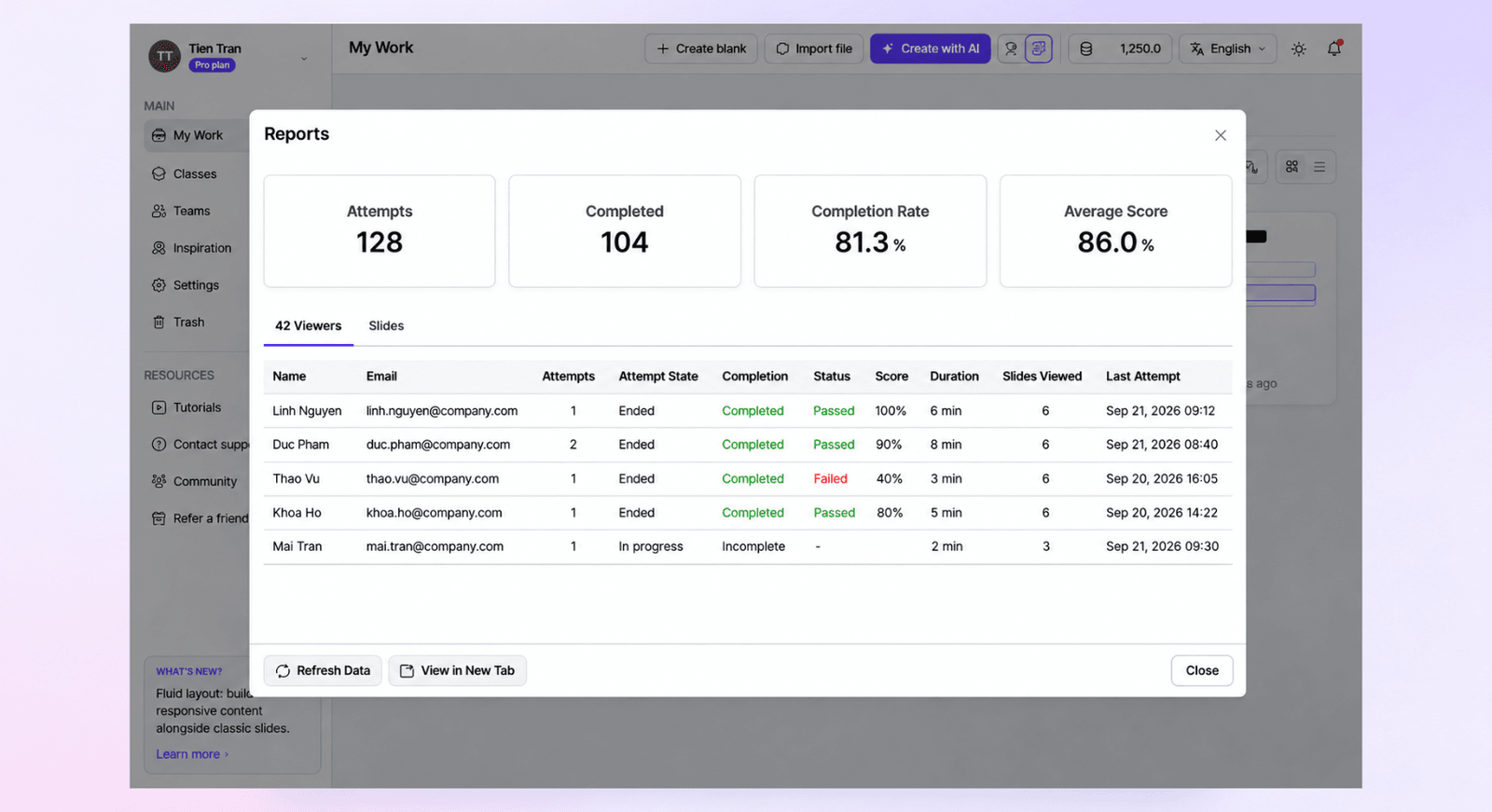
On the Pro plan, Reports & Analytics lets you open individual attempts to see each answer and its score. For example, if several learners get the same first conditional question wrong, you can review the question and spend a few minutes revisiting the topic at the start of your next class.
Frequently asked questions
Can I create quiz questions from just part of a lesson?
Yes. In the prompt, specify the section, page numbers, or slide range you want AI to use. For instance, if the lesson covers vocabulary and grammar, you can ask AI to write questions only about the first conditional. Check the draft to make sure the questions stay within that scope.
Can I mix different question types in one quiz?
Yes. You can ask AI to mix multiple-choice, true/false, fill-in-the-blank, and matching questions. If you have a format in mind, specify how many of each type you want, such as four multiple-choice, three fill-in-the-blank, and three matching questions. You can review and adjust them in the editor afterward.
Can I edit the correct answers and feedback after AI generates the quiz?
Yes. In the editor, you can change each question’s correct answer, score, and feedback. To get help rewriting a question, changing its type, or adding a hint, open AI → AI Agent and identify the question you want to edit. Then use Present to check what feedback learners see when they answer.
Create a quiz from your next lesson
Pick a PowerPoint, PDF, or Word file you already use and choose a topic your students often get wrong. Try uPresenter to draft an interactive quiz on that topic. Check the correct answers and add explanations where students are likely to make mistakes. Use the quiz at the end of class to see how much students understood, or share it for practice after class.