
8.1: Choose A Question Type And Create With AI
A good assessment asks learners to demonstrate the intended outcome in a form that is easy to understand and fair to complete. uPresenter provides quick checks, typed responses, ordering and matching activities, image-based interactions, and AI-assisted question creation.
In this section, you will compare the available question types and choose between manual and AI-assisted creation.
1. Open The Question Gallery
Open a presentation in the editor, select the slide where the activity should appear, and select Questions in the toolbox.
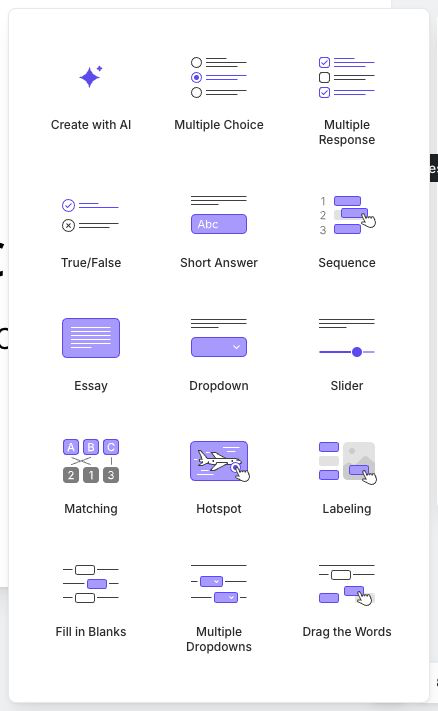
The gallery currently provides Create with AI and fourteen manually inserted question types.
2. Match The Question Type To The Evidence
| Question type | Use it when the learner should |
|---|---|
| Multiple Choice | Select one answer from several choices. |
| Multiple Response | Select every answer that applies. |
| True/False | Judge one statement using two alternatives. |
| Short Answer | Type a brief response that can be compared with accepted answers. |
| Sequence | Put steps, events, or stages in the correct order. |
| Essay | Write an extended response for reflection or later review. Essay starts in Survey mode by default. |
| Dropdown | Choose one answer from a compact list. |
| Slider | Choose a numeric value on an authored range. |
| Matching | Pair related terms, examples, definitions, or categories. |
| Hotspot | Select one or more authored regions on an image or visual. |
| Labeling | Place or associate labels with locations on an image. |
| Fill in Blanks | Complete one or more missing parts of a sentence or passage. |
| Multiple Dropdowns | Complete several positions in a passage by choosing from lists. |
| Drag the Words | Move supplied words into their correct positions. |
Prefer a short, direct question when it can test the outcome. Use a richer interaction only when ordering, location, pairing, or construction is part of what the learner needs to demonstrate.
3. Decide Between Graded And Survey Use
Most question types can use Graded or Survey mode under Properties > Question > Score & Reporting.
- Use Graded when the response has a correct answer and should contribute points to the presentation score.
- Use Survey when you want to collect an opinion, reflection, confidence rating, or other response that should not be judged as correct or incorrect.
Do not assign a correct answer to a genuine opinion question. If an essay needs instructor evaluation outside the automatic score, keep it in Survey mode and explain how the response will be reviewed.
4. Create A Question With AI
Select Create with AI to open Create a question with AI.
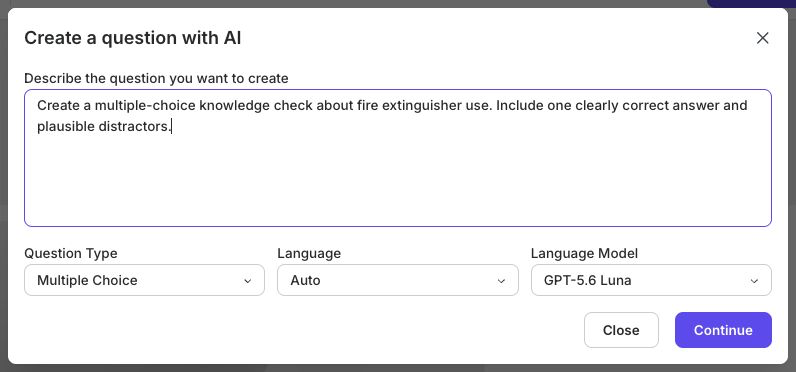
- In Describe the question you want to create, describe the topic, audience, difficulty, intended learning outcome, and any constraints. Include the facts the question should test.
- Choose Question Type. The AI dialog supports the types shown in its list; image-region activities such as Hotspot and Labeling must be built manually.
- Choose Language or leave it on Auto when the reference text already makes the intended language clear.
- Choose the Language Model. A lower-tier model can produce less complete or less polished output.
- Select Continue and wait for the generated question to be inserted.
AI generation uses credits. If the workspace does not have enough credits, the editor offers a path to get more credits instead of creating the question.
Treat the result as a draft. Check the wording, factual accuracy, plausible distractors, correct-answer state, points, attempts, feedback, and accessibility before publishing.
5. Generate Assessments From Existing Material
For a presentation or assessment based on a source document, begin from the dashboard's Import Document flow rather than the single-question dialog. The current import accepts PDF, DOCX, PPTX, XLSX, and TXT files. Choose Quizzes or Slides & Quizzes as the content type, review the generated outline, and then review every generated question in the editor.
Import supports a larger source, but it does not guarantee that every generated statement is correct or supported by that source. Keep the original material available while checking the result.
Quick Check
Before creating the activity, make sure that:
- the question type matches the evidence the learner should provide;
- Graded or Survey reflects the purpose of the response;
- the question can be completed without unnecessary interaction or ambiguity;
- AI-generated content will receive a factual and instructional review; and
- the planned interaction will still be usable at the learner's expected screen size.
Previous: Create Speech And Record Audio · Next: Create Choice Questions · Back to Part VIII · Back to the full guide