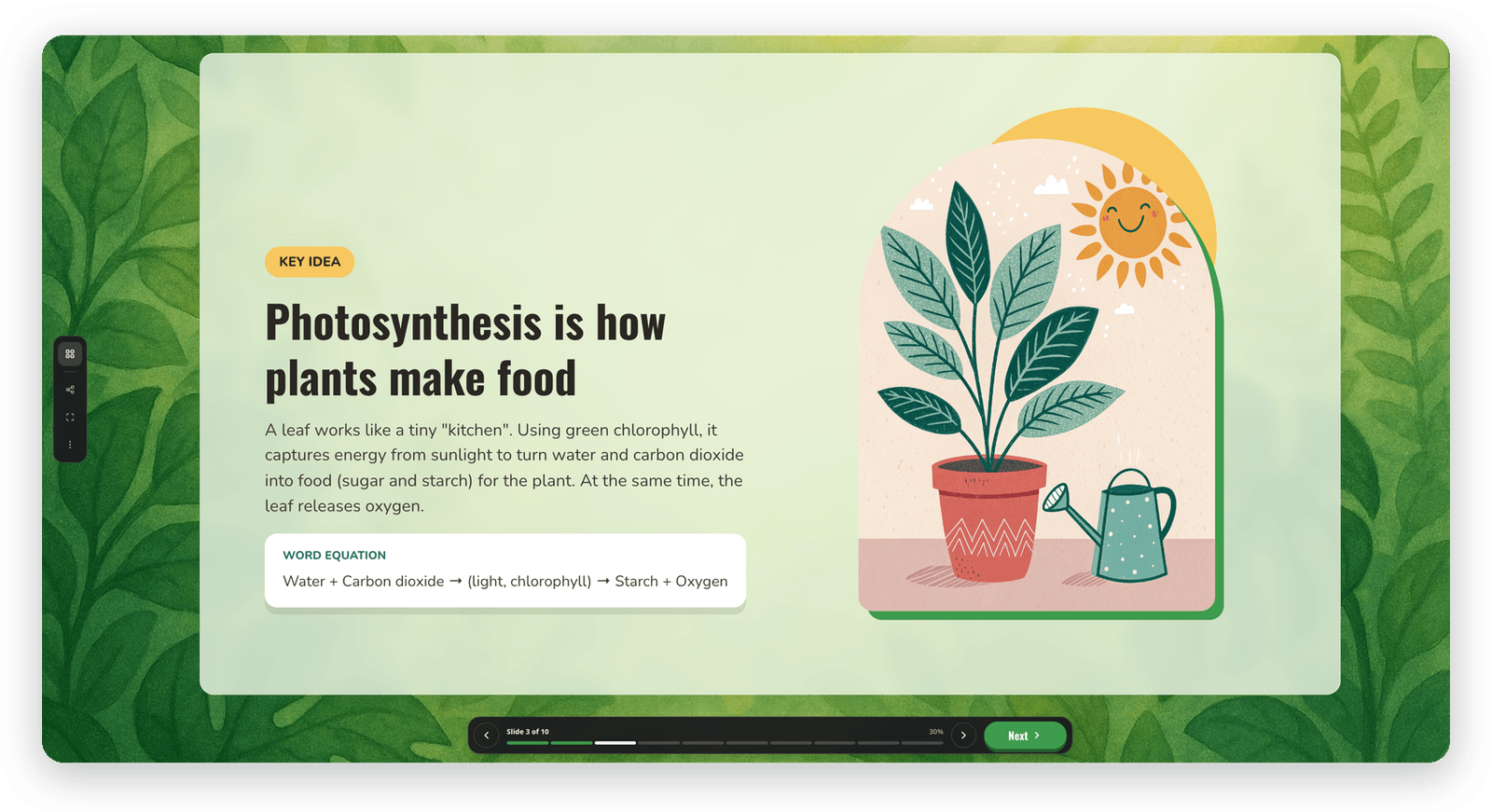
Introducing the uPresenter Plugin: Build Interactive Lessons Right Inside Claude and ChatGPT
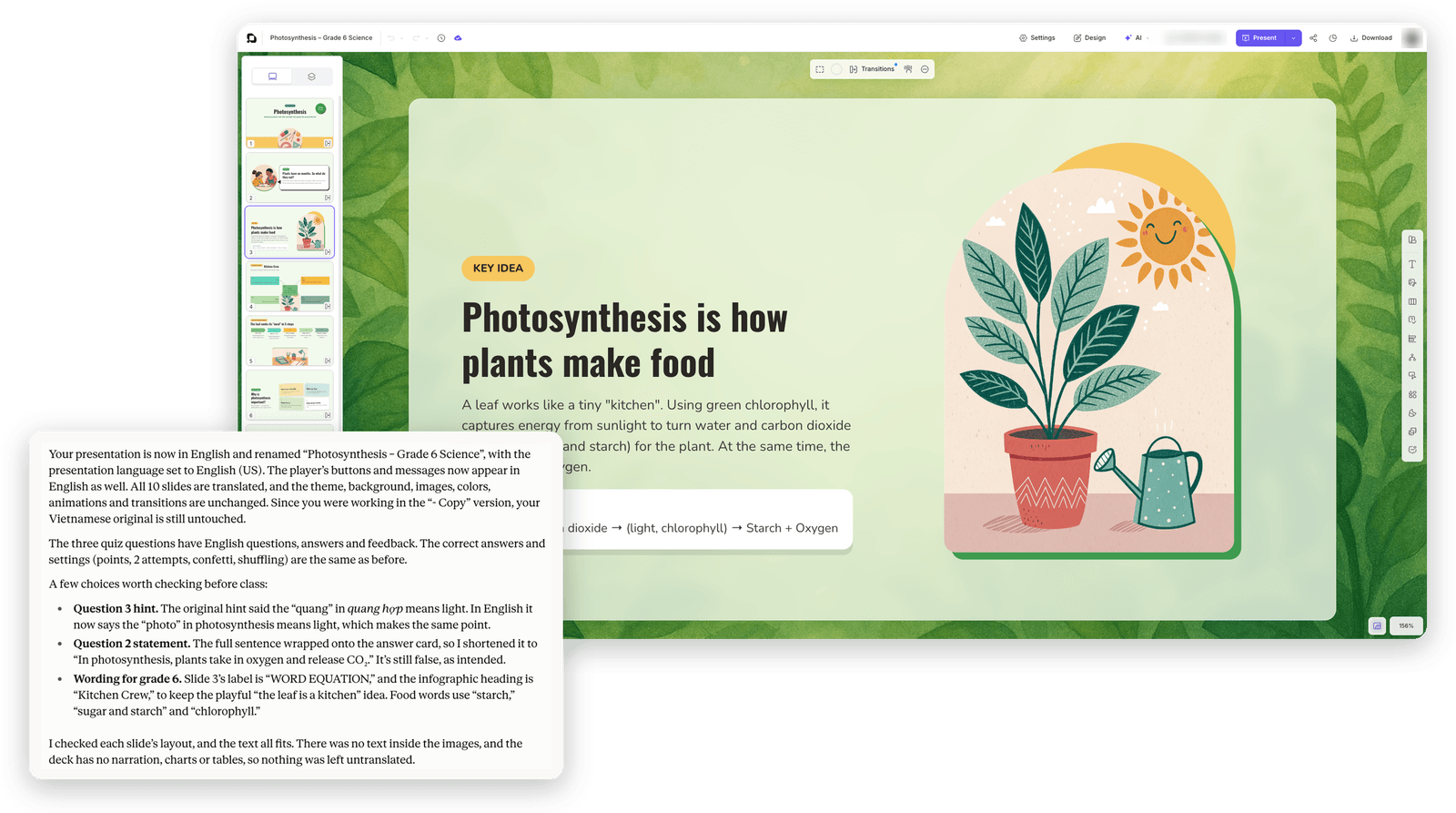
The uPresenter plugin is now available: describe your lesson in Claude or ChatGPT, and the assistant builds the slides in your uPresenter account while you watch every change appear in the editor.
Version 1.2.1, released October 16, 2026. Works in Claude Code, Claude (desktop and web) and ChatGPT (the Codex mode of the ChatGPT desktop app, plus the Codex CLI and IDE extensions).
If you already work in Claude or ChatGPT, you no longer have to copy text back and forth between the chat and uPresenter. The uPresenter plugin is now available: you describe the lesson in the chat, the assistant builds the slides in your uPresenter account, and you watch every change appear in the editor you have open.
"Make a 10-slide lesson on photosynthesis for grade 6, in a friendly tone, with a short quiz at the end."
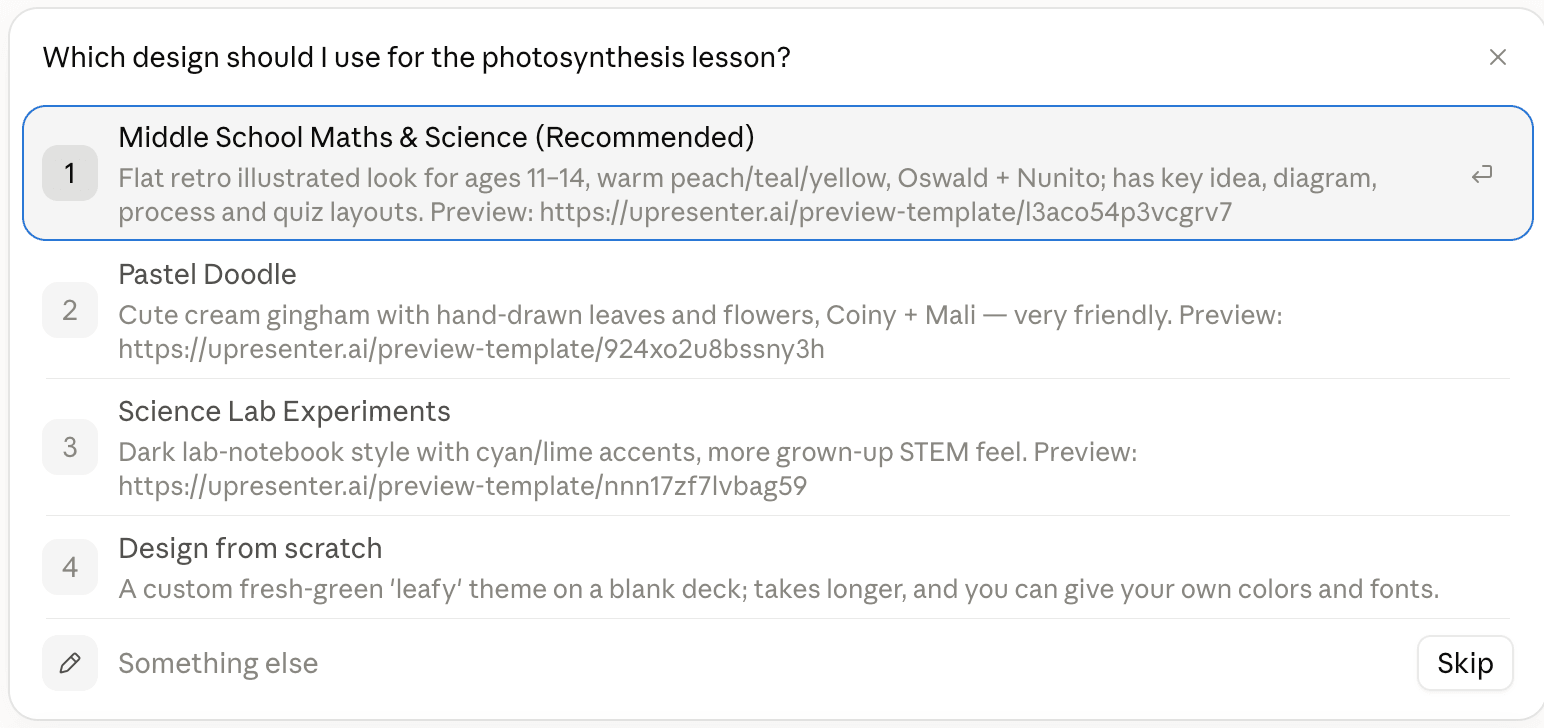
From one sentence like that, the assistant suggests a few templates that suit the topic, plus Design from scratch if you would rather start from a blank deck. Once you pick one, it sends you a link that creates the new presentation. Open the link in your browser and keep that tab open: the assistant inserts slides from the template, replaces the sample text with your content, adds the quiz and checks its own work.
How is this different from the AI options already in uPresenter? AI Agent runs inside the editor and uses uPresenter credits. Connect AI links your assistant to one presentation. The plugin works across your whole account from Claude or ChatGPT, runs on your own AI subscription, and knows how to pick a template and build a complete lesson.
What the plugin can do
The plugin does two things. It connects the assistant to your uPresenter account, and it teaches the assistant how to build a good lesson. Its ten skills cover almost everything you do in the editor:
You want to | The assistant will |
|---|---|
Create a lesson, presentation or pitch deck | Pick a template from the gallery, or design from scratch with your own theme, colors and fonts |
Make a scrolling lesson that reads well on phones | Build a fluid presentation from fluid templates such as Employee Handbook and Project Report |
Add a quiz | Write questions in 14 types, with scoring, feedback and a results screen |
Make slides interactive | Add click-to-reveal, tabs, flip cards, hotspots, variables and conditions |
Build a learning game | Set up a quiz show with lives, a Jeopardy board, an escape room, dice and timers |
Add motion | Add slide transitions, per-object animations and self-running decks |
Edit or translate an existing deck | Rewrite text, restyle, reorder slides, translate into another language |
Check a deck before you share it | Find overflowing text, leftover sample content, quiz mistakes and poor contrast |
Set up learner tracking | Set the pass mark, attempts and player mode, and explain how to export SCORM or xAPI |
You can write in English, Vietnamese or any other language. When you need to decide something (a template, a style, a language), the assistant shows a choice picker right in Claude or ChatGPT, with the recommended option first.
The plugin is for creating and editing content. You still do the following in uPresenter yourself: exporting to PDF, HTML5, SCORM or xAPI, sharing and publishing, reports, classes, your account and credits, and making new pictures with AI.
Safe and under your control
- Sign in and approve once. The assistant never sees your password.
- The assistant only edits the presentation you have open in the editor. Every change happens in front of you and can be undone.
- Remove access at any time under Settings > Connected apps.
- A free uPresenter plan is enough to connect. The plugin runs on your Claude or ChatGPT subscription, not on uPresenter credits.
Install
Claude Code:
claude plugin marketplace add uLearnBox/upresenter-plugin
claude plugin install upresenter@upresenter
Then type /mcp, choose upresenter and select Authenticate to sign in. Turn on automatic updates right away: type /plugin, open the Marketplaces tab, choose upresenter and select Enable auto-update.
Claude desktop and web: open Settings and choose Plugins in the Customize group. Once uPresenter is listed in the Plugins directory, find it there and select Install. Until then, download the .zip or .plugin file from the releases page and add the plugin from the file. Then open the plugin page, go to the Connectors tab and select Connect. Claude shows an Add custom connector dialog with the uPresenter address already filled in: select Continue, keep the default settings, select Add, and then select Connect again to sign in.
ChatGPT (Codex): run these commands in a terminal:
codex plugin marketplace add uLearnBox/upresenter-plugin
codex plugin add upresenter@upresenter
codex mcp login upresenter
Then restart the ChatGPT desktop app, switch to Codex and open a new thread. If you use Codex in an IDE, restart the IDE.
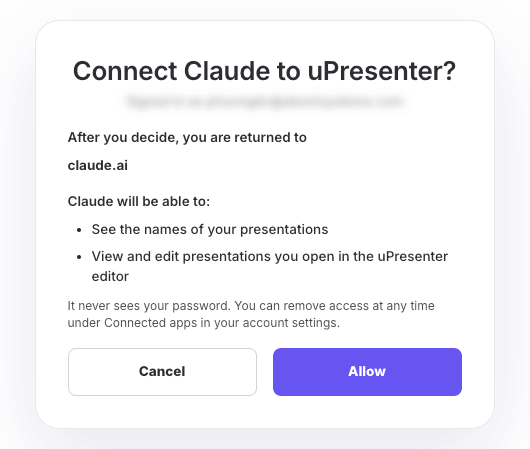
When you sign in, the Connect ... to uPresenter? page shows which account is being connected and what the assistant will be allowed to do. Read it, then select Allow. After that, start a new chat and describe the lesson you want.
The full guide, including tips for writing good prompts and troubleshooting, is in Use uPresenter From Claude Or Codex in the User Guide.
What's new in 1.2.1
This release already includes the latest updates:
- The add-motion skill: more than 30 slide transitions, delayed and staggered animations, autoplaying video and audio, and self-running decks for kiosks.
- New player layouts: Dock, Course and Side rail, alongside Classic and Floating in Player Settings. You can pick one yourself or ask the assistant. The Submit / Next button now takes its color, corner radius and font from the deck's theme.
- Game templates work right away: decks made from Dice Arena, Jeopardy or Escape Room keep all their variables (score, lives, conditions), and slide jumps point to the right slides.
- More accurate slide previews: the assistant draws slide images in your editor tab, including unsaved changes and custom fonts, so its self-checks match what you see.
- More tools: group and ungroup objects, flip images, lock objects, use the resource library, and read and reply to slide comments. When suggesting templates, the assistant also puts the newest ones first.
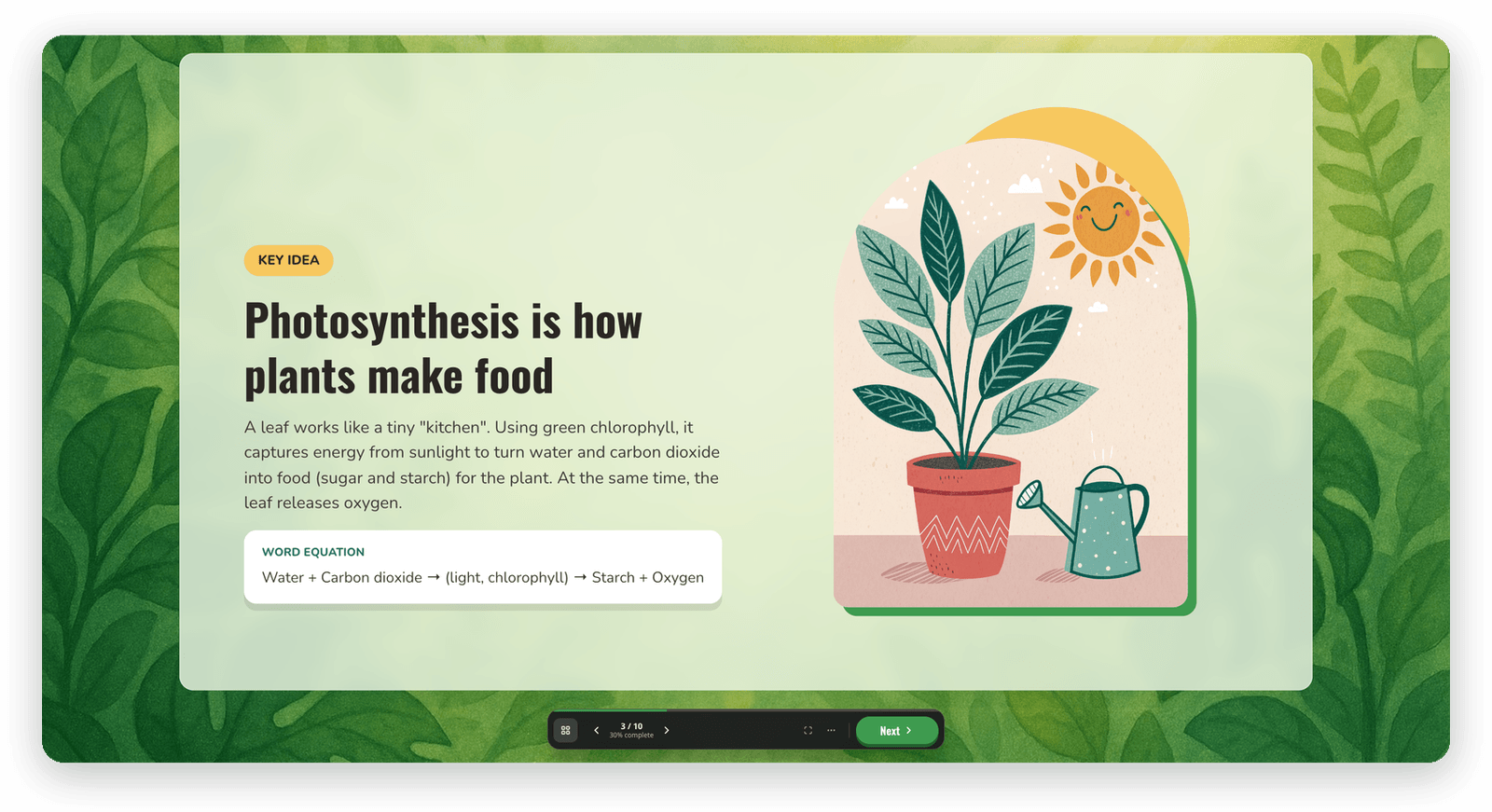
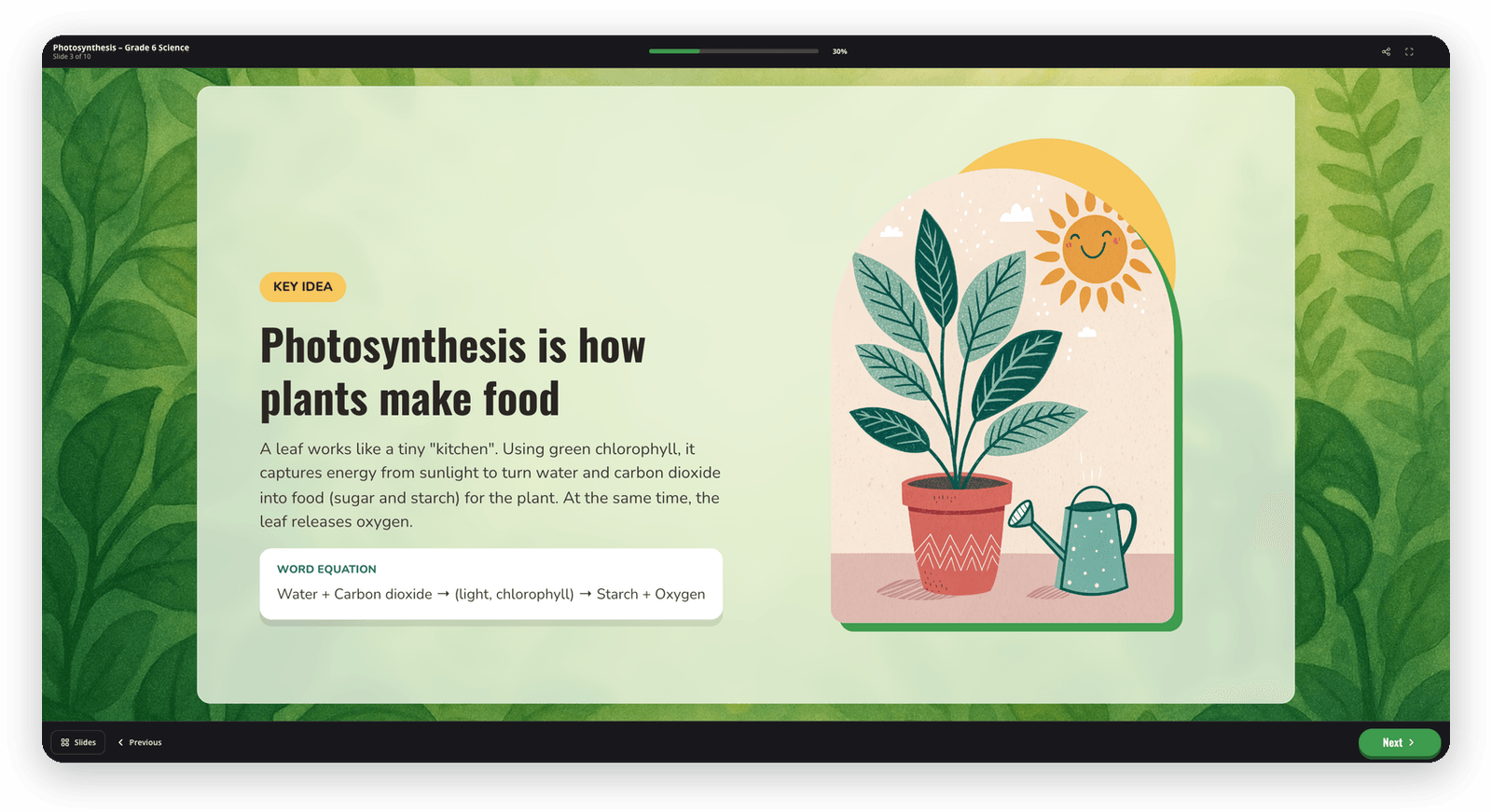
The photosynthesis lesson in the three new layouts:
Dock
Course
Side rail