
17.3: Assign And Sequence Lessons
Class lessons are native uPresenter presentations assigned to an enrolled group. In this section, you will add lessons, set class-specific attempt limits, arrange their order, and optionally require learners to complete them in sequence.
1. Add Lessons To A Class
- In Teacher View, open the class and select Lessons.
- Select Add Lessons at the top of the class page. It stays visible on every tab, beside Invite Students.
- Choose one or more of your available presentations.
- Confirm the selection.
A presentation already assigned to the class is not added a second time. Adding it to a class does not require an LMS export.
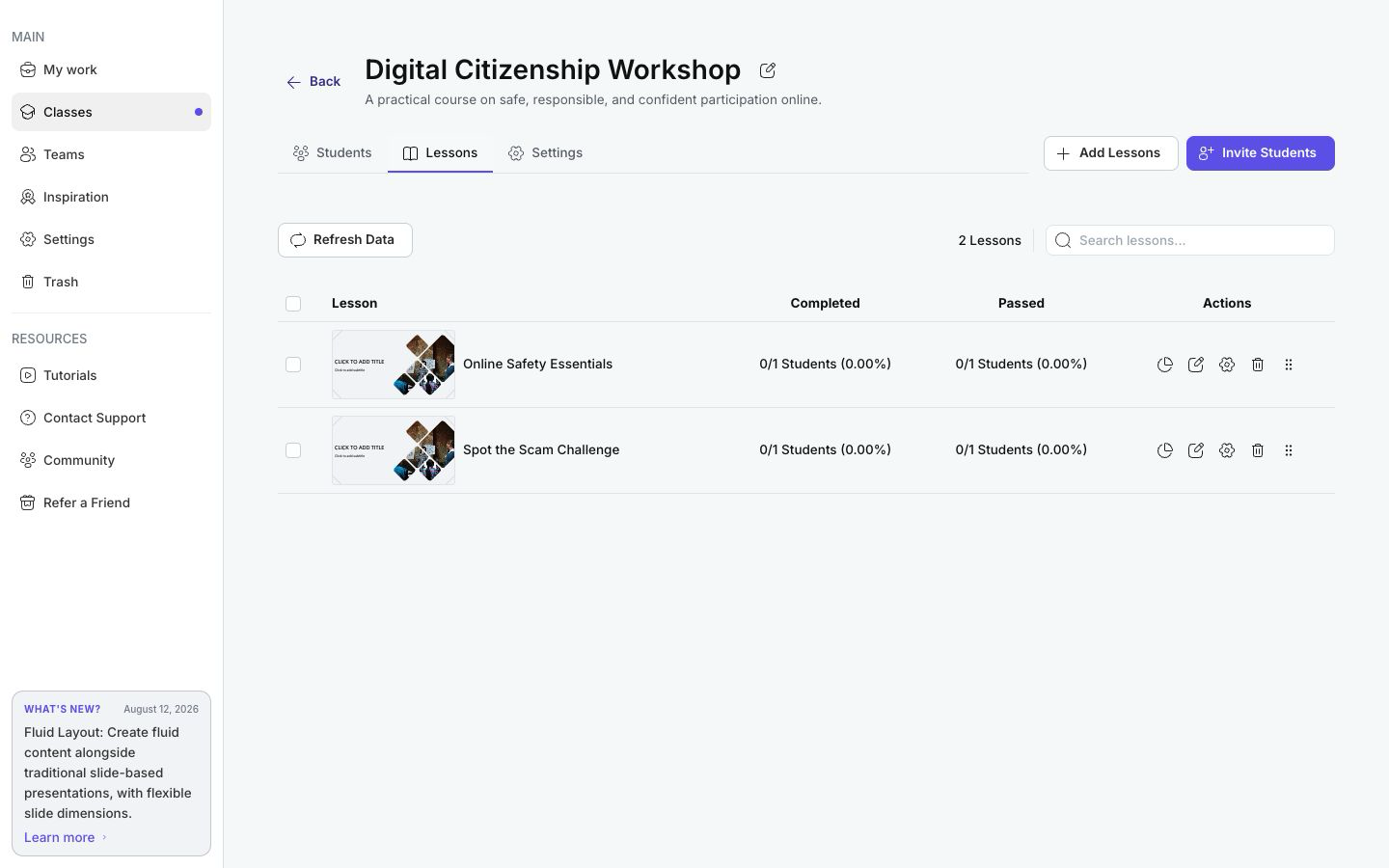
Each row shows how many enrolled students have completed and passed the lesson. Its actions let you open Reports, Edit the source presentation, change Lesson Settings, or Remove the assignment.
Removing a lesson takes it out of this class; it does not delete the source presentation from your library. Review the impact on the class learning record before removing an active assignment.
2. Reorder Lessons
Drag a lesson by its reorder handle and drop it in the intended position. The displayed order matters whenever sequential completion is enabled, so place prerequisite lessons first.
After reordering, switch briefly to Student View and check My Learning if you need to confirm the learner-facing sequence.
3. Set The Attempt Limit
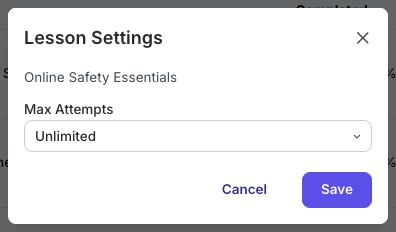
- On the Lessons tab, select Lesson Settings for the lesson.
- Open Max Attempts.
- Choose Unlimited, a preset from 1 through 10, or enter a whole number from 1 through 500.
- Select Save.
The limit applies to this class assignment. Use a finite number for controlled assessments and Unlimited for practice or review. Once a learner reaches the limit, the lesson card provides results access instead of starting another attempt.
4. Require Sequential Completion
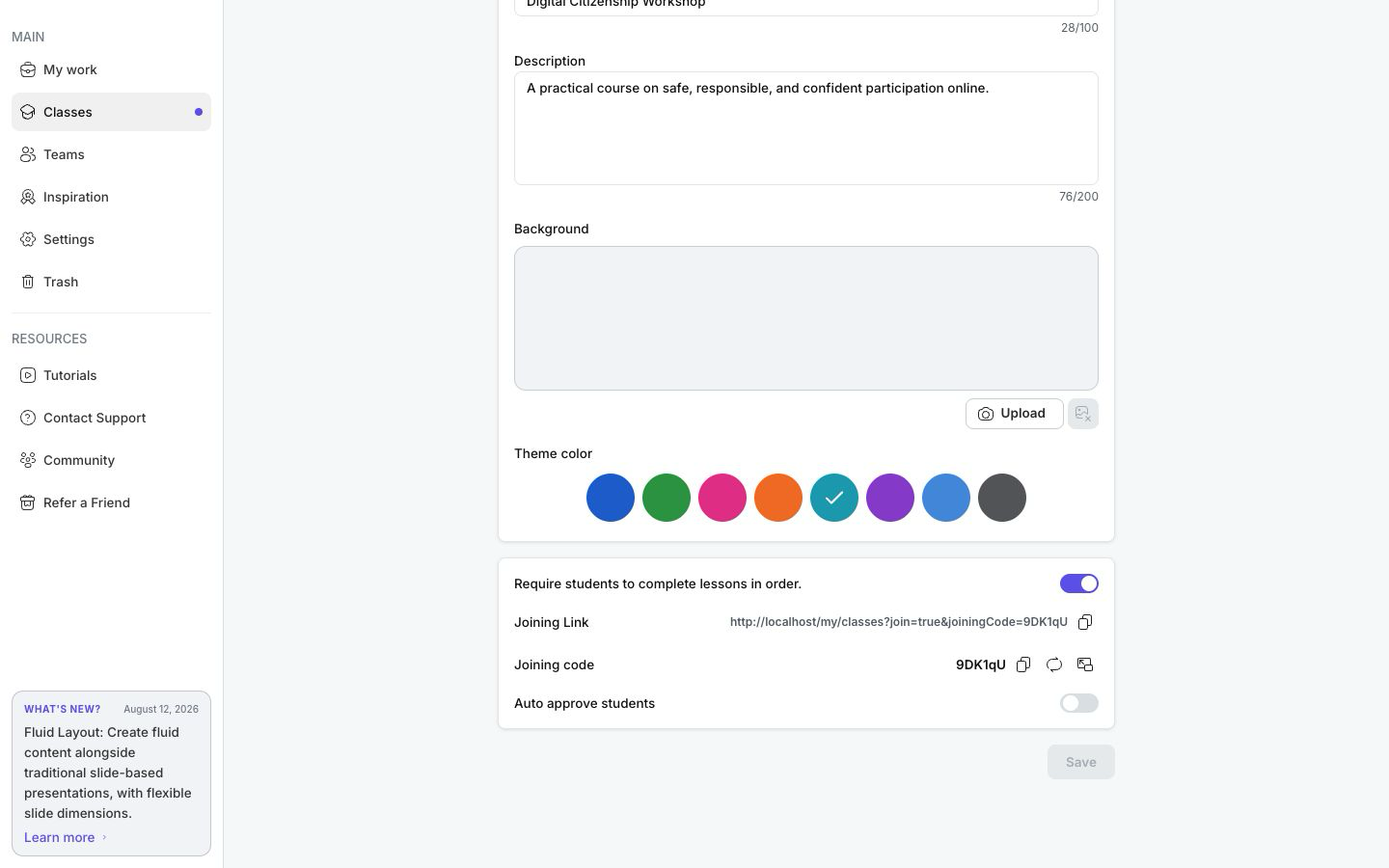
- Open the class Settings tab.
- Turn on Require students to complete lessons in order.
- Select Save.
The first lesson remains available. Each later lesson stays locked until the learner completes every earlier lesson. The rule checks completion, not whether an earlier lesson was passed.
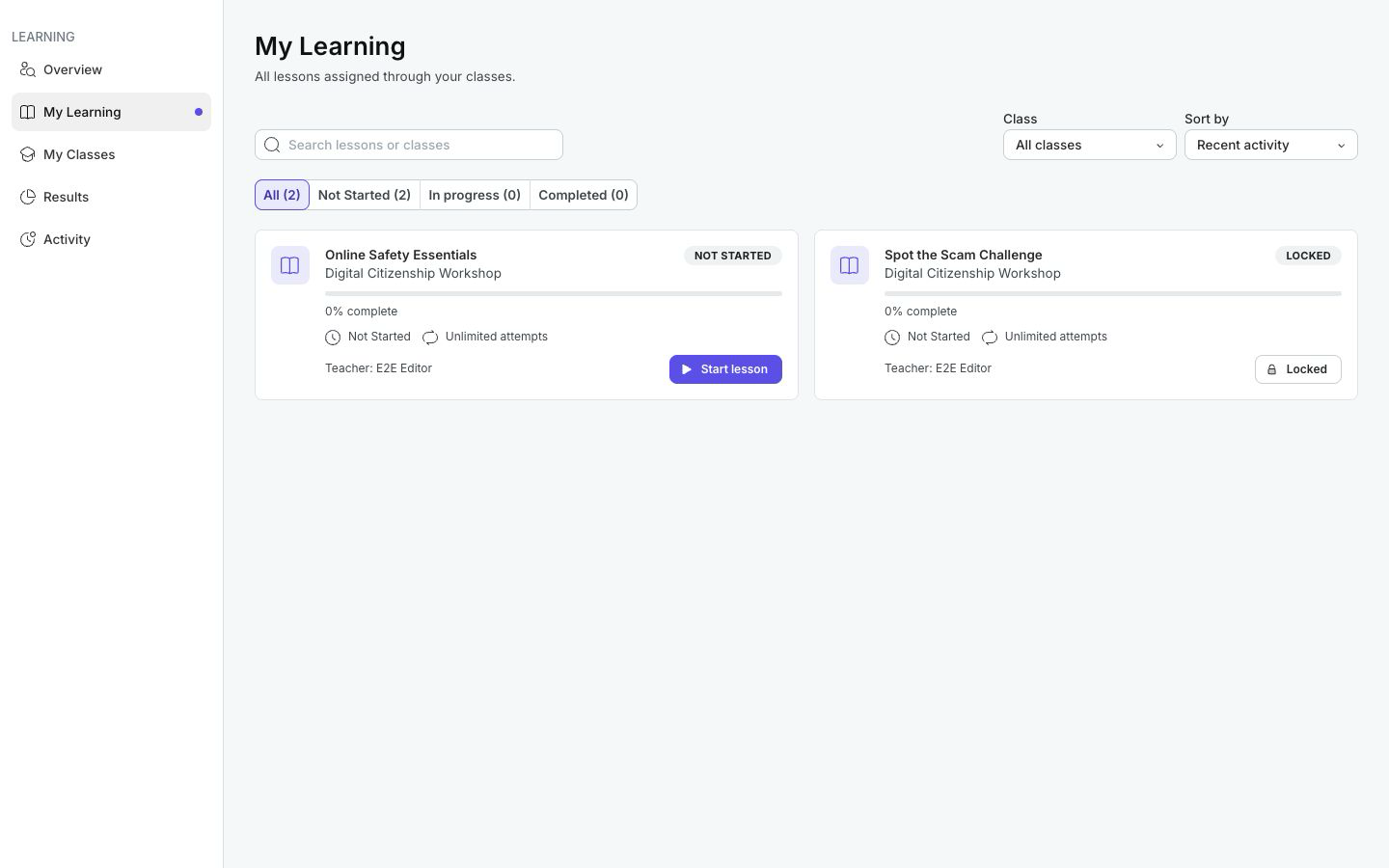
Turn the setting off and save when learners should be able to open assignments in any order.
Troubleshooting
| What happens | What to do |
|---|---|
| Add Lessons does not list a presentation | Confirm that you own it and that it is not already assigned to the class. |
| A learner cannot open the second lesson | Complete the earlier lesson, or turn off Require students to complete lessons in order. and save. |
| A completed but failed lesson unlocked the next one | This is expected. Sequential access checks completion rather than pass status. |
| The learner cannot start another attempt | The class lesson's Max Attempts limit may be reached. Increase it if appropriate or have the learner use View results. |
| The order looks wrong | Return to Lessons, drag the rows into place, and verify the sequence before learners continue. |
Previous: Enroll And Support Learners · Next: Track Class Progress · Back to Part XVII · Back to the full guide