
1.5: Prepare For Your First Project
You can now turn the setup work from Part I into a concrete project decision. This section helps you confirm that the workspace is ready and choose the most efficient starting method for what you want to produce.
Define The Result Before Choosing A Tool
Write down three things before creating anything:
- Audience: Who will use the content—learners, colleagues, customers, or a live audience?
- Outcome: What should they know or be able to do afterward?
- Delivery: Will you present live, share a link, assign it through a class, or export it to an LMS?
These answers make the creation choice easier. For example, an instructor who needs a scored compliance lesson for an LMS should plan for questions and an LMS-ready export. A speaker preparing a live visual presentation may care more about slide design and Present mode.
Choose A Starting Method
| Your situation | Suggested starting point | Why |
|---|---|---|
| You have a topic but no structure | Create with AI | Produces a draft that you can review and refine. |
| You already have a source document | Import Document or an AI document workflow | Reuses the existing material as a starting point. |
| You know the exact structure and design | Create Blank | Gives you direct control from the first page. |
| You want a prepared visual direction | Template | Reduces initial layout and styling work. |
| You found relevant public content | Inspiration, then Remix | Lets you adapt reusable content instead of rebuilding it. |
| You are creating a variation of your own work | Duplicate the presentation | Preserves the original while you edit a separate copy. |
AI output and imported content are starting points, not finished lessons. Check facts, replace generic examples, confirm permissions for source material, and test every question before delivery.
Complete The Readiness Check
- I can sign in and reach My work on the dashboard.
- I am using the email address associated with my invitations and permissions.
- My interface language is correct.
- I understand that each presentation also has its own Language setting.
- My browser can download files and open uPresenter pages in a new tab.
- I know where to allow microphone access if I choose Record Audio.
- I understand my current Terms status and optional Marketing emails preference.
- I can name my audience, learning outcome, and delivery method.
- I know which starting method I will use.
Some AI and export features require credits, a Pro plan, or a team license. If a feature is unavailable or the credit balance is too low, uPresenter shows an upgrade, pricing, or credit-purchase prompt. Credit usage varies by feature and model, so check the prompt shown for the action you choose.
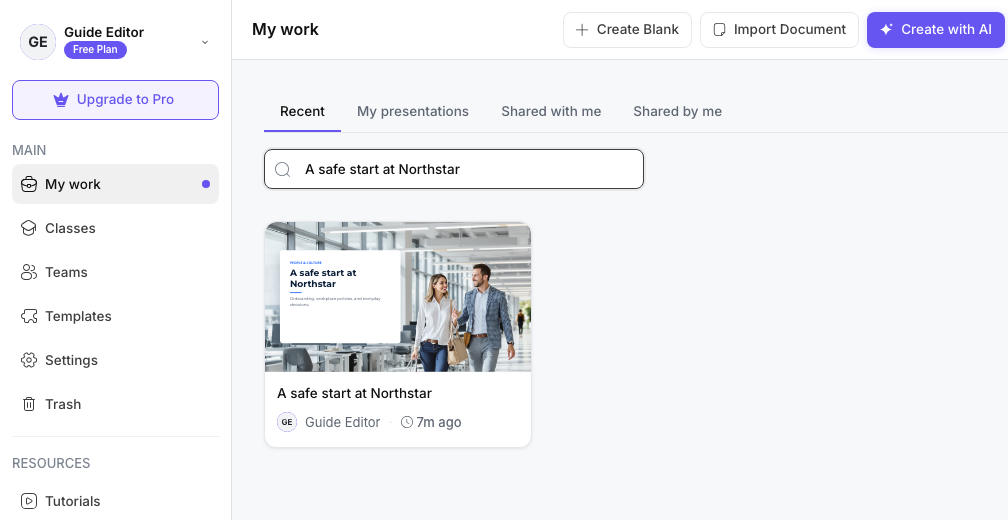
If the checklist is complete, continue to Part II. You will learn how My work, search, views, filters, presentation actions, and the active team context organize your dashboard before you begin creating content.
Previous: Configure Languages, Terms, And Email Preferences · Next: Dashboard Overview · Back to Part I · Back to the full guide