
19.4: Review Storage
Storage is measured for the active workspace and includes presentation resources such as images, video, audio, and other uploaded files. In this section, you will read the current allowance, identify where stored resources come from, and use the supported cleanup workflows.
1. Check Storage Use And Allowance
Open Settings > My Subscription and read Storage and Used Storage in Current plan.
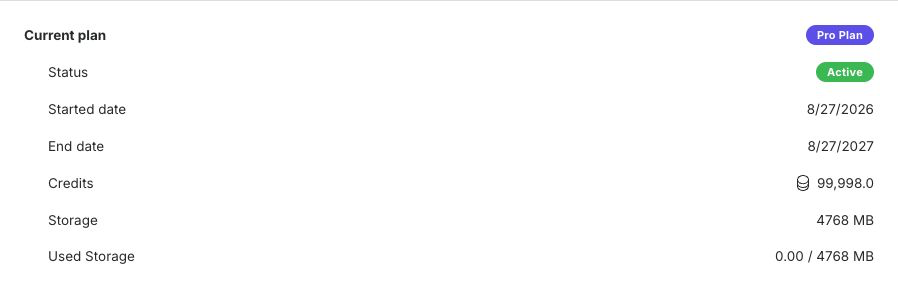
- Storage is the total allowance supplied by the active plan or team license.
- Used Storage compares the current stored amount with that allowance.
The figures can change when you switch workspaces. Check the active team before deciding that a personal or organization account is near its limit.
2. Understand What Uses Storage
Uploaded and generated presentation resources contribute to storage. A single physical resource can be associated with a presentation even when it is not visible on the currently selected slide. Review the editor's Resources view before deleting media so that you understand where it is used.
Section 7.2 explains project-resource selection, reuse, bulk actions, and in-use protection.
3. Free Storage Safely
Use supported content workflows rather than deleting unknown files outside uPresenter:
- Remove unused resources from a presentation's Resources view. uPresenter protects resources that are still in use on slides.
- Move obsolete presentations to Trash.
- When recovery is no longer needed, open Trash and use Permanently delete or Empty trash. Moving an item to Trash alone is not the final storage-removal step.
- Return to My Subscription and confirm that Used Storage refreshes.
Permanent deletion cannot be undone. Download or duplicate anything that must be retained before emptying Trash.
4. Current Storage Management Limitation

A Storage Management resource gallery exists in the current frontend and can render image, video, audio, and other-file cards grouped by presentation. However, the current dashboard, Settings page, and account menu do not expose a visible navigation action for it, and the gallery has no remove control. It is therefore not a supported end-user cleanup workflow in this release.
Use My Subscription, editor Resources, and Trash for current storage work. Do not rely on a direct or bookmarked Storage Management page to delete files.
Troubleshooting
| What happens | What to do |
|---|---|
| Storage belongs to the wrong organization | Switch the active workspace, then reopen My Subscription. |
| A resource cannot be removed | It is likely still in use. Find and remove or replace its slide references first. |
| A trashed presentation still consumes storage | Permanently delete it from Trash or use Empty trash after confirming nothing must be restored. |
| Used Storage does not change immediately | Reload My Subscription after the delete succeeds. If it remains stale, contact support. |
| You cannot find Storage Management | This is expected in the current release; no normal navigation entry is exposed. |
Previous: Understand And Use Credits · Next: Review Terms, Privacy, And Account Data · Back to Part XIX · Back to the full guide