
1.4: Configure Languages, Terms, And Email Preferences
This section brings together the account choices that affect how uPresenter communicates with you and your learners. You will distinguish interface language from presentation language, understand Terms access states, and manage optional marketing email consent.
Choose The Correct Kind Of Language
uPresenter has two language settings with different purposes:
- The interface language changes application labels, menus, and dialogs for you.
- The presentation language belongs to one presentation and controls language-aware player behavior and text direction for that content.
Changing either setting does not translate text already written on a slide. Choose the intended language before generating content with AI, but always review the generated result before publishing or assigning it.
Change The Interface Language
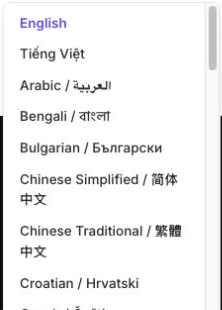
- On a public uPresenter page, scroll to the footer and select the current language, such as English. After signing in, you can also select the language control in the dashboard header or open Language from the user menu.
- Select the language you want from the list.
- Allow the page to reload when required.
- Check several visible labels to confirm that the interface changed.
uPresenter currently provides 42 interface languages. Arabic, Hebrew, Persian, and Urdu use a right-to-left interface so navigation and reading order follow the selected language.
Set The Language Of A Presentation
- Open a presentation in the editor.
- Select Settings in the top bar to open Presentation Settings.
- Expand Localization if it is closed.
- Under Language, search for or select the language used by the content.
- Use Present to check player labels and text direction from the learner’s perspective.
Set this separately for each multilingual presentation. Changing your own interface language does not automatically change a presentation’s language, and changing one presentation does not affect the rest of your library.
Separate Required Terms From Optional Email Consent
During registration, the two checkboxes serve different purposes:
- I have read and agree to the Terms of Service is required to create an account.
- Receiving product news, tips, and special offers is optional.
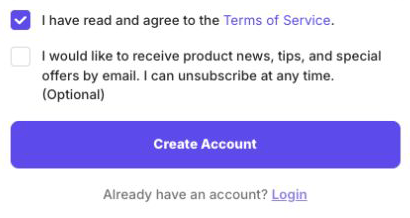
To change the optional email choice after registration, open Settings > Profile and use Marketing emails. Clearing this preference does not remove your account or your access to product messages that are operationally necessary.
Review Updated Terms After Sign-In
When uPresenter updates its Terms, a banner lets you open the current decision dialog.
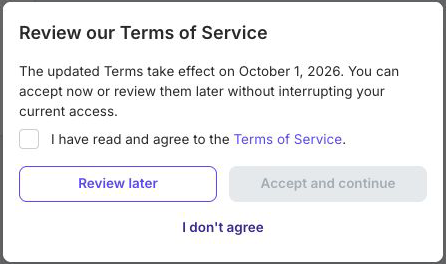
- Select Review now in the banner.
- Read Review our Terms of Service, including the effective date and any date shown for your current access.
- Open the linked Terms of Service and review the current version.
- If you agree, select I have read and agree to the Terms of Service.
- Select Accept and continue.
- If the dialog also asks about marketing emails, select or clear the optional choice before continuing.
Understand Review And Access States
The available action depends on the Terms effective date, your acceptance status, and sometimes an already-paid access period.
| What you see | What it means |
|---|---|
| Review later | The updated Terms are not yet required. You can continue during the grace period shown and return through Review now. |
| A paid-access date | Already-paid access can continue through the date shown. For a team, the billing administrator may control renewal. |
| Continue limited | You can enter the application, but uPresenter requires current Terms acceptance before actions such as presenting or making a normal export. |
| Accept and continue | The required checkbox is selected and you can record acceptance of the current Terms. |
Decline Updated Terms
If you do not agree, select I don't agree and read the confirmation carefully.
- Review when full access will end and, if applicable, what happens to subscription renewal.
- Select Go back if you want more time to review.
- Select Confirm decline to record the decision.
- If you change your mind, use Review now in the Terms banner and complete the acceptance steps.
Declining updated Terms does not delete your data. Limited access may still offer a presentation source download so you can recover your own presentation data, but normal presenting and export actions can require current acceptance.
Previous: Sign In And Manage Account Access · Back to Part I · Next: Prepare For Your First Project