
14.3: Share On Social Channels
The player share tools help a viewer open the same presentation on another device or pass its current link to someone else. They distribute a link; they do not change who is allowed to use it.
In this section, you will expose the player share control, copy the link, use its QR code, and open the available social-network sharing pages safely.
Before You Begin
The author controls whether Share appears in the learner player. In the editor, open Settings, find Player Settings, turn on Show Toolbar, and include Share among the toolbar controls. Then publish the presentation and verify its access settings in Section 14.1.
If Share is not enabled for the player, recipients can still use a link the author sends directly, but the in-player sharing panel will not appear.
1. Open The Player Share Panel
Open the learner-facing presentation and select Share in the player toolbar. At phone width, open Menu first when Share is not visible in the compact bottom bar.
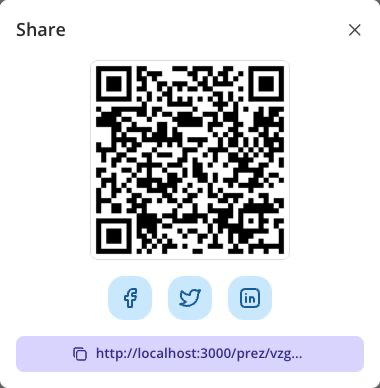
The localhost address and QR code in the screenshot belong to a local test presentation. Use the link and code from your own published player when sharing a lesson.
The panel contains a QR code, Facebook, Twitter, LinkedIn, and a copy-link control. The exact browser or network page can change after leaving uPresenter.
2. Copy The Link
Select the link control at the bottom of Share to copy the current player address. Paste it into the intended message, learning portal, or document.
Before sending it broadly:
- Confirm that it is the learner-facing presentation link, not an editor address.
- State whether the recipient must sign in.
- Send any password through a separate private channel.
- Explain whether the learner should open the lesson through a class instead so the result is recorded in that class.
If the browser blocks clipboard access, select the address and copy it with the browser or operating-system copy command.
3. Share With A QR Code
Display the QR code when learners will move from a projected screen, printed handout, or desktop computer to a phone or tablet.
- Keep the share panel open.
- Scan the code with another device.
- Confirm that the device opens the same presentation address.
- Complete any required login, name, or password step on that device.
A QR code is another representation of the URL. Anyone who can scan or photograph it may retain the link, so do not display a restricted lesson's code to an unintended audience.
4. Use A Social-Network Share Button
Select Facebook, Twitter, or LinkedIn to open that network's sharing page. The network may require its own sign-in and lets the person review the post before publishing it.
uPresenter does not bypass the network's privacy controls or publish the post silently. If the browser blocks the new window, allow popups for uPresenter and select the button again.
Check the title, preview image, audience, and accompanying text before posting. For a password-protected presentation, do not put the password in the same public post.
5. Understand What Sharing Does Not Do
The player share panel does not:
- publish a private presentation;
- add a recipient as a collaborator;
- bypass login, password, or anonymous-name requirements;
- enroll a learner in a class;
- transfer an independent attempt into a class record; or
- make the presentation reusable in Inspiration.
Use Share Presentation for collaborator and public-access decisions, Classes for assigned learning, and the Public Profile settings for author discovery.
Troubleshooting
| What happens | What to check |
|---|---|
| Share is missing | The author may have hidden it in Player Settings, or it may be inside Menu at the current width. |
| The recipient sees Login or Access restricted | The copied link preserves the author's access settings. Provide the correct account guidance or password. |
| A social button does nothing | Check the browser's popup blocker and try again. |
| The copied link opens the editor | Return to the learner player and copy from its Share panel or from Share Presentation > Public access. |
| The learner's class result is missing | Have the learner open the assigned lesson from the class and choose Open class lesson, not an independently shared practice link. |
Previous: Build A Public Profile · Next: Export Documents And Images · Back to Part XIV · Back to the full guide