
4.3: Work Faster With Keyboard Shortcuts
Keyboard shortcuts are most useful for repeated edits such as copying objects, changing text emphasis, and moving through slides. They act on the current context, so first make sure the canvas, selected object, text selection, Slides pane, or Layers pane has focus.
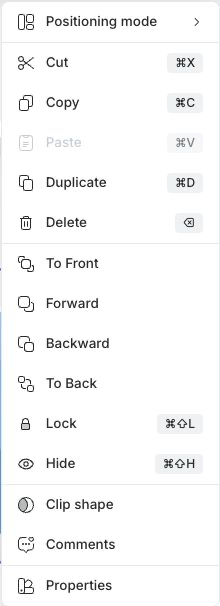
The current React editor does not expose an on-screen Keyboard Shortcuts command, and its planned shortcut-help key does not open a reference dialog in this release. Use the verified tables in this section and the shortcut badges shown in editor command menus.
Understand The Modifier Keys
| This section shows | macOS | Windows and Linux |
|---|---|---|
| Mod | Command (⌘) | Ctrl |
| Shift | Shift (⇧) | Shift |
| Delete | Delete or Backspace (⌫), depending on the keyboard | Backspace or Delete |
Menus display the keys for your current platform. For example, Copy appears as ⌘C on macOS and Ctrl+C on Windows.
Common Editing Shortcuts
| Action | Shortcut |
|---|---|
| Undo | Mod+Z |
| Redo | Mod+Y or Mod+Shift+Z |
| Cut | Mod+X |
| Copy | Mod+C |
| Paste | Mod+V |
| Select all in the current editing context | Mod+A |
Select all is context-sensitive. With the canvas active, it selects visible objects on the current slide. With the slide pane active, editing commands apply to slides instead of canvas objects.
Object Shortcuts
Select an object before using these commands.
| Action | Shortcut |
|---|---|
| Duplicate | Mod+D |
| Delete | Backspace or Delete |
| Group selected objects | Mod+G |
| Ungroup | Mod+Shift+G |
| Bring forward one level | Mod+Shift+] |
| Send backward one level | Mod+Shift+[ |
| Bring to front | Mod+Shift+} |
| Send to back | Mod+Shift+{ |
| Lock | Mod+Shift+L |
| Unlock | Mod+Shift+U |
| Hide | Mod+Shift+H |
| Show | Mod+Shift+S |
| Deselect or leave text editing | Escape |
The current shortcut registry does not define arrow-key nudging for selected objects. Drag the object or use Properties > Size & Position when you need to move it.
Text Formatting Shortcuts
Enter text editing mode and select text, or place the caret in the text you want to format.
| Action | Shortcut |
|---|---|
| Bold | Mod+B |
| Italic | Mod+I |
| Underline | Mod+U |
Check the floating text toolbar after using a shortcut. A mixed selection can contain more than one formatting state, and learner-facing text still needs a visual review for readability and accessibility.
Slide Navigation Shortcuts
First focus a thumbnail in the Slides pane. These keys intentionally do not move a selected canvas object.
| Action | Shortcut |
|---|---|
| Previous slide | Up Arrow, Left Arrow, or Page Up |
| Next slide | Down Arrow, Right Arrow, or Page Down |
| First slide | Home |
| Last slide | End |
When Layers is active, arrow keys navigate the layer tree, and Delete removes the selected editable layer. Always check which pane has focus before deleting.
If A Shortcut Does Not Work
- Close any open dialog or menu that needs the same keys.
- Select the intended object, text, slide thumbnail, or layer again.
- Make sure the pointer focus is not inside an unrelated field.
- Use the visible toolbar or menu command to confirm that the action is available in the current context.
- Check the canvas and save status after the action.
Browser and operating-system shortcuts can take priority over an editor command. In that case, use the corresponding uPresenter control.
Quick Check
Before continuing, make sure that you can:
- translate Mod into the correct key for your computer;
- undo, copy, duplicate, and delete in the intended context;
- apply bold, italic, and underline to selected text;
- move through slides after focusing the Slides pane; and
- recognize that object movement uses dragging or Size & Position, not the slide-navigation arrow keys.
Previous: Navigate And Make Basic Edits · Next: Manage Slides And Layers · Back to Part IV · Back to the full guide