
10.5: Use Variables
Variables let a lesson remember a choice, count an interaction, or keep a custom score during a learner's attempt. Combine them with Adjust Variable actions to change a value, and with Conditions to decide whether another action should run.
Custom variables belong to the presentation and can be used across its slides. Each learner attempt has its own values; playing the lesson does not change the defaults in the editor.
Before You Begin
Open a presentation in the editor. Select a slide or object, then select Interactions in its selection toolbar. Select Variables at the top of the pane to open the variable manager. You can also open the same dialog with Manage Variables while editing an Adjust Variable action or its Conditions.
For this practice example, prepare two slides so you can leave the first slide and return to it in Present.
1. Create A Custom Variable
In Variables, open Custom variables and select Add Variable. A new row appears with its name ready to edit. New variables start as Boolean, with a False default.
- Enter
Visitsin Name, then click outside the field to save it. Choose a meaningful, unique name; names that differ only by letter case count as duplicates. - Click the row's Type cell and choose Number. Changing the type resets its default to the starting value for that type.
- Leave Default value at
0. To change it later, click that cell, enter a value, and click outside the field.
Each cell saves separately. Text and number edits save when you leave the field; dropdown choices save when selected. There is no separate Save button for the variable table. Select Close when finished.
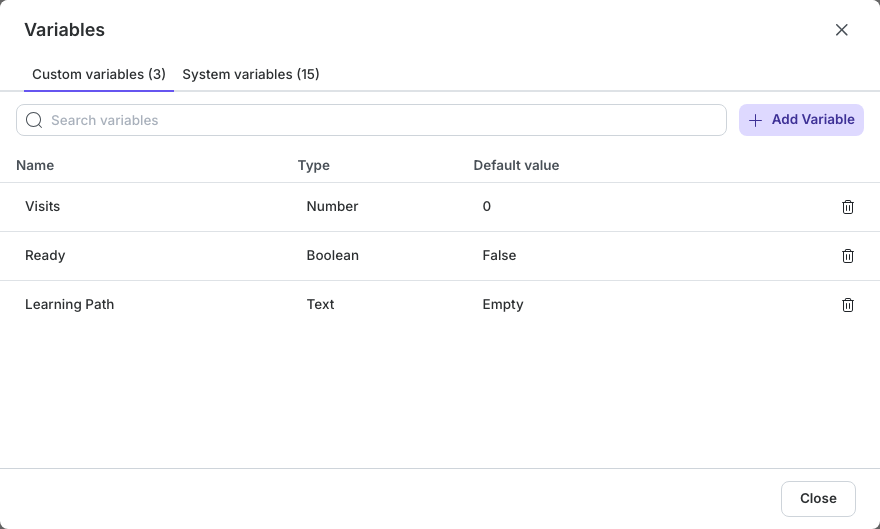
Choose a type that matches what you need to remember:
| Type | Starting default | Example use |
|---|---|---|
| Number | 0 |
Count visits, track collected points, or store a numeric threshold. |
| Text | Empty text, displayed as Empty | Remember a path name such as Practice or Challenge. |
| Boolean | False | Record a yes/no state such as whether a learner is ready. |
2. Find, Rename, Or Remove A Variable
Use Search variables to filter names in the current tab. Click a Name cell to rename a custom variable; existing actions and conditions keep their connection to it.
Select the row's Delete control to remove an unused variable. A variable that is referenced by an action, condition, or a bound Progress object cannot be deleted or have its type changed. Remove those references first. Its name and default remain editable, so review the learner path after changing either.
Use Undo in the editor if you make an unintended definition change. Editing a default configures new attempts; use Adjust Variable to change a value during playback.
3. Read System Variables
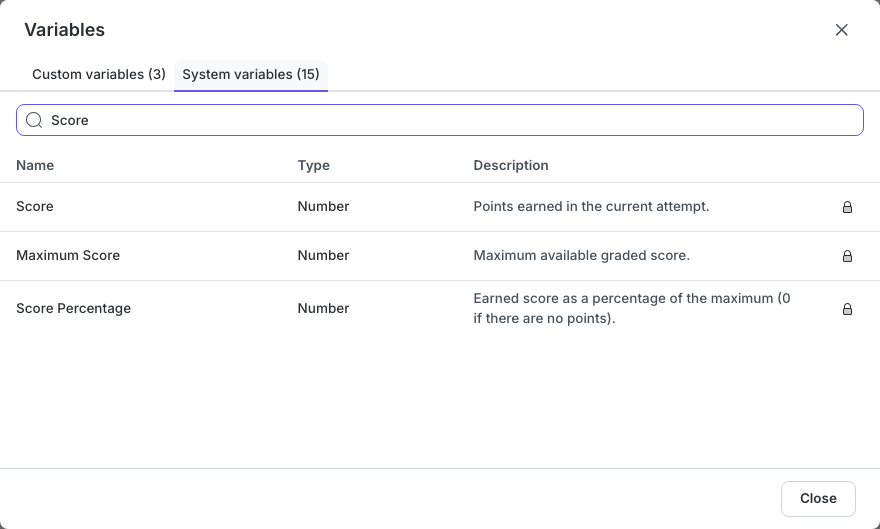
Open System variables to see the values the player maintains for you. The table shows each variable's Type and Description, with a lock marking it as read-only. Search or scroll to find the value you need.
| System variable | Type | What it tells you |
|---|---|---|
| Score | Number | Points earned in the current attempt. |
| Maximum Score | Number | Maximum available graded score. |
| Score Percentage | Number | Earned points divided by maximum points, multiplied by 100; 0 when no points are available. |
| Slide Number | Number | Current slide position, starting at 1. |
| Slide Title | Text | The current slide's name; empty if unnamed. |
| Total Slides | Number | Number of slides in the lesson. |
| Viewed Slides | Number | Number of distinct slides viewed in the attempt. Returning to a slide does not count it twice. |
| Slide Progress Percentage | Number | Percentage of distinct slides viewed. |
| Graded Question Count | Number | Graded questions in the lesson, excluding surveys. |
| Answered Question Count | Number | Graded questions with a submitted answer in this attempt. |
| Unanswered Question Count | Number | Graded questions without a submitted answer. |
| Correct Answer Count | Number | Graded questions whose latest submitted answer is correct. |
| Incorrect Answer Count | Number | Graded questions whose latest submitted answer is incorrect. |
| Passing Requirement Met | Boolean | Whether the configured success requirement is currently met. |
| Completion Requirement Met | Boolean | Whether the configured completion requirement is currently met. |
A question retry updates its latest result rather than adding another question to these counts. Passing Requirement Met and Completion Requirement Met do not mean the learner has submitted the lesson. Configure the underlying requirements in Presentation Settings.
Use system variables in conditions or as the source of a compatible value. You cannot select them as the target of Adjust Variable. A custom points variable also does not change the lesson's graded Score.
4. Change A Value With Adjust Variable
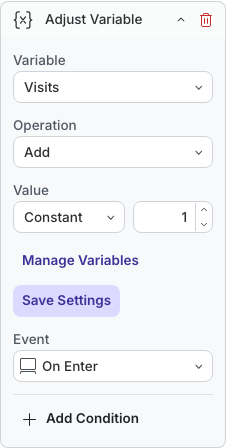
Select the slide or object that should change the value and open Interactions. If action cards are already present, select Add Action to open the catalog. In the Variables group, choose Adjust Variable.
- In Variable, choose
Visits. - Set Operation to Add.
- Under Value, keep Constant and enter
1. - Select Save Settings to save the variable action settings.
- Check Event. For the selected slide, it is On Enter, so the action runs whenever that slide opens.
The operations depend on the target variable's type:
| Operation | Available for | Result |
|---|---|---|
| Set | Number, Text, Boolean | Replace the current value with the chosen value. |
| Add | Number | Increase the current value by the chosen amount. |
| Subtract | Number | Decrease the current value by the chosen amount. |
| Toggle | Boolean | Switch True to False, or False to True. |
| Reset | Number, Text, Boolean | Restore the variable's authored default. |
For Set, Add, and Subtract, choose Constant to enter a fixed value. Choose Variable to use another variable's current value; the Source variable list only offers compatible types, including system variables. For example, a Number variable can copy Score Percentage, while a Text variable can copy Slide Title. Toggle and Reset do not need a value.
Select Save Settings after changing the target, operation, or value. Then add Conditions if the update should happen only in certain circumstances.
5. Plan For Playback And Resume
Values remain available as the learner moves between slides in the same attempt. Starting a new attempt restores custom defaults. When a supported hosted, xAPI, or SCORM attempt resumes, saved custom values are restored before slide-entry actions run. An On Enter action can therefore change a restored value again.
Standalone HTML5 keeps variables during the current running attempt; do not assume a browser reload will resume them. Keep stored text short when delivering through an LMS, especially SCORM 1.2, where saved-state space is limited. Test resume in the actual delivery environment and regenerate exported packages after updating the lesson.
Variables do not automatically appear inside slide text or receive typed learner answers. Use actions to update them and conditions to control behavior. There is no Variable Changed event that reruns actions automatically.
If A Variable Does Not Work As Expected
| What you see | What to check |
|---|---|
| A duplicate-name message | Enter a unique name, including differences beyond letter case. |
| A variable is missing from a source list | Check that its type matches the target or comparison. |
| A system variable cannot be edited | This is expected; use it as a source or condition instead. |
| Type or Delete is unavailable | Remove references to the variable before changing its type or deleting it. |
| Playback uses an old action setting | Select Save Settings, then start a fresh Present preview. |
| A counter increases again on return | On Enter runs on each entry. Add a condition to limit it if needed. |
Previous: Add Slide Transitions · Next: Set Action Conditions · Back to Part X · Back to the full guide