
13.1: Preview A Presentation
Previewing lets you experience the presentation as a learner before anyone else opens it. It is the quickest way to find navigation problems, unreadable layouts, incomplete questions, unexpected animation timing, and controls that do not match the intended delivery.
In this section, you will open Present, test the complete learning path, compare desktop and mobile layouts, and return to editing without adding a learner attempt to reports.
Before You Begin
Wait until the cloud control in the editor says All changes saved. Preview uses the current saved presentation settings, including completion and success criteria, attempt limits, answer feedback, navigation after an answer, and player controls.
If other people are editing, agree on a stable test point first. A preview can reveal a mix of old and new behavior if collaborators are still changing the same slides.
1. Open Present
Select Present in the editor top bar. uPresenter opens the learner player in a full-window dialog while keeping the editor underneath it.
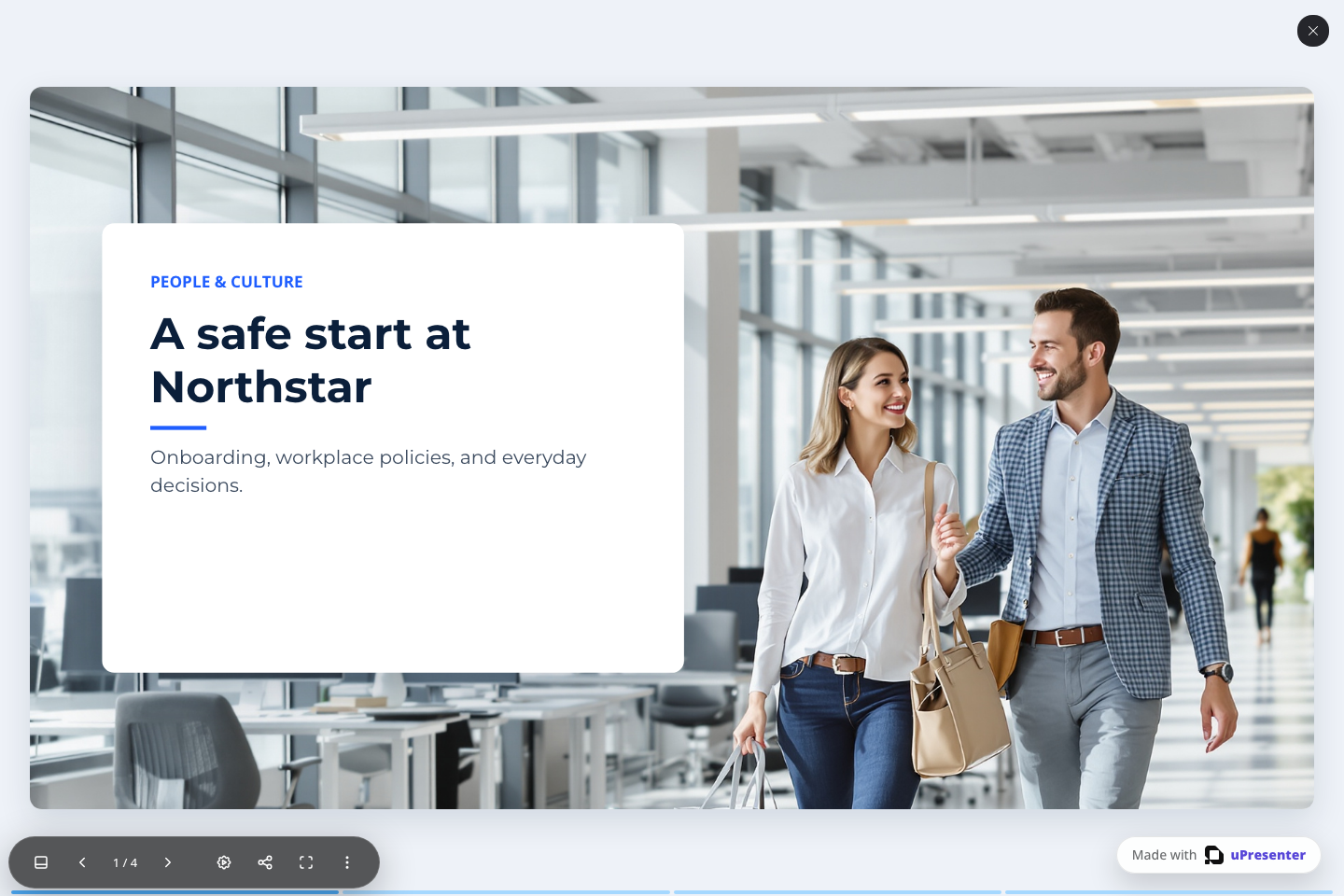
The preview starts a fresh in-memory session. It does not send learner activity to the Learning Record Store, so author testing does not inflate viewer, attempt, completion, or score reports. Closing and reopening Present starts another fresh preview.
Select the close control in the upper-right corner when you want to return to editing.
2. Test Navigation From Start To Finish
Begin on the first slide instead of checking only the slide you most recently edited.
- Use Next and Previous to move in both directions.
- Select the slide counter to jump to a named slide.
- Open Slides and select a thumbnail to confirm that direct navigation works.
- Select each segment in the progress bar and confirm that it opens the intended slide.
- On the final slide, verify that the expected completion action appears. A question-based lesson can show Submit lesson when the attempt is ready to finish.
The progress bar shows where the learner has moved in the presentation. Do not treat a filled segment by itself as proof that the configured completion or success criteria have been met.
3. Test Questions And Feedback
Use realistic answers rather than clicking through as quickly as possible.
- Leave one required question unanswered and select Submit. Confirm that the player warns you or keeps the question available as intended.
- Submit a wrong answer and check the incorrect message, audio, answer status, and navigation behavior.
- Use Try again for a question when its question-level attempt policy permits it.
- Submit a correct answer and check the correct message, confetti, and any automatic move to the next slide.
- Finish the presentation and inspect Review. Confirm that the score, correct, incorrect, and unanswered totals match the answers you entered.
- Start another presentation attempt with Try again when the configured maximum permits it.
When a presentation allows more than one presentation attempt, correct and incorrect details can be withheld until the final allowed attempt. This protects the answer key between retries and is expected behavior, not a preview failure.
4. Test Animations, Interactions, And Media
Replay the presentation from the first slide after testing questions. Check features that depend on timing or learner input:
- entrance, emphasis, and exit animations;
- slide transitions in both directions;
- click, hover, and other object interactions;
- buttons that navigate, open content, or start media;
- video, narration, and text-to-speech playback;
- Autoplay Settings at 5 seconds, 3 seconds, 1 second, and None; and
- Fullscreen, including leaving full-screen mode again.
Autoplay timing applies to automatic slide movement; it does not replace required question submission. Pause when necessary to verify that learners still have enough time to read and respond.
5. Check Desktop And Mobile Widths
Test at a normal desktop width first, then narrow the browser to a phone-sized width.
- A fixed slide scales to fit the available player area. Check whether small text and controls remain usable.
- A fluid lesson can reflow vertically. Look for overlapping objects, excessive empty space, and unexpected content order.
- On a narrow screen, the toolbar condenses to Previous, the slide counter, Next when available, and Menu. Open Menu to confirm that the remaining permitted controls are still reachable.
- Rotate or resize once more if learners are likely to use both portrait and landscape orientations.
Return the browser to desktop width before making detailed layout corrections in the editor.
6. Fix And Recheck
Close the preview, make one focused correction, wait for All changes saved, and open Present again. Retest from the step immediately before the change as well as the changed state itself. For navigation or attempt changes, run the whole presentation again because earlier actions can affect later controls.
Preview Checklist
Before sharing, assigning, or exporting the presentation, confirm that:
- every slide is reachable in the intended order;
- questions accept, validate, and score realistic responses;
- feedback and post-answer navigation match the authored settings;
- animations, interactions, links, audio, and video work;
- the completion and success result is correct;
- Review and Try again appear only when intended; and
- both desktop and phone-width layouts remain readable and operable.
Previous: Use Version History · Next: Use The Player · Back to Part XIII · Back to the full guide