
10.1: Build Interactions
An interaction connects an event, such as a click or the moment a slide opens, to an action. This is how a presentation becomes a guided learning experience instead of a fixed sequence of pages.
In this section, you will choose the correct trigger, add an action, combine actions deliberately, and test the resulting learner path.
Before You Begin
Open a presentation in the editor and decide what the learner should be able to do. A simple sentence such as “Select the diagram to reveal its explanation” helps you choose both the trigger and the action.
Keep the destination content on the same slide when you use object or media actions. Add and name the destination slide before creating a branch with Go to Slide.
1. Select The Interaction Owner
Select the slide or object that should detect the event, then select Interactions in the selection toolbar. A number on the toolbar button shows how many actions belong to the current selection.
The available events depend on what is selected:
| Selection | Events you can choose |
|---|---|
| Ordinary object | Click, Mouse Enter, Mouse Leave, Double Click |
| Graded question | The four object events, plus Correct and Incorrect |
| Slide | On Enter |
Correct and Incorrect are not available for a survey question because a survey does not grade the response. Older content that stored a separate hover event appears as Mouse Enter in the current editor.
2. Choose An Action
If the selection has no actions, the Interactions pane opens directly to the action catalog. Actions are grouped by purpose.
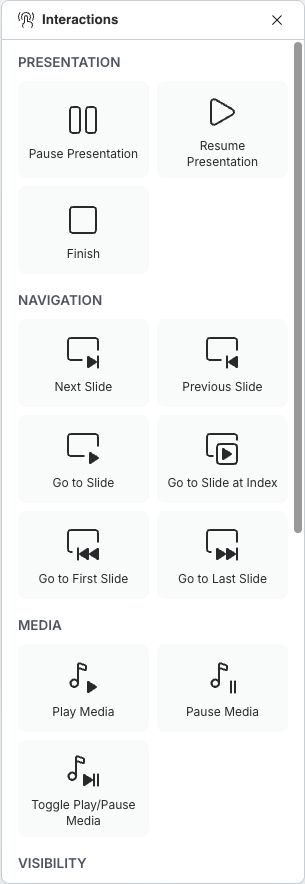
Scroll to see visibility, interaction, and external actions.
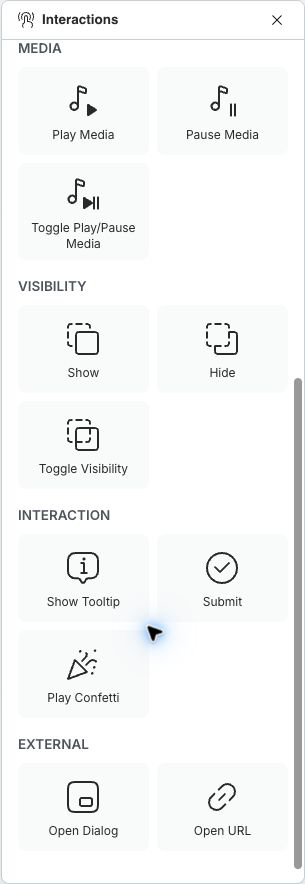
Select an action to add it. The editor creates an action card and supplies the most appropriate default event for the current selection. Review the Event field instead of assuming the default matches your intended behavior.
The groups support these common learning patterns:
| Goal | Useful actions |
|---|---|
| Control the lesson session | Pause Presentation, Resume Presentation, Finish |
| Build a branch | Next Slide, Previous Slide, Go to Slide, Go to Slide at Index, Go to First Slide, Go to Last Slide |
| Let a learner control media | Play Media, Pause Media, Toggle Play/Pause Media, Mute media, Unmute media, Toggle media sound |
| Create click-to-reveal content | Show, Hide, Toggle Visibility |
| Explain or respond | Show Tooltip, Open Dialog, Play Confetti |
| Submit or leave the lesson | Submit, Open URL |
| Remember a choice or update a counter | Adjust Variable |
3. Design A Clear Interaction
Choose one event for each action card, then configure any fields the action requires. Section 10.2 explains every action setting.
You can select Add Action to attach more than one action to the same selection. For example, a single Click can show an explanation and play a short audio clip. Keep the combination small and predictable; if several actions change navigation, visibility, and playback at once, the learner may not understand the result.
When an interaction uses Show, Hide, or Toggle Visibility, make sure the target object's initial visibility supports the design; set it in Properties > Object State > Initially Hidden. A click-to-reveal target normally begins hidden.
Use Variables to remember choices or update a counter. Add Conditions to an action card when it should run only for particular values, scores, or progress. Conditions apply to that card, not every action on the selection.
4. Test The Learner Path
Select Present and perform the exact event as a learner would. Check the whole path, including what happens when the learner repeats the event, returns to the slide, or chooses a different branch.
For keyboard and touch accessibility, avoid making Mouse Enter the only way to reveal required content. Add an obvious clickable control or place the same information in visible text, narration, or a dialog.
If An Interaction Does Not Work As Expected
| What you see | What to check |
|---|---|
| The wrong event appears | Expand the action card and change Event for that action. |
| Correct and Incorrect are missing | Select a graded question rather than a survey question or an ordinary object. |
| On Enter is missing | Select the slide thumbnail so no object remains selected. |
| A target object is unavailable | Add a compatible object to the same slide and give it a recognizable layer name. |
| A reveal action seems to do nothing | Check the target's initial visibility and make sure the action points to the intended object. |
| The behavior works in the editor but feels unclear | Run the complete sequence in Present and simplify competing actions. |
Quick Check
Before continuing, make sure that you can:
- explain the difference between an event and an action;
- choose events that are available for an object, slide, or graded question;
- add an action from each relevant group;
- combine actions without creating conflicting behavior; and
- test the learner path in Present.
Previous: Insert And Edit Formulas · Next: Configure Action Settings · Back to Part X · Back to the full guide