
8.8: Submit And Review Assessments
An assessment is complete only when its learner flow works from the first response through final submission, review, retry, and reporting. Editor Present is useful for interaction testing, while a hosted, class, xAPI, or SCORM launch is required to prove the intended tracking path.
In this section, you will submit individual questions, finalize the lesson, interpret the result, and verify the saved attempt.
1. Submit A Question
On a question slide, enter the response and select Submit. The player evaluates the eligible graded questions on that slide, saves the response in a tracked delivery context, and applies the authored feedback and navigation behavior.
If the response is incomplete, the player can ask the learner to finish the unanswered question. Confirm that this warning is understandable for choice, typed, drag, matching, labeling, and hotspot interactions.
Question-level Attempts determines whether the learner can try that question again. It does not start a new presentation attempt.
2. Continue Through The Lesson
After submission, the primary action can become Next, the player can move automatically after the configured delay, or it can remain on the current slide. The outcome depends on Navigation After Answer and the player controls enabled by the author.
Test the sequence without editor shortcuts. A learner should always have a visible permitted way to continue or finish.
3. Submit The Lesson
When the presentation is eligible to finish, select Submit lesson. The confirmation explains that the attempt will become final and its answers can no longer be changed.
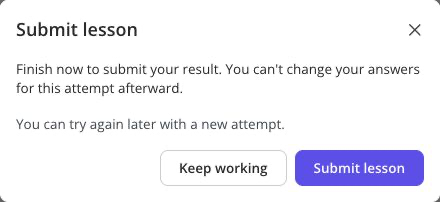
Select Keep working to return without finalizing. Select Submit lesson in the confirmation only when the response set is ready to become the recorded result.
Completion and success are separate:
- completion answers whether the learner met the authored completion criteria; and
- success answers whether the learner met the authored success or passing criteria.
A learner can therefore complete a lesson and still receive Failed.
4. Review The Attempt
After final submission, select Review when the author settings and answer-reveal policy allow it.
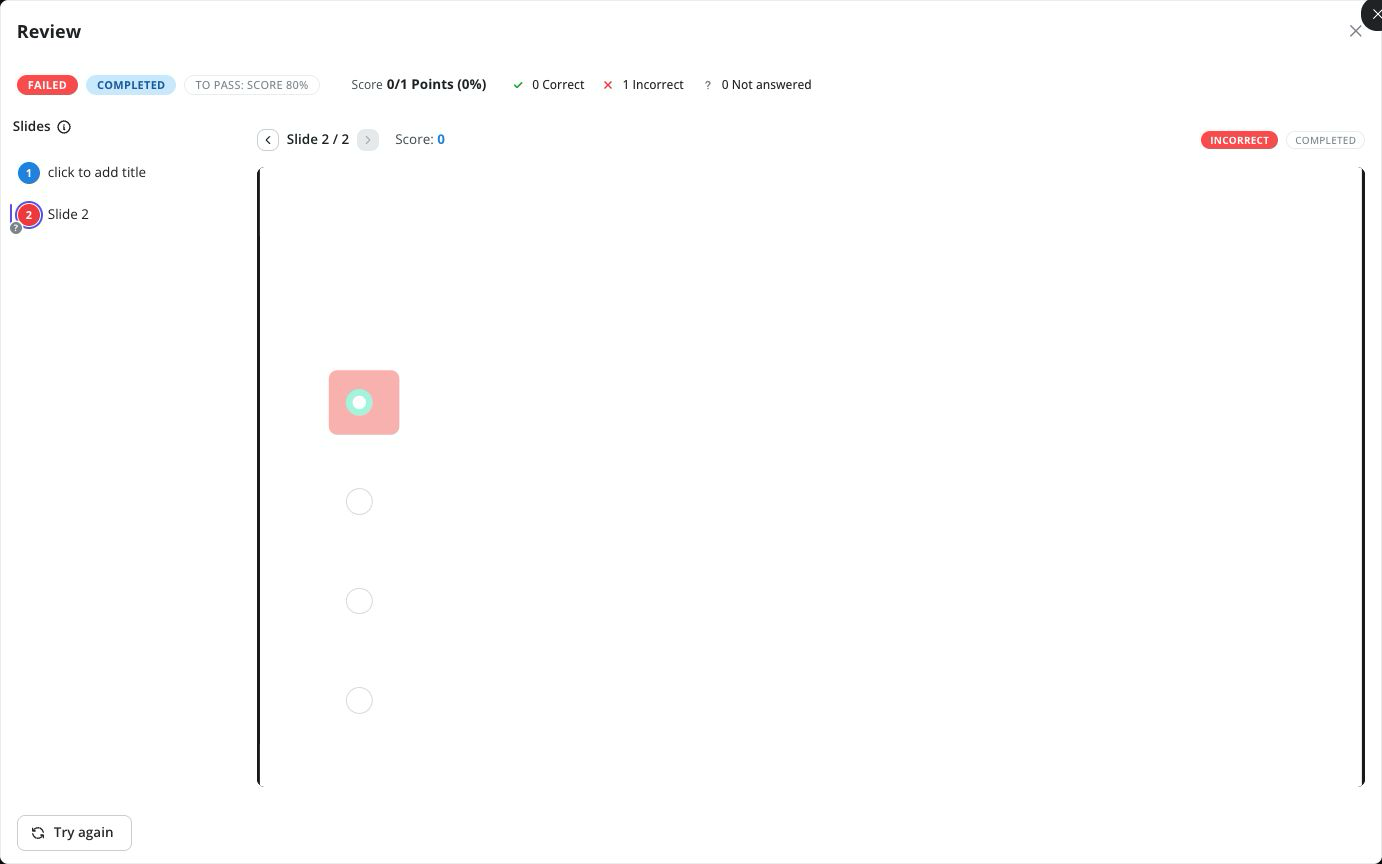
Review can show completion, Passed or Failed, earned points and percentage, correct/incorrect/unanswered totals, slide states, saved responses, and available answer-key explanations. Review is read-only and does not reopen the finalized answers.
If correct answers are hidden, check whether the learner still has another presentation attempt. A finite multi-attempt policy can defer answer status and the answer key until the final allowed attempt has been used.
5. Try Again
Select Try again when another presentation attempt is allowed. The earlier finalized result remains in history; the new attempt starts with cleared local responses and does not overwrite it.
If Try again is unavailable, the current attempt may not be finalized, the maximum may be exhausted, or the author may have hidden the control. Restart is used for a presentation without questions and does not imply a scored retry.
6. Verify The Recorded Result
For a release test, use a dedicated learner and launch through the same route as the audience:
- Enter a known mix of correct, incorrect, and unanswered responses.
- Select Submit lesson and finalize the attempt.
- Open the presentation report, class report, Learning Record Store, or LMS record used by that delivery method.
- Check the learner identity, attempt number, responses, score, completion, success, and available duration data.
- Repeat with another attempt only when retry behavior is part of the intended design.
Editor Present uses a fresh in-memory preview and does not write to uPresenter reports. Standalone HTML5 keeps state in that browser but does not report to uPresenter. Hosted and class launches use uPresenter tracking, while xAPI and SCORM depend on a correctly configured external LRS or LMS launch.
Troubleshooting
| What happens | What to check |
|---|---|
| Submit lesson is missing | Confirm that the presentation contains questions, meets its finish conditions, and exposes the Finish button control. |
| The result is complete but failed | Completion and success use different authored criteria; check both settings. |
| Review does not reveal answers | The answer-reveal policy may defer details until the final allowed presentation attempt. |
| Try again is missing | Finalize the current attempt, check the presentation attempt limit, and confirm the toolbar control is enabled. |
| No report appears after testing | Do not use editor Present or standalone HTML5 to test centralized reporting; launch through the intended tracked context. |
| An LMS result is missing | Launch the package from the LMS and verify the xAPI or SCORM configuration rather than opening its files directly. |
Quick Check
Before finishing Part VIII, make sure that you can:
- submit each question type used in the lesson;
- distinguish a question retry from a new presentation attempt;
- finalize the lesson and explain completion versus success;
- predict when Review and the answer key become available;
- start another eligible attempt without overwriting the earlier result; and
- verify the result through the intended delivery and reporting path.
Previous: Set Scoring, Feedback, And Answer Behavior · Next: Part IX — Charts, Tables, Infographics, And Data Content · Back to Part VIII · Back to the full guide