
2.4: Import A Presentation Package
Use Import Presentation when you have a ZIP package that was exported from the uPresenter web app and want to restore it as an editable presentation in the active workspace.
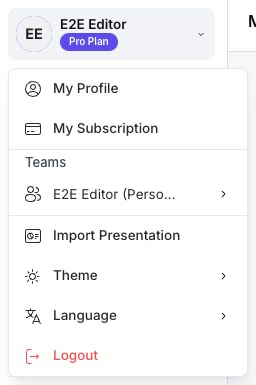
This workflow is different from Import Document in the dashboard header. Import Document sends a PDF, DOCX, PPTX, XLSX, or TXT file into the AI creation workflow; Import Presentation restores a uPresenter presentation package.
Before You Begin
Check the package before uploading it:
- The file must use the
.zipextension. - The ZIP must be a presentation package exported from the uPresenter web app. A generic ZIP, a renamed office document, or an LMS package is not a substitute.
- The current dashboard accepts packages up to 100 MB.
- Your active workspace needs enough available storage for the package resources.
Keep a local copy of the ZIP until you have opened and reviewed the imported presentation.
Import The Package
- From My work, open your account menu at the top of the left sidebar.
- Confirm that the personal or team workspace shown in the menu is the destination you want.
- Select Import Presentation.
- In the file picker, select the uPresenter ZIP package.
- Wait while uPresenter uploads and validates the package.
- After Upload completed. appears, wait for the imported presentation to open in the editor.
The imported copy receives a new presentation identity and belongs to the account performing the import. The source package remains unchanged on your computer.
Review The Imported Presentation
Before sharing or assigning the imported copy:
- Confirm the title, slides, questions, theme, and layout.
- Open several slides and check images, audio, video, and other resources.
- Preview interactions and scored questions.
- Confirm the presentation language and player settings.
- Rename the imported copy in the editor header if its title needs to distinguish it from the source.
Package import restores content that the uPresenter package contains, but it is still good practice to test the result before delivery. External links, embedded services, and content that depended on unavailable resources may need attention.
Troubleshoot An Upload
| What you see | What to check |
|---|---|
| Please choose a valid ZIP package. | Select a file with the .zip extension instead of a document or another archive type. |
| File size exceeds 100MB. | Export a smaller package or remove unnecessary resources from the source presentation before exporting again. |
| The package is reported as invalid | Confirm that it was exported from the uPresenter web app and was not unpacked, edited, or recompressed incorrectly. |
| A storage-limit message appears | Free storage in the active workspace or switch to the intended workspace before importing. |
| Upload failed. or the upload stops | Check the network connection and try the same verified package again. |
| The imported presentation opens with missing content | Compare it with the source, check package resources, and re-export from the current uPresenter version. |
Do not repeatedly upload an unverified package. Fix or re-export the source first so you do not fill the library with incomplete copies.
Quick Check
Before continuing, make sure you can explain:
- the difference between Import Document and Import Presentation;
- why the active workspace matters;
- which file type and size the package workflow accepts; and
- what to review before you share the imported copy.
Previous: Manage Presentation Actions And Trash · Next: Use Notifications And What's New · Back to Part II · Back to the full guide