
10.6: Set Action Conditions
Conditions let an action run only when the lesson is in the right state. For example, you can show a message after enough slides have been viewed, branch when a score reaches a threshold, or stop increasing a counter at a chosen limit.
Event determines when the player checks an action. Conditions determine whether that action runs at that moment. Without conditions, the action runs whenever its event occurs.
Before You Begin
Open a presentation, select the slide or object that owns the action, and open Interactions. Add an action and configure its settings first. Conditions belong to an individual action card, so adding a condition to one card does not restrict the other cards.
For the example below, create a Number variable named Visits with a default of 0. On the first slide, add Adjust Variable, choose Visits, set Operation to Add, enter a Constant value of 1, and select Save Settings. Keep Event at On Enter. Use Variables explains these steps in detail.
1. Add A Condition To An Action
Expand the action card and select Add Condition below Event. The Conditions dialog opens with one rule. Each rule has Variable, Operator, and Value cells that you can click to edit.
- Click the Variable cell and choose
Visits. Custom and system variables are both available. - Click Operator and choose Less Than.
- Click Value, keep Constant, and enter
3. Click outside the value editor to return to the table view. - Leave Match at All conditions (AND) and select Save.
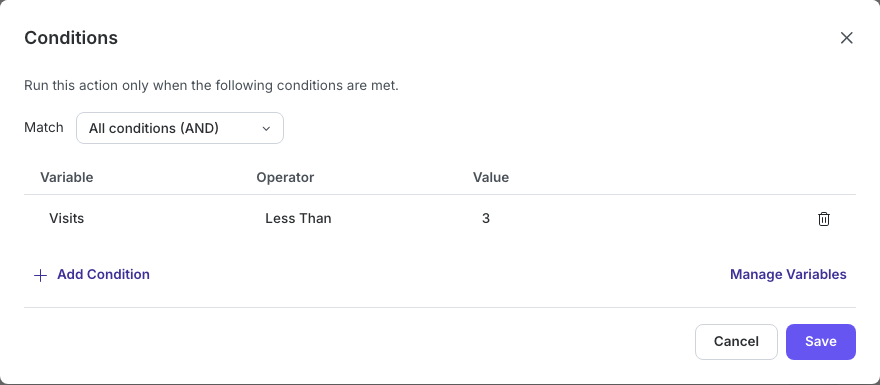
The dialog closes and the card shows Run only if, followed by Visits Less Than 3. Select this summary whenever you need to edit the conditions again.
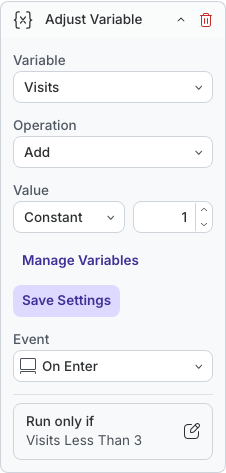
When the slide opens, the player checks the current value before adding 1. Starting from 0, the first three entries produce 1, 2, and 3. On the fourth entry, Visits is no longer less than 3, so this action is skipped.
2. Choose The Right Comparison
The Operator choices depend on the selected variable's type:
| Variable type | Operators |
|---|---|
| Number | Equals, Does Not Equal, Greater Than, Greater Than or Equal, Less Than, Less Than or Equal |
| Text | Equals, Does Not Equal, Contains, Is Empty, Is Not Empty |
| Boolean | Is True, Is False |
For comparisons that require a value, choose Constant to enter a fixed value, or Variable to compare against another variable of the same type. For example, compare Answered Question Count with Graded Question Count to check whether every graded question has a submitted answer. If the lesson may have no graded questions, also require Graded Question Count to be Greater Than 0.
Is Empty, Is Not Empty, Is True, and Is False need no comparison value; the table displays a dash in Value. Text comparisons are case-sensitive, so Practice and practice are different. Is Empty checks for an empty string; text containing spaces is not empty.
Choose Manage Variables if you need to create or inspect a custom variable while building a rule. Changes in that manager save separately from the Conditions draft.
3. Combine Rules With AND Or OR
Select Add Condition inside the dialog to append another rule. Use Match to choose how the rules work together:
- All conditions (AND) runs the action only when every rule is true. For example, require
Visits Less Than 3andReady Is Truebefore increasing the counter. - Any condition (OR) runs the action when at least one rule is true. With those same rules, either a low visit count or a true Ready value would allow it.
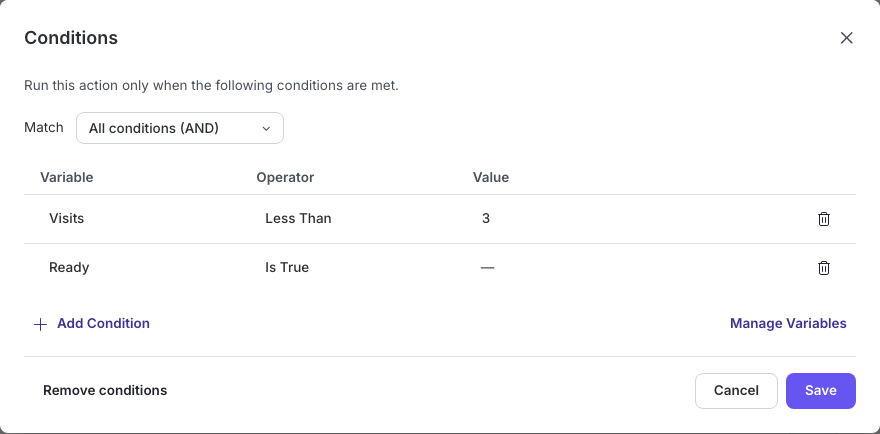
If you use the AND example, create Ready as a Boolean variable and set it to True through a learner action before expecting the counter to increase. Its default False would otherwise prevent the update.
All rules in a dialog share the same AND or OR choice. Nested groups and mixed expressions such as “A AND (B OR C)” are not available. Select Save to apply the complete rule list.
4. Edit Or Remove Conditions
Select an action's Run only if summary to reopen Conditions. Edit the cells, add rules, or use a row's Remove Condition control to delete that rule. Keep at least one valid rule when saving.
Select Cancel or close the dialog to discard unsaved condition edits. This does not undo separately saved variable-definition changes made through Manage Variables.
To let the action run on every occurrence of its event again, select Remove conditions. This immediately removes the saved condition set and closes the dialog. The action and its settings remain in place; Add Condition appears on the card again.
5. Test Both Outcomes In Present
Select Present and perform the event as a learner would. Test a case where the condition is true and a case where it is false. A false condition skips that action without displaying a learner-facing explanation, so add a separate feedback action if learners need to know why nothing happened.
For the Visits example, leave the first slide and return repeatedly. To make the limit visible, add an Open Dialog action to that slide with Event set to On Enter, a title such as Visit limit reached, and a condition of Visits Greater Than or Equal 3. Add this feedback action after the counter action. It should first appear on the third entry, then continue to appear on later entries while the counter stays at 3.
Conditions read the current values immediately before their action runs. An earlier Adjust Variable action on the same event can therefore affect a later action's condition. Check action order when combining updates, feedback, submission, and navigation.
A value changing elsewhere does not automatically rerun a previous action. Its event must happen again. Also test a fresh attempt, returning to a slide, and resuming an attempt where supported; slide-entry actions can run again after saved values are restored.
If A Conditional Action Does Not Run
| What you see | What to check |
|---|---|
| Nothing happens | Confirm that the event occurred and the current values satisfy the rules. Check Match, especially when using AND. |
| A comparison gives an unexpected result | Check the variable type, text case, threshold, and whether the source is Constant or Variable. |
| A score or question-count condition is false | Check submitted answers, not just selected options. Surveys are excluded from graded-question counts. |
| A condition becomes true but the action stays idle | Trigger its event again; conditions are not continuously monitored. |
| The card says Invalid condition — action will be skipped | Reopen Conditions, repair missing variables or incompatible rules, and save. Invalid conditions do not allow the action through. |
| The dialog says the action changed | Close and reopen Conditions to edit the latest action state. |
Previous: Use Variables · Next: Apply And Customize Themes · Back to Part X · Back to the full guide