
8.7: Set Scoring, Feedback, And Answer Behavior
Question properties determine how a response contributes to the score, how many times the learner can try, what is revealed after submission, and where the player goes next. These settings should support the learning purpose rather than surprise the learner.
In this section, you will configure scoring, attempts, feedback, the answer key, question styling, and post-answer navigation.
1. Open Question Properties
Select the question, open Properties, and select the Question tab. The available sections depend on the question type and the selected child item.
2. Configure Score And Reporting
Expand Score and Reporting.
- Mode chooses Graded or Survey. Survey responses do not use correct/incorrect scoring.
- Points is available for graded questions and accepts 1–1,000 points. Use larger values only when the learning objective is intentionally more important to the total score.
- Max Attempts is available for graded questions. Choose 1–10, enter a whole number from 1–500, or use Unlimited.
- Allow resubmission is available in Survey mode when learners should be able to change and submit the response again.
Question attempts apply to one question. Presentation Max Attempts applies to the entire lesson and is configured in presentation settings. Keep the distinction clear when explaining retries to learners.
3. Set Correct Answers
Use the question's contextual tools to define the answer key. The exact editor differs by type: select correct choice items, enter accepted text, set a slider value, author the intended order or pairs, or place the correct regions and labels.
After any structural edit, recheck the answer key. Removing or duplicating an item can change which response is correct. Use Present to prove that the authored response is accepted rather than relying only on the visual marker in the editor.
4. Configure Feedback
Expand Feedback.
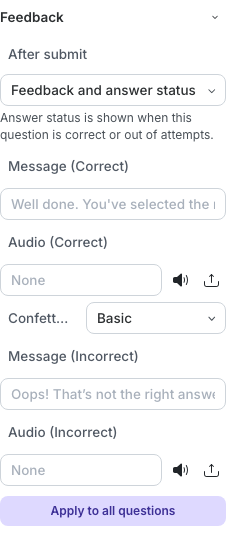
For a graded question, After submit provides:
- None, which shows no authored feedback message;
- Feedback and answer status, which can show separate correct and incorrect messages, audio, and a confetti style; and
- Feedback only, which shows a submitted message and audio without revealing whether the response is correct.
Survey questions use submitted feedback rather than correct/incorrect feedback. Audio may use a provided sound or an uploaded MP3, WAV, AAC, OGG, FLAC, OPUS, or M4A file up to 30 MB.
Use Apply to all questions only when the same messages, audio, and confetti make sense everywhere. Specific feedback is usually more useful because it tells the learner what to reconsider.
5. Add An Answer-Key Explanation
For a graded player question, expand Answer key and enable Show answer key. Add an Explanation that tells the learner why the answer is correct, not merely which option was expected. The explanation supports up to 4,000 characters.
Answer status and the answer key can be withheld by the presentation attempt policy. When the presentation has a finite number greater than one, the learner may not see them until no presentation attempts remain. Check Max Attempts before promising immediate answer review.
6. Control Navigation After The Answer
Expand Navigation after Answer.
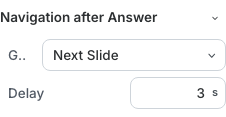
- Set Go to to Next Slide for automatic progress, or Stay on This Slide when the learner should review the result or continue manually.
- With Next Slide, set Delay from 0.1 to 100 seconds. The default is 3 seconds.
- Make the delay long enough for the learner to read or hear the configured feedback.
The delay is hidden for Stay on This Slide because no automatic navigation occurs.
7. Adjust Type-Specific Appearance
The question properties can also expose:
- Text Styles for font, size, color, and alignment;
- Blank Settings for blank border style, width, color, and radius;
- Slider Settings for initial value, minimum, maximum, and step; and
- Hotspot Styles for region color, opacity, and radius.
Keep interactive boundaries visible in both light and dark content. Do not rely on color alone to communicate correct answers, selected states, or required regions.
Quick Check
Before moving to learner testing, make sure that:
- mode, points, and attempts match the learning purpose;
- correct answers remain valid after all content edits;
- feedback reveals no more than the attempt policy intends;
- the answer-key explanation teaches rather than repeats;
- the navigation delay is long enough for the feedback; and
- question-specific styling remains readable and operable.
Previous: Create Completion And Drag-The-Words Questions · Next: Submit And Review Assessments · Back to Part VIII · Back to the full guide