
15.3: Manage Export Access And Source Data
Export availability depends on the file type, subscription, and current Terms status. uPresenter also provides a narrowly scoped source-data ZIP so an owner in limited Terms access can retrieve presentation data without treating that archive as learner-ready output.
In this section, you will understand the access checks, follow export progress, recover from failures, and use the source download for the purpose it was designed for.
1. Understand Normal Export Access
For a native presentation, Download shows Documents, Images, and eLearning packages. The current menu contains seven released formats.
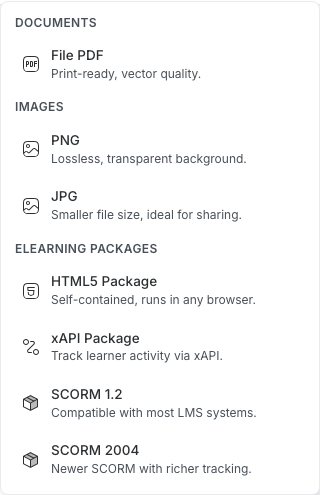
PDF, PNG, JPG, HTML5, xAPI, SCORM 1.2, and SCORM 2004 all require Pro. On a plan without access, the menu marks the export groups as Pro and selecting a format opens the upgrade flow instead of creating a file.
The menu is not shown for an imported authoring-tool presentation in the current editor. Presentation-source access, described below, is available only for an owned native presentation in one specific limited-access state.
2. Follow Export Progress
After you select an available format, a notification remains visible while uPresenter works.
- PDF and image rendering report progress across the presentation.
- HTML5, xAPI, SCORM, and source downloads can report a percentage and downloaded byte count.
- Only one export runs at a time in the editor.
- Export finished confirms that processing completed; the presentation name appears with the result.
- A red failure notification identifies the export or download that did not finish.
Keep the editor tab open until the completion notification appears and the browser starts or finishes saving the file. Do not repeatedly select the same format while an export is already running.
3. Respond To An Updated-Terms Prompt
When updated Terms have taken effect and the account is in limited access, selecting a normal export asks you to review the Terms before the export can start.
- Read the current Terms of Service.
- Select the agreement checkbox only if you agree.
- Select Accept and continue.
- Open Download again and choose the required export.
Choosing Continue limited returns to the app without accepting, but normal exports remain behind the review prompt. A paid grace period keeps normal access through the stated paid period; limited access begins only when that protected period no longer applies.
Accepting updated Terms and upgrading to Pro solve different checks. An account may need both current Terms acceptance and an active Pro subscription to produce a normal export.
4. Download Presentation Source In Limited Access
In limited Terms access, an owner opening a native presentation sees an additional Your data section above the regular formats. Select Presentation source (.zip) to retrieve the data archive. This source action remains available even while normal exports request Terms review.
The archive is named from the presentation with -source.zip and contains:
presentation.json, with the presentation structure and settings;theme.jsonwhen the presentation uses a retrievable theme;- a
resources/folder for available original presentation resources; and - a
theme-resources/folder when the theme has packaged background resources.
The menu adds Your data for a limited account while it is editing a presentation document. The server completes the source download only when all of the following are true:
- the current Terms state is limited;
- the document is a presentation, not a template; and
- the signed-in user owns that presentation.
A viewer, commenter, editor, or other non-owner cannot use a visible menu item or direct request to bypass the ownership check. If the source row is visible while you are working in someone else's shared presentation, ask the owner to retrieve the archive.
Treat the source ZIP as a data-access archive. It is not a PDF, an image set, a browser lesson, an LMS package, or a promise that another application can import and reconstruct the presentation. Store it securely because its JSON and original resources can contain private course material.
5. Diagnose A Failed Export
Work through these checks in order:
- Confirm that the presentation is a native uPresenter file and that the editor has finished loading.
- Confirm Pro access for normal export formats.
- Resolve any updated-Terms review prompt.
- Preview the presentation and confirm that remote fonts and resources load.
- Check the network connection, browser download permission, free disk space, and download folder.
- Retry once after the first export has fully stopped.
- If the same failure returns, note the format, presentation, affected slide, visible error, browser, and time before contacting support.
For a large presentation, test a duplicate with the suspected resource removed only when you need to isolate the cause. Keep the original untouched until you know which content is responsible.
Troubleshooting
| What happens | What it means or what to do |
|---|---|
| A Pro badge or upgrade flow appears | The current subscription does not grant the regular export formats. |
| The Terms dialog appears | Review and accept the current Terms before retrying a normal export, or remain limited and use only the owner source-data option when eligible. |
| Presentation source (.zip) is missing | It is a limited-Terms data-access path for presentation documents, not a normal export or a template download. The server provides the archive only to the presentation owner. |
| Editor is not ready yet appears | Wait for the presentation and canvas to finish loading, then reopen Download. |
| The export notification turns red | Confirm access, resources, network, and browser downloads; retry once and record the repeated error if it persists. |
| A second selection does nothing | Another export is already in progress. Wait for it to finish or fail before starting another. |
| The source ZIP does not play | That archive is raw presentation data. Use HTML5, xAPI, or SCORM for learner delivery. |
Previous: Export eLearning Packages · Next: Read Presentation Reports · Back to Part XV · Back to the full guide