
19.1: Edit Your Profile
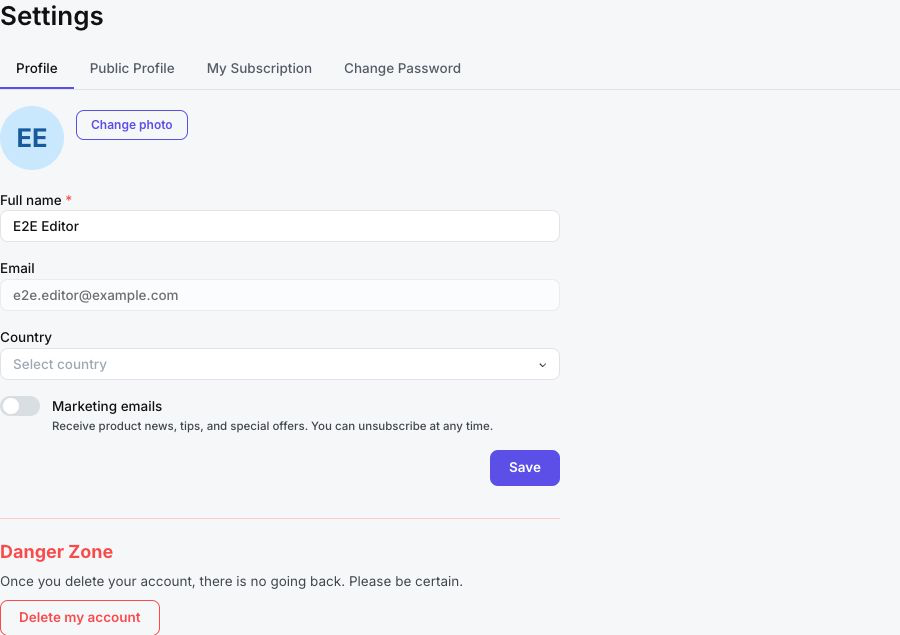
Your profile supplies the name and picture people see while you work in uPresenter. In this section, you will update those details, choose a country, control marketing emails, and find the related public-profile and password settings.
Before You Begin
Open Settings from the main navigation. The Profile tab opens first.
1. Update Your Name, Photo, And Country
- In Profile, edit Full name. A name is required.
- To replace your avatar, select the picture or Change photo, then choose an image no larger than 5 MB. The current uploader accepts JPEG/JPG, PNG, GIF, SVG, AVIF, WebP, and BMP images.
- To return to initials instead of an uploaded or connected-account image, select Remove avatar when that action is available.
- Open Country and choose a listed country, or clear the current choice.
- Select Save.
The Email field is read-only. To use another email identity, contact support instead of creating a second account to work around invitations or shared access.
2. Control Marketing Emails
Use the Marketing emails switch to opt in to or unsubscribe from product news, tips, and offers. This preference saves immediately; it is optional and is separate from accepting the Terms of Service.
Changing your name, country, or avatar still requires Save. If a profile save fails, your marketing preference may nevertheless have been updated because it uses a separate save action.
3. Find Related Account Settings
- Use Public Profile to choose a username, bio, banner, social links, and whether selected work can appear publicly. Part XIV covers that workflow.
- Use My Subscription to review the active plan, credits, storage, transactions, and billing actions.
- Use Change Password for an email-and-password account. uPresenter hides this tab for Google, Apple, or Microsoft accounts because the identity provider manages the password.
- Use Danger Zone only when you intend to delete the entire account. Section 19.5 explains the consequences and confirmation.
Troubleshooting
| What happens | What to do |
|---|---|
| An image is rejected | Use a supported image format and keep it at or below 5 MB. A JPG or PNG is the simplest fallback. |
| Remove avatar is missing | There is no current avatar to remove. Select Change photo to add one. |
| A country name does not remain selected | Choose an item from the searchable list instead of leaving unmatched text in the field. |
| Change Password is missing | The account uses an external identity provider. Change the password with that provider. |
| A saved change does not appear elsewhere | Reload the page after the success message. If the old value remains, try again or contact support. |
Previous: Part XVIII — Teams And Workspaces · Next: Manage Subscription And Billing · Back to Part XIX · Back to the full guide