
20.1: Get Help And Report Problems
Use the support channel that matches the problem. Tutorials and Community help with learning and peer discussion, Contact Support is best for account or service problems, and Report this page is a short path for a problem in an online presentation.
1. Open Help From Your Workspace
In the main navigation, find Resources. It contains Tutorials, Contact Support, Community, and Refer a Friend. Each opens in a new browser tab.
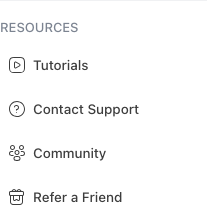
The Resources section is hidden while Student View is active. Return to your normal workspace to use it, or open Contact us from the public uPresenter website footer.
2. Send A Support Request
Select Contact Support. On Contact Us, complete Your name, Your email, Subject, and Your message, then select Send message.
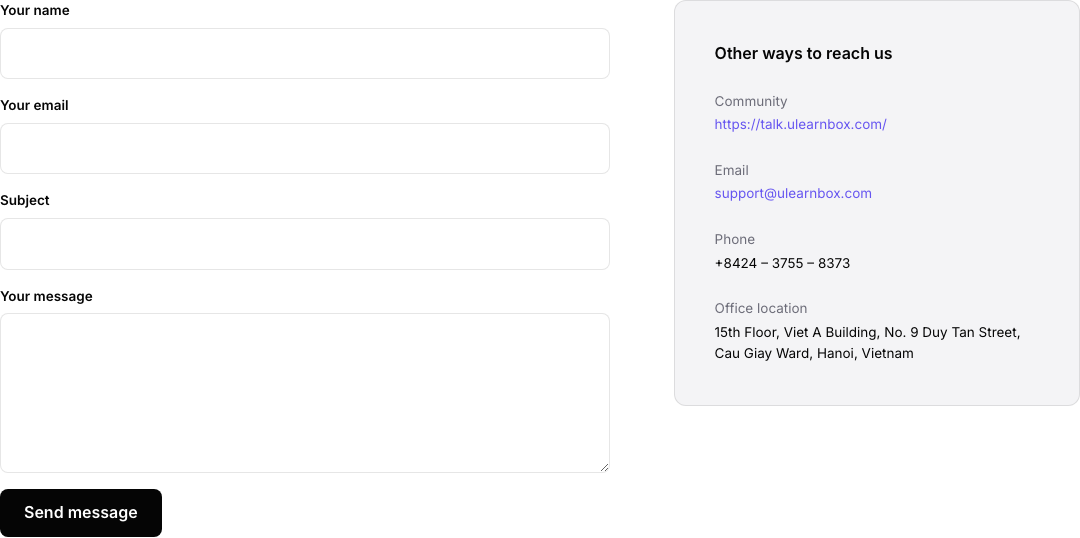
A successful submission clears the form and shows a confirmation. If the form cannot send the message or temporarily limits repeated submissions, use the current email, phone, or Community option shown beside the form.
For a useful report, include:
- the account email you use with uPresenter and the active personal or team workspace;
- the presentation, class, or public link involved, provided the recipient is allowed to open it;
- numbered steps that reproduce the problem;
- what you expected and what happened instead;
- the exact error message and the approximate time, including your time zone;
- your browser, browser version, operating system, and device type; and
- a tightly cropped screenshot with private content removed.
Never send a password, payment-card number, one-time code, private learner record, API token, Connect AI setup prompt, command, MCP link, or MCP token. If support needs more information, wait for an official reply and share only the minimum necessary data.
3. Report A Problem In The Player
Use this route when the problem happens while you are viewing an online presentation:
- On desktop, open More in the bottom player toolbar. On mobile, open Menu.
- Select Report this page.
- In Report an issue, describe the problem. Include the visible slide number or slide title, the action you took, and what you expected.
- Select Submit. Select Cancel if you do not want to send the report.
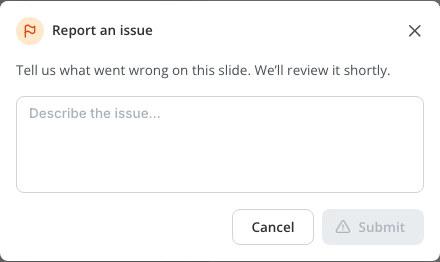
The current report is associated with the presentation, but it does not automatically transmit a slide number. Include that detail in your description. The action is not available in an offline export and can disappear after you have already reported that presentation. Use Contact Support when you need to add broader account, access, class, or billing context.
4. Protect Sensitive Information
Before attaching a screenshot, crop it to the relevant dialog or control and check the entire image. Remove browser password prompts, private email addresses that are not needed, billing information, learner names, unreleased course content, and tokens. If the problem concerns sensitive data, describe the category and ask support for a secure next step instead of pasting the data into the first message.
Troubleshooting
| What happens | What to do |
|---|---|
| Contact Support is missing | Leave Student View, or use Contact us in the public website footer. |
| The contact form says the message could not be sent | Check the connection and try once more. If it still fails, use the email or phone shown on the page. |
| The contact form says you sent several messages | Wait before retrying, or use the direct email shown beside the form. Do not submit the same report repeatedly. |
| Report this page is missing | Confirm that you are in the online player. Offline packages do not offer it, and it may be hidden after a previous report. |
| Submit is disabled in Report an issue | Enter a non-empty description. |
Previous: Part XIX — Account, Subscription, Credits, Storage, And Privacy · Next: Troubleshoot Common Problems · Back to Part XX · Back to the full guide