
1.1: Meet uPresenter
By the end of this section, you will understand where uPresenter fits in a learning workflow, which areas you are likely to use, and how a project moves from an idea to learner results.
uPresenter is an AI-powered eLearning authoring and delivery platform. It is more than a slide editor: you can create or generate learning content, add assessments and interactions, deliver the result to learners, and track performance in the same workspace.
Understand Your Role
What you do in uPresenter depends on your role. You may have more than one role—for example, an instructor can create a lesson, assign it to a class, and then review the results.
| Your role | What you will usually do |
|---|---|
| Course author | Create lessons, presentations, questions, media-rich slides, and LMS packages. |
| Instructor | Assign lessons to classes, invite learners, and review learning reports. |
| Learner | Open assigned or shared lessons, answer questions, submit attempts, and review feedback. |
| Team administrator | Manage workspaces, members, seats, credits, and access. |
| Account owner | Manage profile, subscription, billing, public profile, storage, and privacy choices. |
The tools you see can change with your role, active workspace, and subscription plan. A learner, for example, does not need the same authoring controls as a course author.
Follow A Project From Start To Finish
Most authoring work follows this path:
- Create a starting point. Begin with Create with AI, Create Blank, an imported document, a template, public Inspiration content, or a copy of work you already own.
- Build the learning experience. Add text, images, video, audio, questions, charts, tables, animations, and interactions.
- Define how it should behave. Set scoring, feedback, completion rules, success rules, player controls, and access permissions.
- Check the learner experience. Use Present to preview the lesson before you share, assign, or export it.
- Deliver the lesson. Share it, assign it to a class, or download it as PDF, images, HTML5, xAPI, SCORM 1.2, or SCORM 2004.
- Review the results. Use reports to examine attempts, completion, success, scores, time spent, slide views, and question-level answers.
Imagine that you need to teach workplace fire safety. You could generate a first draft with AI, replace generic examples with your organization’s procedures, add a scored knowledge check, preview the lesson, assign it to a class, and review who completed it successfully. That full cycle—not only slide design—is the central uPresenter workflow.
Recognize The Main Work Areas
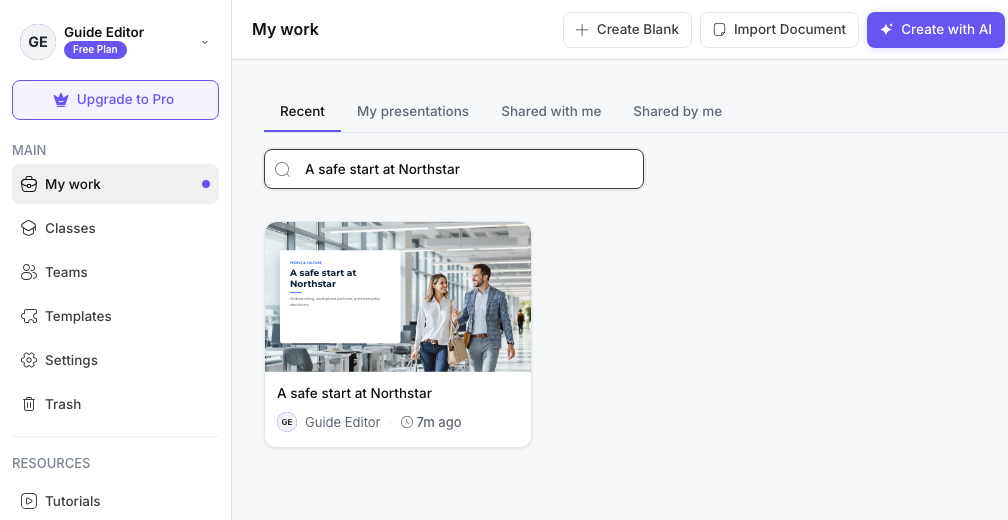
The dashboard is the starting point after sign-in. My work contains presentations you can access. Classes supports lesson assignment and learner tracking, Teams supports shared workspaces, and Templates offers reusable lesson designs. Settings contains account and preference controls.
When you open a presentation, the editor becomes your main workspace. The slide or lesson structure appears on the left, the active page appears in the center, and authoring tools surround the canvas. The top bar provides project-level actions such as Settings, Design, AI, Present, sharing, and Download.
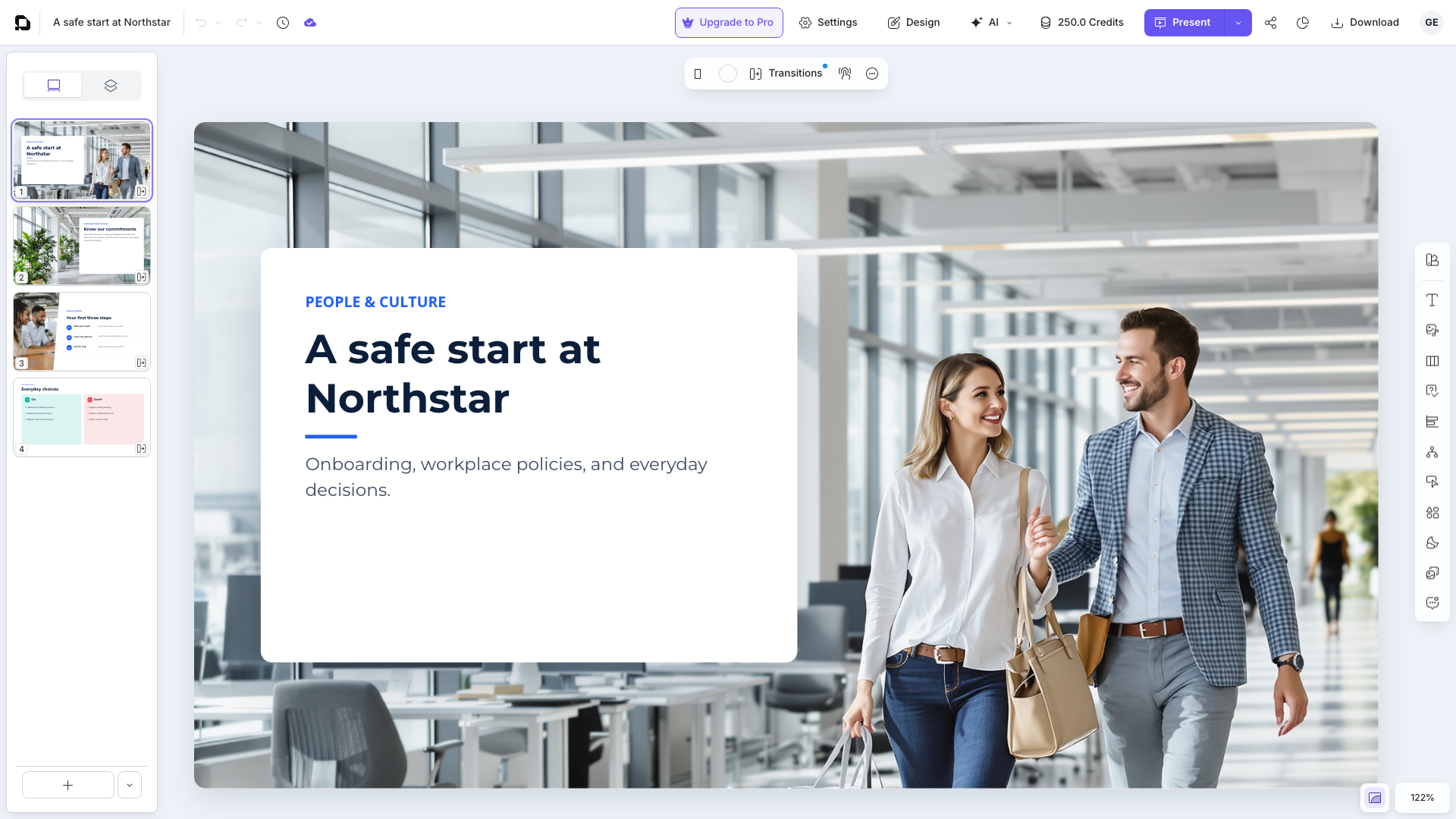
Do not worry about memorizing the editor yet. Later parts of this guide explain the dashboard, creation methods, editor tools, questions, delivery, and reports in context.
Choose The Kind Of Starting Point You Need
| Starting method | A good choice when... |
|---|---|
| Create with AI | You want a first draft from a topic, prompt, outline, or source document. |
| Create Blank | You want full control over the structure and design. |
| Import Document | You want to turn an existing source document into a starting point. |
| Templates | You want a designed structure that you can customize. |
| Inspiration and Remix | You want to adapt reusable public content. |
| Duplicate | You want a separate version of an existing presentation. |
You will make this choice after learning how to access and prepare your workspace.
Back to Part I · Next: Set Up Your Workspace And Create An Account