
15.1: Export Documents And Images
Document and image exports let you reuse a presentation outside the interactive player. A PDF works well for a handout or review copy, while PNG or JPEG files are useful in documents, websites, and other visual workflows.
In this section, you will open the export menu, choose the right static format, and check the downloaded result.
Before You Begin
Open a native uPresenter presentation in the editor and preview every slide. Download is not shown for a presentation imported from another authoring application in the current release.
Regular exports require Pro. Keep the editor open while uPresenter renders the slides, and make sure the browser permits downloads from uPresenter.
1. Open The Download Menu
Select Download in the editor top bar. The menu groups the current choices under Documents, Images, and eLearning packages.
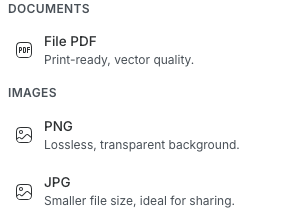
The released static choices use these visible labels:
| Choose | Result | Good for |
|---|---|---|
| File PDF | One .pdf containing the rendered slides as pages |
Handouts, review copies, and printing |
| PNG | One .zip containing a lossless .png file for every slide |
Graphics that benefit from crisp detail or transparency |
| JPG | One .zip containing a smaller .jpeg file for every slide |
Sharing and workflows where file size matters more than lossless quality |
PowerPoint is not available in the current Download menu. Do not plan a workflow that depends on a .pptx file.
2. Export A PDF
- Select Download.
- Under Documents, select File PDF.
- Keep the editor open while the export notification reports progress.
- When Export finished appears, open the downloaded PDF.
- Check every page, especially fonts, formulas, charts, media poster frames, and slides with long fluid content.
The PDF includes all slides. There is no current control for exporting only the selected slide or a slide range.
Animations, interactions, audio, video playback, questions, and learner tracking cannot operate in a static PDF. Use an eLearning package when those behaviors must remain available.
3. Export PNG Or JPEG Images
- Select Download.
- Under Images, select PNG or JPG.
- Wait for the export to finish, then open the downloaded ZIP archive.
- Confirm that it contains one numbered image for every slide, such as
slide-1.pngorslide-1.jpeg. - Extract the archive before placing individual images in another application.
Image export currently processes the entire presentation. It does not offer a selected-slide or slide-range dialog.
Choose PNG when you need lossless output or transparent areas. Choose JPG for a typically smaller file. Both formats flatten the slide into pixels, so text and objects are no longer editable as separate elements.
4. Check The Export Before Distribution
Open the complete result rather than checking only the first page or image.
- Confirm the slide order and count.
- Check custom and hosted fonts.
- Look for clipped content on fluid pages.
- Confirm that linked or remote media has an appropriate static appearance.
- Compare critical charts, equations, masks, and transparent areas with the editor preview.
If an element depends on an external service, allow it to finish loading in the editor before exporting. A static export captures the rendered state; it does not preserve the live service or interaction.
Troubleshooting
| What happens | What to do |
|---|---|
| Selecting a format opens an upgrade dialog | PDF, PNG, and JPG export require Pro. Check the subscription for the current account or workspace. |
| Download is missing | Confirm that the file is a native uPresenter presentation. The current editor hides this menu for imported authoring-tool presentations. |
| The export stays in progress | Keep the editor open, wait for remote fonts and resources to load, and retry after checking the network connection. Only one export runs at a time. |
| A slide is missing or incomplete | Preview that slide, check whether every resource loads, then retry. If the problem repeats, simplify or replace the failing remote resource and report the affected slide. |
| No file appears after success | Check the browser's download permission, download shelf, and configured download folder. |
| You need editable PowerPoint output | .pptx export is not released in the current interface. Use the source presentation in uPresenter or choose another released format. |
Previous: Share On Social Channels · Next: Export eLearning Packages · Back to Part XV · Back to the full guide