
18.3: Manage Members And Invitations
The Members tab controls who belongs to a team, what they may administer, and whether they use a paid seat. In this section, you will invite people, import email addresses, create a reusable join link, assign roles, manage seat activation, and remove access.
Before You Begin
Open Teams, select Settings for the workspace, and open Members. Only an Owner or Admin can invite people or manage other members.
1. Understand Team Roles
| Role | Typical access |
|---|---|
| Owner | Full team administration, billing and renewal, member management, and permanent team deletion. The owner cannot be removed or demoted from the Members list. |
| Admin | Edit team details, manage invitations, generate join links, change Member/Admin roles, remove members, and control seat activation. An Admin cannot purchase the team's plan or delete the team. |
| Member | Use the team workspace and view team information. A Member cannot invite or administer other people and can leave the team. |
A role controls administration; the Active or Inactive state controls the paid-seat relationship. Do not promote someone to Admin merely to give them a Pro seat.
2. Invite Members By Email
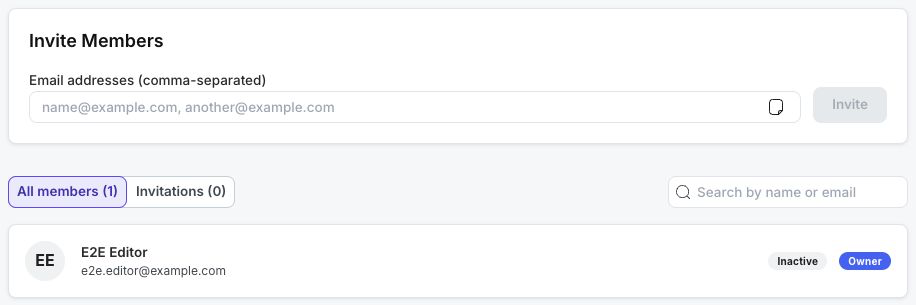
- Under Invite Members, enter one or more addresses in Email addresses (comma-separated). Commas, semicolons, spaces, and line breaks separate addresses.
- On a licensed team, decide whether Activate membership immediately (uses a seat) should be selected. The server still limits activation to a valid license and available seats.
- Select Invite.
Existing uPresenter users can be added directly. Other addresses receive an invitation that expires after seven days. The result message reports how many invitations were sent and how many addresses were skipped because they were already members or already invited.
Use the email address tied to the intended uPresenter account. Accepting an email invitation with the correct account avoids duplicate membership and access confusion.
3. Import Email Addresses From A File
- In Invite Members, select the file button. Its tooltip lists .docx, .xlsx, .csv.
- Choose a supported Word, Excel, or CSV file containing email addresses.
- Review the addresses extracted into the email field.
- Remove any unintended addresses, choose the activation option when available, and select Invite.
Importing only fills the invitation field; it does not send anything until you select Invite. If no addresses can be found, the app reports No emails found in the file.
4. Generate And Share A Join Link
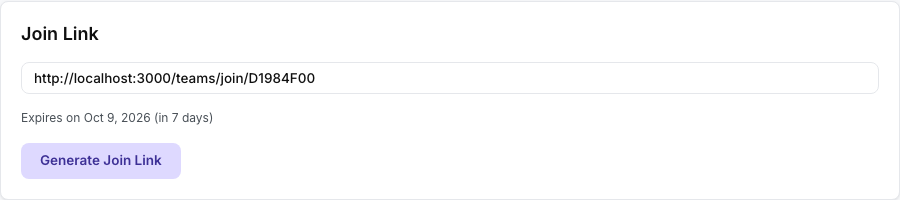
The localhost address and expiry shown in the screenshot are from a temporary test team. Share the current link and expiry displayed in your own team's Join Link card.
- Return to the Overview tab.
- In Join Link, select Generate Join Link.
- Select the copy icon beside the generated URL.
- Share it only with the intended group and include its displayed expiry date. The current interface creates a link that lasts seven days, and an expired link is shown with Expired on
. Generate a new link.
A join link is reusable while valid and is not tied to one email address. Generating another link replaces the previous code, so redistribute the new URL if you regenerate it. A recipient who is signed out is sent to sign in before joining. After an eligible seated member joins, uPresenter asks whether to Set as active or choose Not now; otherwise the person returns to the Teams page.
An email invitation is better for one named person. A join link is better for a controlled group when collecting addresses first is impractical.
5. Manage Members And Seats
- Return to Members and use All members.
- Search by name or email when the list is long.
- Use the role list to switch another person between Admin and Member.
- On a licensed team, use the Active/Inactive switch to allocate or release that person's seat.
- To revoke access, select Remove Member, review the confirmation, and select Remove.
The owner cannot be removed. You also cannot change your own role from this list. If the license is expired, renew it before trying to activate more members. If every seat is already used, an owner can purchase more capacity; an Admin must ask the owner.
6. Revoke Or Clean Up Invitations
Owners and Admins can open Invitations beside All members. Both tabs show their current count, such as All members (4) and Invitations (0):
- Select Revoke to invalidate a pending invitation that is still usable.
- Select Remove beside an expired invitation to clean it out of the list.
- Select Clear expired invitations when multiple expired entries should be removed together.
Expired invitations cannot be accepted. Re-invite the address to issue a fresh seven-day invitation.
Troubleshooting
| What happens | What to do |
|---|---|
| Invite Members or Invitations is missing | Your role is Member. Ask an Owner or Admin to manage access. |
| An address is skipped | The person may already be a member or may have a still-valid pending invitation. Check both member views. |
| A file imports no addresses | Confirm that it is DOCX, XLSX, or CSV and that the addresses are stored as readable text or cells. |
| A join link fails | It may be invalid, expired, or replaced by a newly generated link. Ask an Owner or Admin for the current link. |
| A new member is Inactive | Free teams do not allocate Pro seats, and licensed teams require a valid license plus an available seat. Activate the member after resolving the plan or capacity. |
| The role or member list changed elsewhere | Reload Team Settings. Member removals and role changes can occur from another session. |
Previous: Configure Team Settings · Next: Part XIX — Account, Subscription, Credits, Storage, And Privacy · Back to Part XVIII · Back to the full guide