
2.5: Use Notifications And What's New
The dashboard has two update surfaces with different purposes. Notifications reports activity connected to your account and workspaces, while What's new? explains product changes released by uPresenter.
Open Notifications
Select Notifications in the dashboard header. The panel opens without leaving your current page.
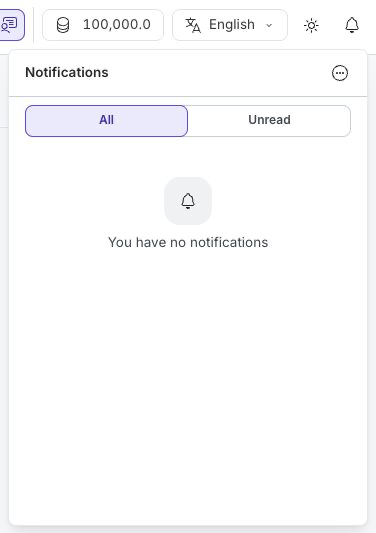
Choose the view that matches your task:
- All shows read and unread notifications.
- Unread filters the panel to items that still need attention.
An unread item has a highlighted background and an unread marker. If the panel says You have no notifications, there is currently nothing in the selected view.
Review One Notification
- Open Notifications.
- Read the message and its time.
- Select the notification when it points to related content.
- Wait for uPresenter to mark it as read and open the destination.
Depending on the event, a notification can lead to a shared presentation, class invitation, class join request, class lesson update, team invitation, upload result, subscription page, or license warning. Some informational notifications do not have a destination.
If a link no longer opens the expected content, the item may have been removed or your permission may have changed.
Mark Or Delete Individual Notifications
Move the pointer over a notification to reveal its actions:
- Select Mark as read to keep the message but remove its unread state.
- Select Delete to remove the notification from the panel.
Deleting a notification does not normally delete the presentation, class, team, or account event it describes. For a pending class join request, however, removing the request notification can also remove that pending request, so review the message before deleting it.
Manage All Notifications
Open More in the Notifications header to manage the complete list.
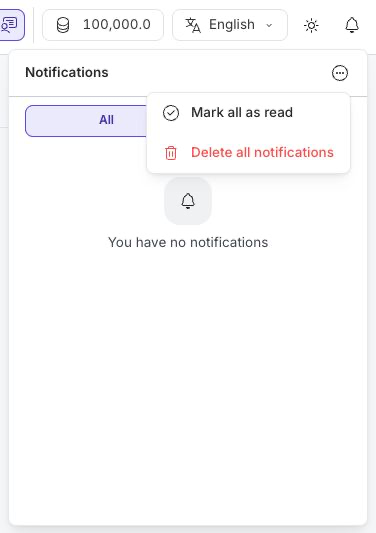
- Select Mark all as read when you have reviewed the list and no longer need unread markers.
- Select Delete all notifications when you no longer need the notification history shown in the panel.
These commands apply immediately. Use Unread first if you want to make sure no important item is waiting before clearing or marking the entire list.
Open What's New
Select What's new? near the bottom of the left sidebar. The panel previews recent update periods and groups changes with labels such as ADDED, IMPROVED, and FIXED.
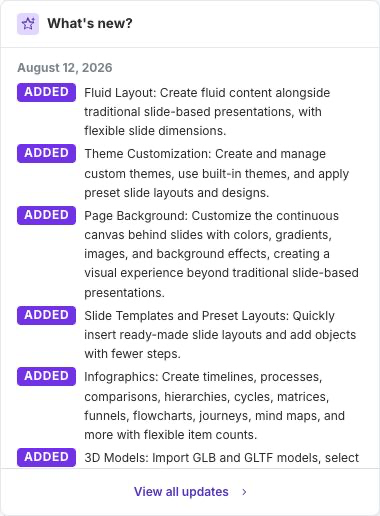
Use the labels as a quick guide:
| Label | Meaning |
|---|---|
| ADDED | A new feature, content type, or workflow became available. |
| IMPROVED | Existing behavior or usability changed. |
| FIXED | A reported problem was corrected. |
Select View all updates to open the complete changelog in a new browser tab. Opening the panel also records that you have seen the currently available update periods, so the new-update badge can clear.
Treat the changelog as a discovery tool. Availability can still depend on your role, active workspace, plan, or current release, so check the live interface before relying on a feature in a production workflow.
Build A Useful Review Habit
- Check Notifications when a share, invitation, upload, license, or class change is expected.
- Use Unread to focus on items that still need action.
- Open What's new? after an update when a familiar workflow looks different.
- Follow View all updates when you need more context than the dashboard preview provides.
Quick Check
Before leaving Part II, make sure you can:
- switch between All and Unread;
- mark or delete one notification;
- use Mark all as read and Delete all notifications carefully;
- distinguish account activity from product updates; and
- open the complete changelog with View all updates.
Previous: Import A Presentation Package · Next: Part III — Creating Content · Back to Part II · Back to the full guide