
1.3: Sign In And Manage Account Access
This section takes you from the login page to the dashboard and shows how to recover or change a password without creating a duplicate account.
Sign In To Your Workspace
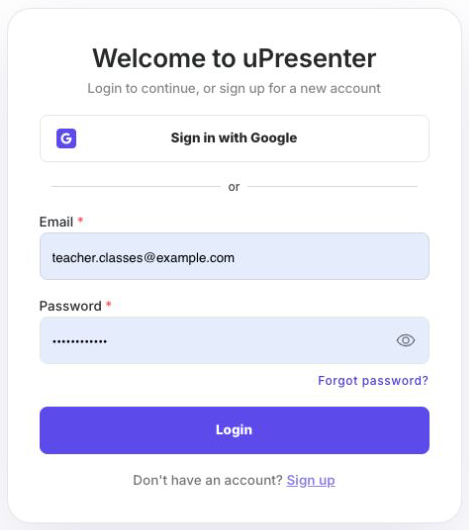
- Open
https://upresenter.aiand select Login. - Enter the email address connected to your account.
- Enter your password.
- Select Login. After uPresenter verifies your details, the dashboard opens.
If you registered with Google, select Sign in with Google and choose the same Google account used during registration. A Google-created account might not have a separate uPresenter password.
Continue From An Invitation Or Protected Page
You may reach the login page after opening a class invitation, team invitation, shared presentation, or another protected page. This is expected: uPresenter must identify you before it can show private content.
- Sign in using the email address that received the invitation.
- After sign-in, uPresenter attempts to return you to the page you originally opened.
- If the dashboard opens instead, open the original invitation link again now that you are signed in.
- Check the active account or workspace if the page opens but the expected content is missing.
Avoid creating another account to solve an invitation problem. Access is usually associated with a specific email identity, so a second account can leave the original invitation unresolved.
Reset A Forgotten Password
Use password reset when the account was created with email and password and you can no longer sign in.
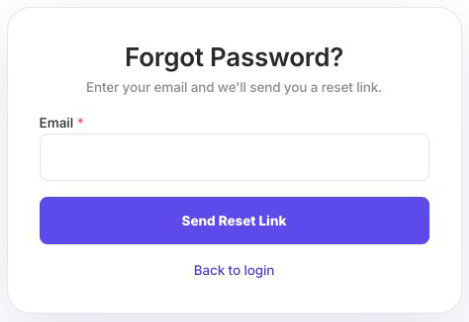
- On the login page, select Forgot password?.
- Enter the email address used for uPresenter.
- Select Send Reset Link.
- When Check your email appears, open the newest password-reset message from uPresenter.
- Select the link in the message. The Reset your password page opens.
- Enter a new password that meets the registration requirements, then enter it again in Confirm Password.
- Select Reset Password.
- After Password Reset! appears, wait for uPresenter to return to Login, then sign in with the new password.
Reset links are temporary. If you see Invalid or expired reset link. or a missing-token message, return to Forgot password? and request a new link. If you requested more than one, use the most recent message.
Change A Password You Know
If you are already signed in and want a different password:
- Select Settings from the dashboard.
- Open the Change Password tab.
- Enter your Current Password.
- Enter the replacement in New Password, then repeat it in Confirm Password.
- Select Change Password. The update is complete when Password changed successfully. appears.
The Change Password tab is available for email-and-password accounts. OAuth accounts, including Google-managed accounts, do not have a uPresenter password to change; manage the password through the identity provider instead.
Troubleshoot Access
| What you see | What to do |
|---|---|
| Invalid credentials | Retype the email and password, check Caps Lock, and confirm that you did not originally use Google sign-in. |
| The reset email does not arrive | Check spam or filtered mail, confirm the address, and allow a few minutes before requesting another link. |
| A reset link is invalid or expired | Request a new link and use only the newest reset message. |
| The invitation opens the dashboard | Sign in first, then reopen the invitation link. |
| The invited content is still unavailable | Confirm the signed-in email and active workspace, then ask the inviter to verify the invitation address and permission. |
| The account is suspended | Contact your administrator or uPresenter support; password reset does not change account status. |
Previous: Set Up Your Workspace And Create An Account · Back to Part I · Next: Configure Languages, Terms, And Email Preferences