
13.2: Use The Player
The player is the learner-facing presentation experience. Its available controls depend on the author's player settings, the current slide, the learner's attempt state, the screen width, and whether the presentation is being viewed online or from an offline package.
This section explains how to enter a protected presentation, navigate on desktop and mobile, submit slide questions, share an allowed link, and report a problem.
1. Open A Presentation
Open the link supplied by the author or instructor, or select the assigned lesson from your class.
What happens next depends on its access settings:
- If sign-in is required, uPresenter sends an anonymous visitor to Login and returns to the presentation after successful sign-in.
- If your account does not have access, uPresenter shows an access-denied or not-found page. Confirm that you are using the invited account and the newest link.
- A password-protected presentation opens Access restricted. Enter Password, optionally use Show password to check it, and select Continue.
- If the author requires anonymous identification, enter Your name before selecting Continue. A signed-in viewer's known name is filled in and cannot be changed in this dialog.
If the same lesson is assigned through a class, uPresenter can ask you to Choose where to learn. Select the class and then Open class lesson so progress and score are recorded in that class. Choose Practice independently only when it is offered and you understand that the practice session is kept separate from the class record.
2. Navigate On Desktop
The modern desktop toolbar stays docked at the bottom of the player. Controls can include:
| Control | What it does |
|---|---|
| Slides | Opens visual thumbnails for direct navigation. |
| Previous and Next | Moves one slide backward or forward. Next is absent on the final slide. |
| Slide counter | Shows the current position and opens a slide-name list when selected. |
| Submit | Submits the answer or answers on the current slide. |
| Submit lesson | Finalizes an eligible question-based presentation attempt. |
| Review | Opens the finalized attempt when review is allowed. |
| Try again or Restart | Starts another allowed attempt, or restarts a presentation without questions. |
| Autoplay Settings (gear icon) | Sets automatic movement to 5 seconds, 3 seconds, 1 second, or None. |
| Audio control | Plays, pauses, mutes, or unmutes narration when the current content provides it. |
| Share | Opens the current player link, QR code, and social sharing controls. |
| Fullscreen | Expands the player to the screen and returns it to the browser window. |
| More | Holds state-dependent actions such as Submit lesson, audio, or Report this page. |
The thin segmented progress bar follows the slide sequence. Select a segment to jump directly when navigation is available.
3. Use Slide Thumbnails
Select Slides to open the thumbnail strip. The current slide is outlined, and each thumbnail shows its slide number.
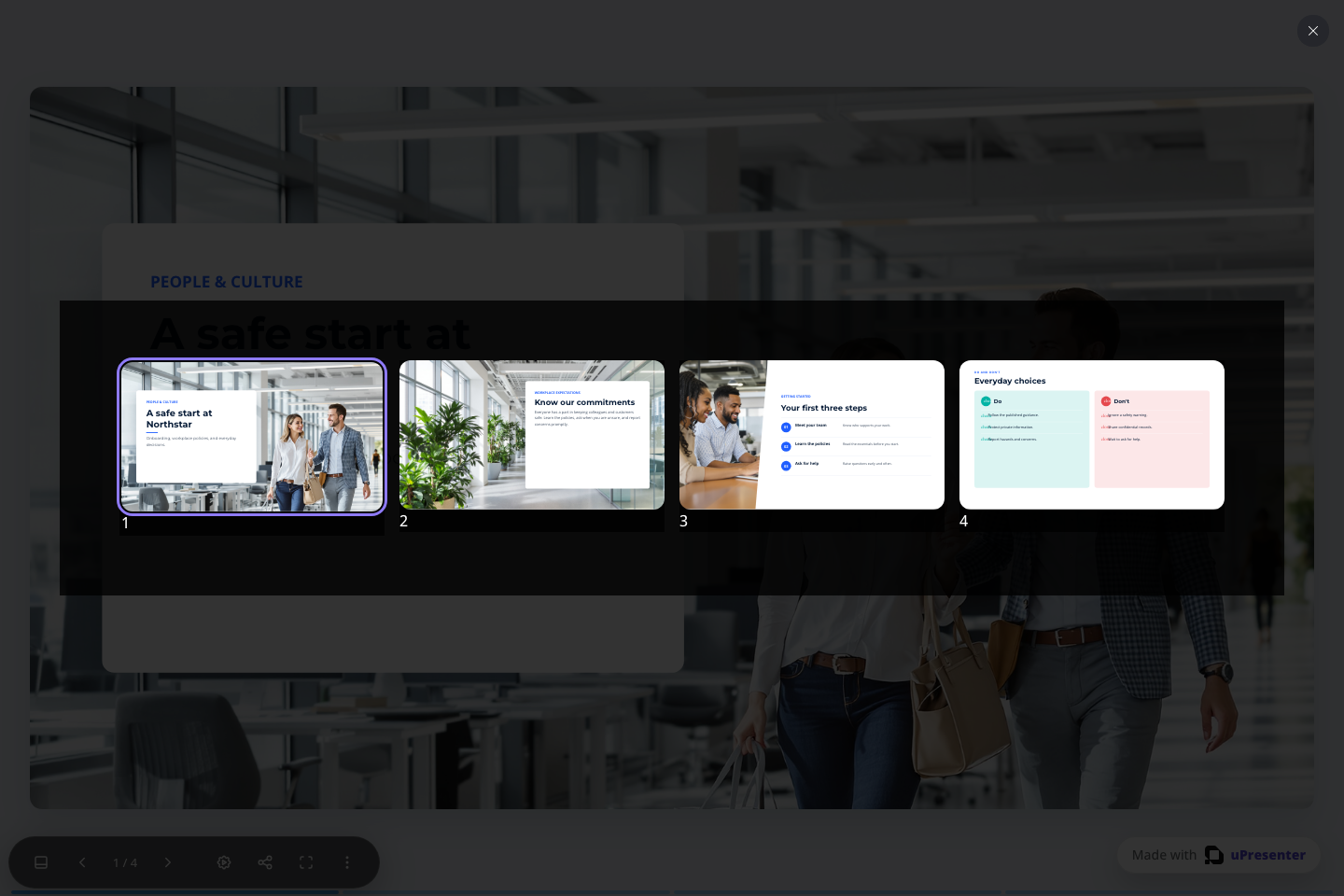
Select a thumbnail to open that slide, or select Slides again to close the strip. If a presentation depends on a strict sequence, follow the author's Next/Previous flow even when direct navigation is available so you do not miss an interaction or question.
4. Answer A Question
Choose, type, drag, or otherwise enter the response required by the question, then select Submit. The button submits questions on the current slide; it does not necessarily finish the whole lesson.
After submission, the player can:
- show correct, incorrect, or submitted feedback;
- play feedback audio or confetti configured by the author;
- keep the learner on the slide;
- enable Next; or
- move to the next slide after the configured delay.
An unavailable Submit button usually means the question has already been submitted, the current attempt is finalized, or the response is not yet ready. Review the question and its instructions before navigating away.
5. Share From The Player
Select Share to open a QR code, Facebook, Twitter, LinkedIn, and a control that copies the player link.
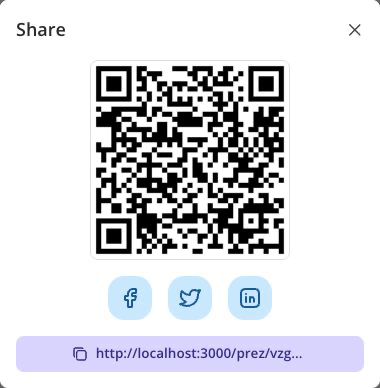
The localhost address in the screenshot belongs to a local test presentation. Copy the link from your own player when sharing a live lesson; the QR code in the example is not a link to your lesson.
The share tool copies access to the same presentation; it does not override sign-in, password, class, publication, or attempt rules. A recipient still needs the access allowed by the author.
6. Use The Mobile Menu
At phone width, the player keeps the essential navigation controls in the bottom bar and moves the remaining actions into Menu.
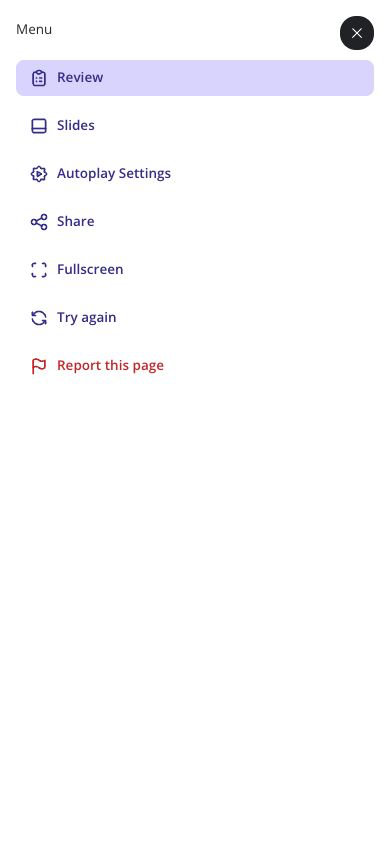
The menu shows only actions that are currently available. For example, Review and Try again appear after an attempt is finalized, while an offline package does not show Report this page.
7. Report A Player Problem
For an online presentation, open More on desktop or Menu on mobile, then select Report this page.
- In Report an issue, describe what went wrong on the current slide.
- Include the action you took and what you expected to happen. Do not include passwords or private learner data.
- Select Submit, or Cancel to return without sending the report.
The report is associated with the current presentation, but the current request does not automatically transmit a slide number. Include the visible slide number or title in your description. For a broader account or access problem, use Contact Support from the main uPresenter navigation instead.
Troubleshooting
| What happens | What to do |
|---|---|
| A toolbar control is missing | The author may have hidden it, the current attempt state may not allow it, or it may be inside More or Menu. |
| Next is missing | You may be on the final slide. Submit the current question or use Submit lesson when offered. |
| A class lesson offers independent practice | Choose Open class lesson if the result must be recorded for the class. |
| The password is rejected | Check capitalization and ask the author for the current password. |
| The layout is hard to read on a phone | Rotate the device, leave full-screen mode, or ask the author to review the phone-width preview. |
| Sharing works but the recipient cannot open the lesson | Ask the author to check publication and access rules; the player share control does not grant permission. |
Previous: Preview A Presentation · Next: Complete And Review Attempts · Back to Part XIII · Back to the full guide