
2.2: Find Work In Library Views
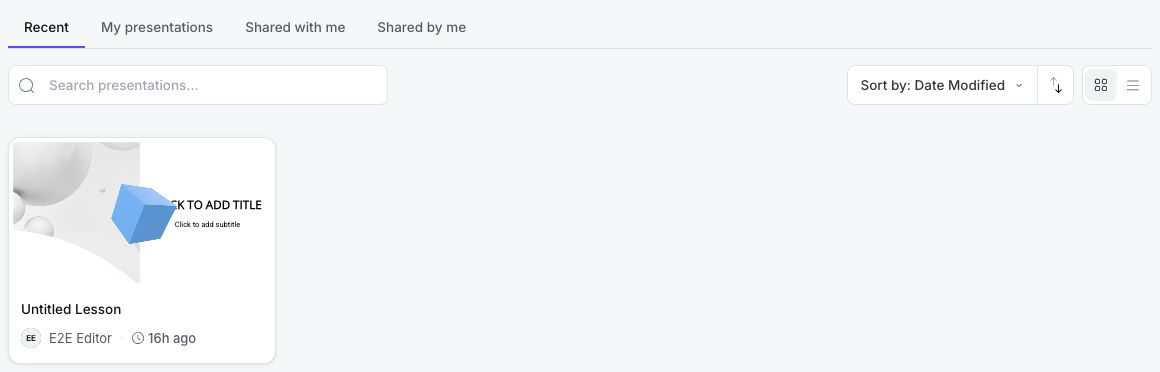
The presentation library separates recent work, presentations you own, and presentations shared in either direction. Choosing the right view first makes search and sorting more useful because every control works within the view you selected.
Before You Begin
Sign in, switch to Teacher View, and select My work in the left sidebar. Wait until presentation cards or the empty-state message appears before changing views.
The library belongs to the active workspace. If a presentation you expect is missing, open your account menu and confirm that the correct personal or team workspace is active.
1. Choose The View That Matches Your Task
Use the tabs above the library to decide which presentations appear:
| View | What it contains | When it helps |
|---|---|---|
| Recent | Presentations you opened or changed recently. | Continue work without remembering where it is stored. |
| My presentations | Presentations owned by you in the active workspace. | Find work you can manage, duplicate, assign, or move to Trash. |
| Shared with me | Presentations another person shared with you. | Open collaborative or reference material received from someone else. |
| Shared by me | Presentations you shared with other people. | Review work you have already distributed to collaborators. |
Trash is not a tab. Select Trash in the left sidebar to work with deleted presentations.
An empty shared view is not an error. uPresenter shows No presentations shared with you. or You haven't shared any presentations. until that view has content.
2. Search Within The Current View
- Select the view you want to search.
- Select Search presentations....
- Enter part of a presentation name.
- Open the matching card or row, or clear the search text to restore the complete view.
Search does not combine all five views. If there is no match, clear the search and check another tab, Trash, or the active workspace.
3. Sort The Results
Open Sort by and choose one of the current options:
- Name
- Date Created
- Date Modified
- Owner
- Date accessed
Use the direction button beside Sort by to switch between ascending and descending order. For example, Date Modified in descending order places the most recently changed work first, while Name in ascending order produces an alphabetical list.
Changing the sort order does not change ownership or move any presentation. It only changes the order of the current results.
4. Switch Between Grid And List Views
Choose the layout that makes the library easiest to scan:
- Grid view emphasizes slide thumbnails and is useful when you recognize presentations visually.
- List view uses compact rows and is useful when names and dates matter more than thumbnails.

uPresenter remembers this choice in the current browser when you leave the dashboard and return.
5. Use Pagination When It Appears
When the selected view contains more results than fit on one page, page controls appear below the library. Select a page number to continue browsing. Switching tabs, changing the search, or moving between My work and Trash starts the new result set from its first page.
If A Presentation Is Missing
Check these causes in order:
- Clear Search presentations....
- Check Recent, My presentations, Shared with me, and Shared by me.
- Select Trash in the left sidebar.
- Confirm the correct personal or team workspace in the account menu.
- Confirm that the owner has not removed your access.
Quick Check
Before continuing, make sure you can:
- explain the difference between My presentations and Shared with me;
- search and sort one selected view;
- switch between Grid view and List view; and
- find Trash when a deleted presentation is not in the four work-mode tabs.
Previous: Dashboard Overview · Next: Manage Presentation Actions And Trash · Back to Part II · Back to the full guide