
17.4: Track Class Progress
Class reports connect each enrolled learner with each assigned lesson. In this section, you will read the class overview, move between learner and lesson views, and open the attempt detail that explains a result.
1. Read The Class Overview
In Teacher View, open the class and select Students.
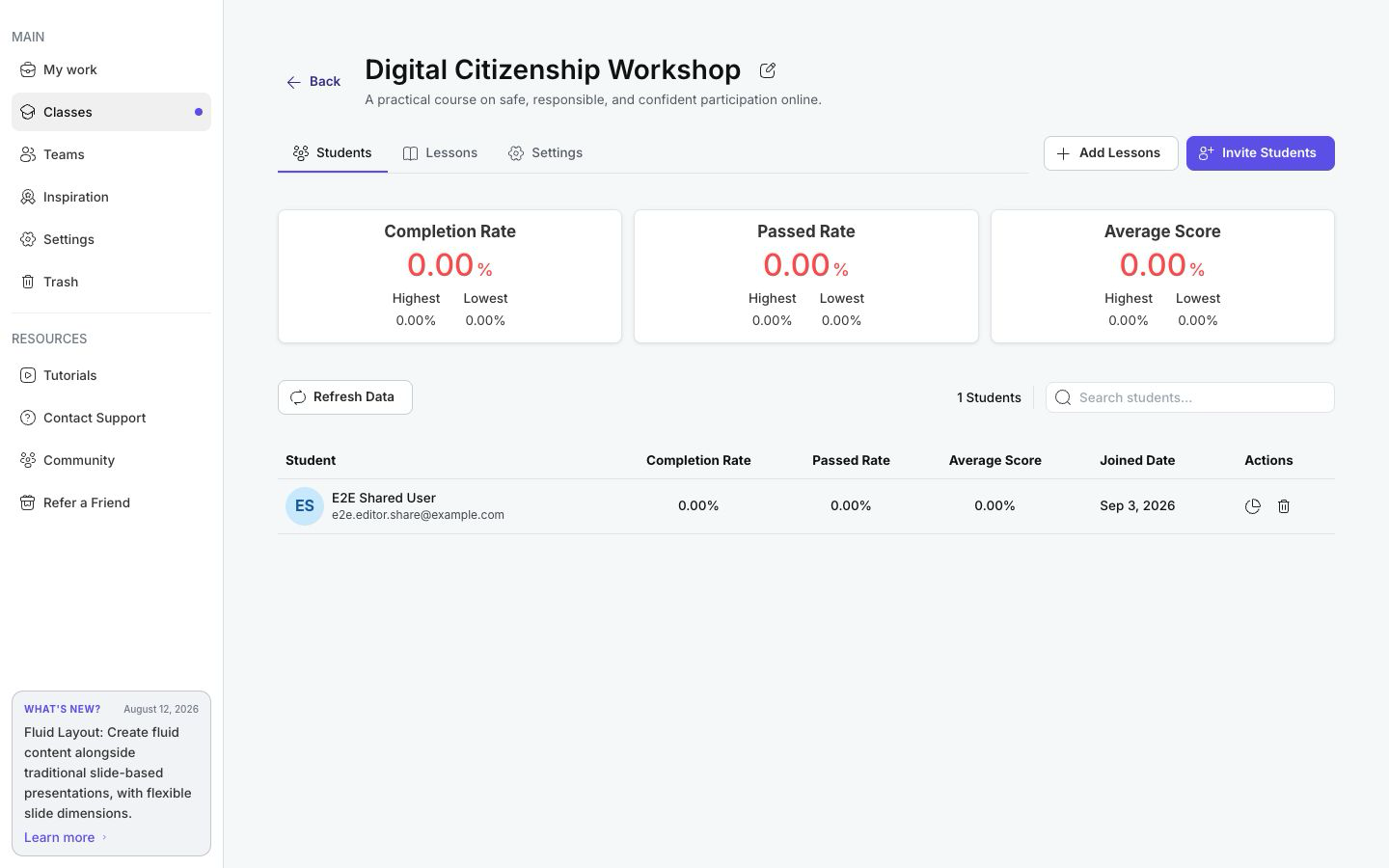
The summary cards aggregate the current learners' class-level results:
| Metric | What it tells you |
|---|---|
| Completion Rate | The average percentage of assigned lessons each learner has completed. |
| Passed Rate | The average percentage of assigned lessons each learner has passed. |
| Average Score | The average of the learners' class-level scores. |
Each card also shows the highest and lowest learner value. A newly enrolled learner with no finished activity can make the class figures lower, so use the learner rows before drawing a conclusion from the averages alone.
The table lists each learner's completion, passed rate, average score, and joining date, with a learner count and a Search students... field above it. Select Refresh Data after recent activity if the screen has been open while learners were working.
2. Review One Learner
Select Reports on a learner row to open that learner's class report.
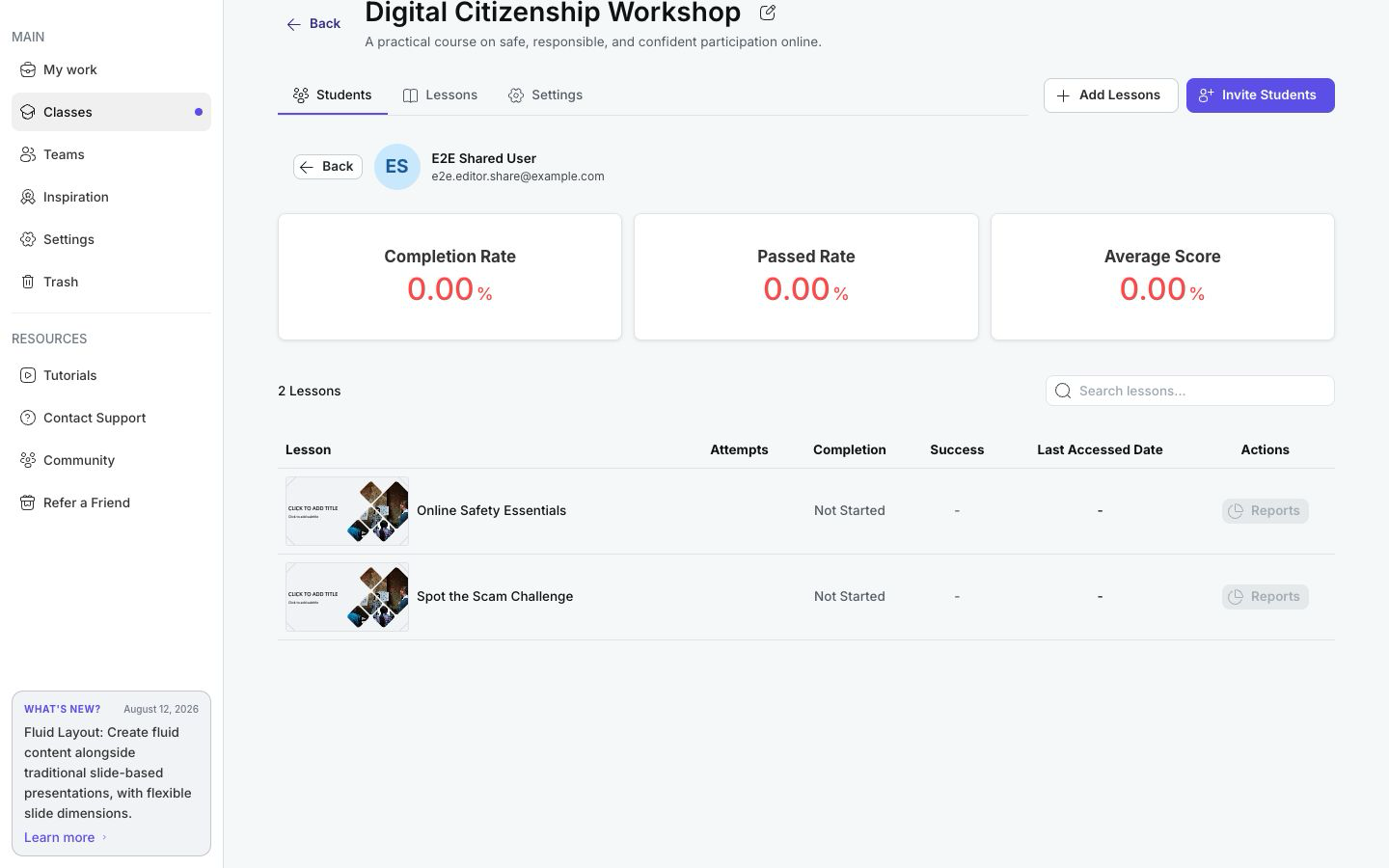
The report repeats the learner's overall metrics and lists each assigned lesson with:
- Attempts;
- Completion;
- Success;
- Last Accessed Date;
- a Reports action for attempt detail.
Use this view to separate different situations. For example, zero attempts suggests the learner has not started, incomplete activity suggests they may need time or access help, and completed-but-not-passed activity suggests reviewing score, responses, or success criteria.
3. Review One Lesson Across The Class
Return to the Lessons tab. The Completed and Passed columns show the count and percentage of enrolled learners for each lesson. Select Reports on a lesson row to compare student results for that assignment.
This view is useful when many learners are struggling with the same content. A low value for one learner points toward individual support; a low value across most learners may point toward lesson difficulty, instructions, or scoring rules.
4. Open Attempt Details
- From a learner report, find a lesson with at least one attempt.
- Select Reports for that lesson.
- Choose the numbered attempt you want to inspect.
- Review completion, success, score, viewed slides, question results, and recorded responses.
The best scored attempt is identified in detailed attempt reporting. Detailed teacher attempt reports require Pro access; if the upgrade message appears, use the visible class-level and lesson-level metrics or ask a workspace owner about the appropriate plan.
5. Interpret The Measures Together
- Completion answers whether the learner satisfied the lesson's completion criteria.
- Passed answers whether the completed result satisfied its success criteria.
- Average Score summarizes scored performance.
A learner can therefore complete a lesson and still fail it. Conversely, a lesson without scored questions may provide meaningful completion data without a useful score. Check the presentation's criteria before treating any one metric as the whole result.
Troubleshooting
| What happens | What to do |
|---|---|
| All metrics are zero | Confirm that learners are enrolled, lessons are assigned, and attempts have actually started; then select Refresh Data. |
| Completion is high but passed rate is low | Review success criteria, question scoring, and detailed learner attempts. |
| A learner says they finished but still appears incomplete | Refresh the data, verify that they finalized the attempt, and confirm the presentation's completion criteria. |
| Detailed attempt reporting asks for an upgrade | The teacher's detailed attempt view is Pro-gated. The class summary and row-level metrics remain the starting point. |
| A class average looks unexpectedly low | Inspect the individual rows. New or inactive learners can lower the aggregate. |
Previous: Assign And Sequence Lessons · Next: Part XVIII — Teams And Workspaces · Back to Part XVII · Back to the full guide