
12.1: Share And Collaborate
Sharing an editable presentation is different from publishing it for learners. The Collaborators tab gives named people access to the source presentation, while Public access controls learner-facing availability and is covered in Part XIV.
In this section, you will add a collaborator, choose the correct permission, manage existing access, and understand how live editing and automatic saving work.
Before You Begin
Open a presentation in the editor. You need permission to manage sharing; Viewer and Commenter roles cannot open the sharing controls. If you are coordinating a formal review, decide in advance who should only read, who should comment, and who may change the lesson itself.
1. Open Collaborator Sharing
- Select the Share icon in the editor's top bar.
- In Share Presentation, keep Collaborators selected.
- Review the current owner and collaborator list before adding anyone. This helps you avoid inviting the same address twice or giving edit access to the wrong account.
The adjacent Public access and Classes choices serve different delivery workflows. Do not enable public access merely to let a colleague edit the source.
2. Add A Collaborator
- Select Add emails.
- Enter the person's uPresenter email address. As you type, uPresenter searches for a matching user; a valid unmatched address can also be shown as an invitation address.
- Select the result, then select Add.
- Confirm that the person appears in the table. A new collaborator starts as a Viewer.
- Open the permission list in that row and choose the role the person actually needs.
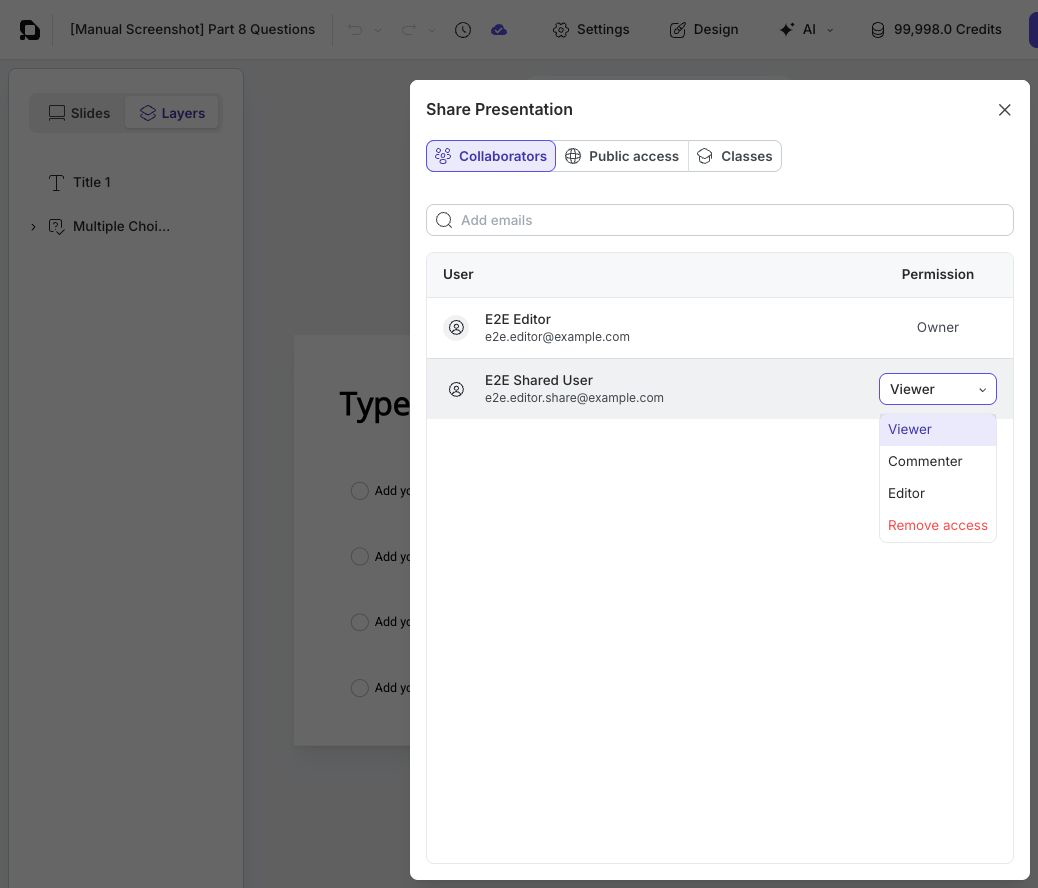
The role names describe access to the source presentation:
| Role | What the person can do |
|---|---|
| Viewer | View and play the presentation. A viewer cannot edit, comment, or manage sharing. |
| Commenter | View, play, and use comments without changing presentation content. A commenter cannot manage sharing. |
| Editor | View, play, comment, and edit the presentation. Editors can also manage sharing in the current editor. |
| Owner | Retain ownership and full control. The owner is shown as a fixed row; Owner is not an assignable choice in the current Share Presentation dialog. |
Use Commenter for subject-matter review when the reviewer should propose changes without directly rewriting the lesson. Reserve Editor for people who are expected to change content, settings, or structure.
3. Change Or Remove Access
Open the permission list beside a collaborator, then:
- select Viewer, Commenter, or Editor to change the role; or
- select Remove access to remove that person's collaborator access.
Remove access takes effect immediately in the dialog, so verify the row before selecting it. If an editor changes their own role to Viewer or Commenter, uPresenter asks for confirmation and reloads the presentation because that change removes their current editing capability.
The current dialog does not offer ownership transfer. If a project requires a different owner, do not represent an Editor role as ownership; use the supported account or workspace process provided by your organization.
4. Work In The Live Editor
When two editors open the same presentation, supported document changes are synchronized while they work. uPresenter sends changes as editing operations rather than asking each person to upload a separate file.
- Watch the cloud status in the top bar. All changes saved means the current changes have reached the saved document; Unsaved changes means synchronization is still in progress.
- Open the editor account menu and use Live Pointers > Show My Pointer or Show Collaboration Pointers to control pointer visibility.
- Coordinate before changing the same text, object, slide order, or setting. Real-time synchronization does not replace editorial ownership of a decision.
- Use comments for questions and review decisions so collaborators can see the reason behind a requested change.
- Wait for All changes saved before closing the tab, switching networks, or asking another person to verify a recent edit.
The role of a shared presentation appears in the top bar as Viewer, Commenter, or Editor. If someone cannot perform an expected action, check that label before troubleshooting the tool itself.
5. Resolve Common Sharing Problems
| What happens | What to check |
|---|---|
| The invited presentation is missing | Confirm that the collaborator signed in with the exact address added in Add emails, then check Shared with me on the dashboard. |
| The Share icon reports insufficient permission | The current role is Viewer or Commenter. Ask an owner or editor to manage access. |
| A reviewer changes content unexpectedly | Change the role from Editor to Commenter and keep requested changes in comments. |
| A collaborator cannot edit | Confirm that their top-bar role is Editor, not Commenter or Viewer. |
| A recent edit is not visible yet | Keep the presentation open, check the connection, and wait for All changes saved before reloading. |
| Live pointers are not visible | Check Live Pointers in the editor account menu and confirm that both people are in the same presentation at the same time. |
Quick Check
Before continuing, make sure that you can:
- open Share Presentation and add an email address;
- distinguish collaborator sharing from public access;
- explain Viewer, Commenter, Editor, and the fixed Owner role;
- change or remove collaborator access;
- recognize All changes saved; and
- control live-pointer visibility while coordinating real-time edits.
Previous: Part XI — Themes And Presentation Settings · Next: Use Comments · Back to Part XII · Back to the full guide