
19.2: Manage Subscription And Billing
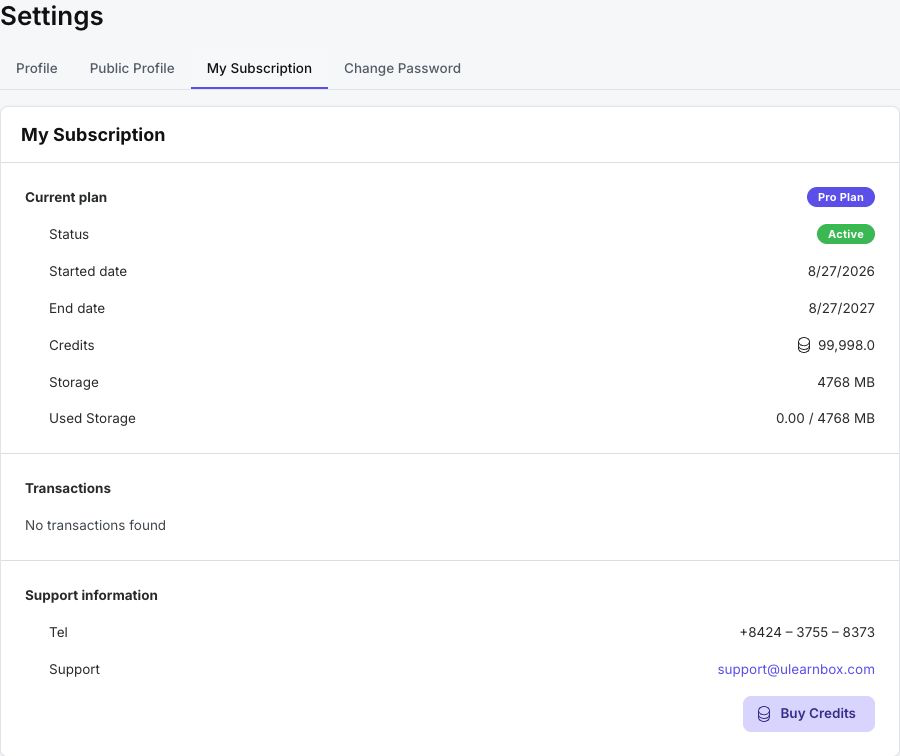
The My Subscription tab brings plan, allowance, transaction, and provider information together. In this section, you will identify the plan that is currently in effect, understand which billing controls should appear, and review purchase history without confusing a personal plan with a team license.
Before You Begin
Confirm the active workspace, then open Settings and select My Subscription.
1. Read The Current Plan
The Current plan card can show Free Plan, Pro Plan, or Beta Pro. When the active workspace receives Pro access from a team license, the card still presents that effective Pro plan; use Teams and Team Settings to inspect its owner, seats, and license details.
For a paid plan, the card can also show:
| Field | Meaning |
|---|---|
| Status | Active, Canceled, Overdue, Paused, Trialing, or Unknown, as reported by the subscription service. |
| Started date | When the current subscription or license period began. |
| End date | When access ends or a scheduled cancellation takes effect. |
| Credits | The active workspace's plan or credit pool. Your spendable balance can differ when a team applies a member limit. |
| Storage | The workspace allowance. |
| Used Storage | Current use compared with the allowance. |
If these values belong to the wrong organization, return to Teams, switch to the intended workspace, and reopen My Subscription.
2. Use The Available Billing Controls
Billing controls depend on the plan source:
- An eligible individual recurring Pro subscription can show Billing Period, Current period, Next Billing Date, and Update Payment Method; a plan bought through another provider may show none of them. The last action opens the payment provider in a new tab.
- A Beta Pro plan does not show normal customer billing controls.
- A team license is administered by its owner. Use Teams > Settings to manage seats, renewals, and team identity.
- A personal Pro plan and an automatically paid team subscription can show Cancel subscription. Cancellation is scheduled for the end of the current paid period; access remains available until the displayed date.
- When a scheduled team cancellation exists, Don't Cancel removes it. Accept the current Terms if uPresenter requests a Terms review before resuming renewal.
The external provider decides which payment-method and personal-subscription actions are available after Update Payment Method. If the provider page does not offer the action you need, use the support contact shown at the bottom of My Subscription.
3. Review Transactions And Invoices
The Transactions card combines supported payment records and shows No transactions found when the account has none.
When records exist, read Date, Amount, Status, Product, and Invoice. FastSpring rows can provide View links for invoices and distinguish completed, failed, refunded, and partially refunded payments. Sepay and GMO sections appear only when relevant; their invoice column shows an invoice or transaction number rather than a provider document link.
Transaction history is user-wide, so a purchase for another team you own can still appear here even when that team is not active. Match the product and date before assuming a charge belongs to the current workspace.
Troubleshooting
| What happens | What to do |
|---|---|
| The plan is not the one you expected | Check the active workspace in Teams. Personal and team plans are separate. |
| Billing or Update Payment Method is missing | The current plan may be Free, Beta Pro, or team-scoped. Use Team Settings or ask the billing owner. |
| Cancel Subscription is missing | The in-app control is limited to supported automatically paid team subscriptions. Check the payment-provider page or contact support. |
| Don't Cancel is blocked by a Terms prompt | Review and accept the current Terms, then retry. |
| A purchase is missing | Check the other transaction pages and the product date. Provider processing can take time; keep the receipt before contacting support. |
Previous: Edit Your Profile · Next: Understand And Use Credits · Back to Part XIX · Back to the full guide