
14.1: Publish A Public Link
Publishing creates a learner-facing link to one presentation. It does not make the presentation editable, and it does not automatically place the presentation on your public profile or in Inspiration.
In this section, you will publish a link, choose who can open it, add optional discovery information, allow or prevent reuse, and remove public access when delivery ends.
Before You Begin
Open the presentation in the editor, finish the checks in Part XIII, and wait for All changes saved. The owner or an editor can manage public access. A viewer or commenter cannot open the sharing controls.
Decide whether the audience should:
- open the link without an account;
- sign in before viewing;
- provide a name when viewing anonymously;
- enter a password;
- discover the presentation through the author's public profile or Inspiration; or
- use the presentation as a starting template.
The anonymous-name and password controls are Pro features. Their availability follows the current subscription of the active workspace.
1. Publish The Presentation
- Select Share in the editor top bar.
- In Share Presentation, select Public access.
- Turn on Publish this presentation for public viewing.
- Wait for the success notification. Public-access changes save automatically after a short delay.
The complete panel appears only while publication is on.
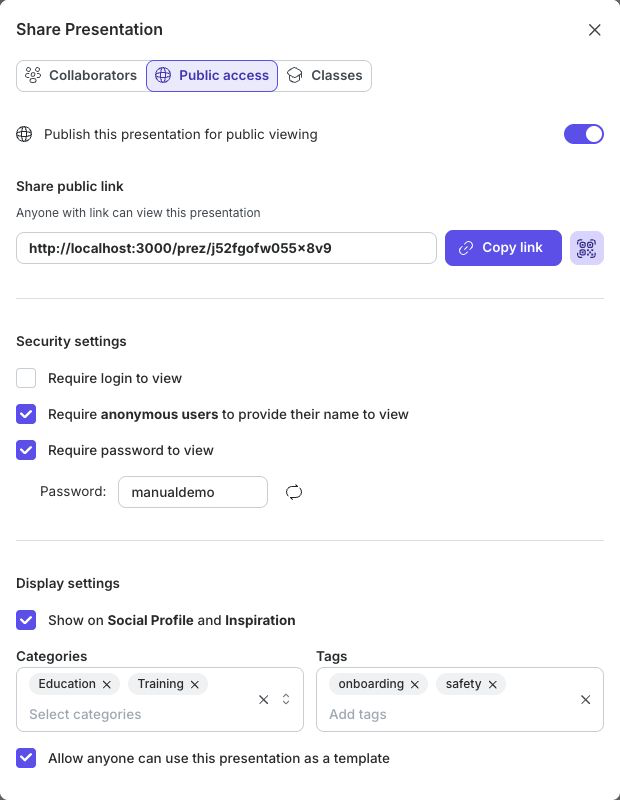
2. Copy Or Display The Public Link
Under Share public link, the address identifies this presentation.
- Select Copy link to place it on the clipboard.
- Select Share QR code to display a code that a phone or tablet can scan.
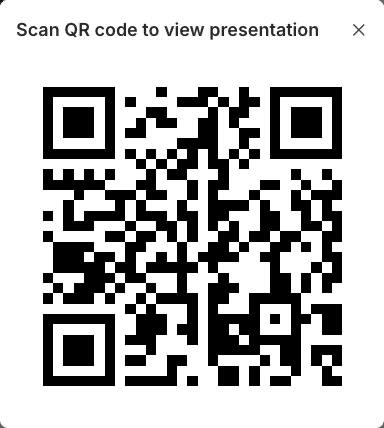
The localhost link and QR code in these screenshots come from a local test presentation. Copy and test the link shown in your own Public access panel before sending it to learners.
Test the link in a signed-out browser before distributing it. This confirms that the next screen matches the access rules and that the presentation opens from outside your authoring session.
3. Choose Security Settings
The settings can be used separately or together.
| Setting | What a viewer experiences |
|---|---|
| Require login to view | A signed-out visitor goes to Login before returning to the presentation. Use this when a named uPresenter account is required. |
| Require anonymous users to provide their name to view | A signed-out visitor sees Access restricted, enters Your name, and selects Continue. A signed-in viewer's known name is supplied by the account instead. This is a Pro feature. |
| Require password to view | Every non-owner viewer who reaches the presentation must enter the current Password in Access restricted. This is a Pro feature. |
When password protection is on, type the password the audience should use. The reset control beside the field generates a replacement. Send the new value only through an appropriate private channel; changing it can prevent viewers who know only the previous password from entering.
If both login and password are required, signing in does not replace the password step. If anonymous names are required as well, that name field applies only to visitors who are not already signed in.
4. Add The Presentation To Discovery Surfaces
Turn on Show on Social Profile and Inspiration when the presentation is appropriate for public discovery. The presentation must remain published, and the author's Public Profile must be active.
If the profile is inactive, the owner can select Activate from this panel. An editor working on someone else's presentation must ask the owner to activate their profile.
After enabling the discovery setting:
- Select up to 10 Categories that describe the subject or use case.
- Add up to 20 Tags for more specific search terms.
- Use clear learner-facing metadata rather than internal project labels.
Categories and tags help people filter Inspiration. They do not replace a descriptive presentation title or an appropriate presentation language.
5. Decide Whether Others Can Reuse It
Select Allow anyone can use this presentation as a template only when other users may create their own editable lesson from the public work. Reuse creates a separate presentation in the other user's workspace; it does not grant access to edit your original.
Clear this option when the content is view-only, licensed for limited distribution, contains organization-specific material, or should not be remixed. Presentations imported from certain external sources cannot be made reusable even if the control is selected.
6. Verify The Learner Experience
Open the public link in a signed-out browser and confirm the expected path:
- If login is required, sign in with an account that should be allowed to view.
- In Access restricted, enter Your name and/or Password when requested.
- Select Continue and confirm that the player opens.
- Check the player controls, questions, completion behavior, and phone-width layout.
- If discovery is enabled, open your public profile and Inspiration to confirm that the presentation appears as intended.
Do not publish a password in the presentation description, profile bio, tags, or the same public message that contains the link.
7. Stop Public Access
Return to Share > Public access and turn off Publish this presentation for public viewing. After the change saves, the public link no longer provides public learner access, and the presentation is no longer eligible for the public profile or Inspiration.
Unpublishing does not remove collaborators or class assignments. Review those separately if the project must become completely inaccessible.
Troubleshooting
| What happens | What to check |
|---|---|
| The public options are not visible | Turn on Publish this presentation for public viewing and wait for the panel to expand. |
| The password or anonymous-name option is disabled | These controls require Pro in the active workspace. Check the current team and subscription. |
| A viewer is sent to Login | Require login to view is enabled, or the viewer is opening another protected context. |
| The presentation does not appear on the public profile | Confirm that publication, the author's Public Profile, and Show on Social Profile and Inspiration are all on. |
| The presentation does not appear in Inspiration | Confirm the same three settings, then review categories, tags, language, and any search filters. |
| A recipient still cannot open a copied link | Recheck publication, login, password, account identity, and whether the password was recently reset. |
| Reuse does not remain enabled | The presentation may come from a source type that cannot be reused. Publish it for viewing without promising template reuse. |
Previous: Complete And Review Attempts · Next: Build A Public Profile · Back to Part XIV · Back to the full guide