
19.3: Understand And Use Credits
Credits pay for AI-powered work; they do not unlock Pro-only product features. In this section, you will identify the balance that applies to your active workspace, recognize credit-bearing AI actions, buy a one-time credit pack, and use the referral program when it is available.
1. Read The Right Balance
The credit button in the top bar shows the currently spendable balance and opens plan options. Settings > My Subscription also shows Credits in the Current plan card, but that value describes the active workspace's pool. A team member limit can make the spendable balance smaller than the pool.
The active workspace matters:
- Your personal workspace uses its personal credits.
- An eligible member in a licensed team uses that team's shared pool, subject to any member limit set by an Owner or Admin.
- A Free team shows and uses its own pool. Do not assume personal credits remain available while that team is active.
Return to Teams before an important AI job if the top-bar balance is not the one you expected.
2. Know When Credits Are Used
Credit-bearing actions include AI presentation or content generation, AI images, AI themes, and Text to Speech. When an action displays a model choice or a button such as Create (... credits) or Generate (... credits), review that current estimate before continuing. The exact cost can vary with the model and generated content.
If the balance is too low, uPresenter opens Get more credits instead of silently completing the job. Buying credits does not itself add Pro export, analytics, or publishing features.
3. Buy More Credits
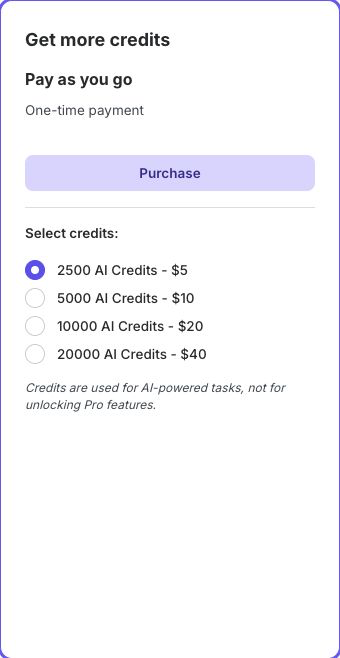
- Open Settings > My Subscription.
- Select Buy Credits. You can also use the credit button in the top bar.
- In Plans and Pricing, verify Your Team before paying. This decides which workspace receives the credits.
- Under Get more credits, choose an amount from Select credits.
- Review the currently displayed amount, currency, and one-time price.
- Select Purchase and complete the payment provider's checkout.
Credit packs and prices can change, so use the values in the open dialog rather than a saved screenshot. The current purchase note describes credits as one-time AI-task capacity, not a Pro-feature entitlement.
4. Refer A Friend
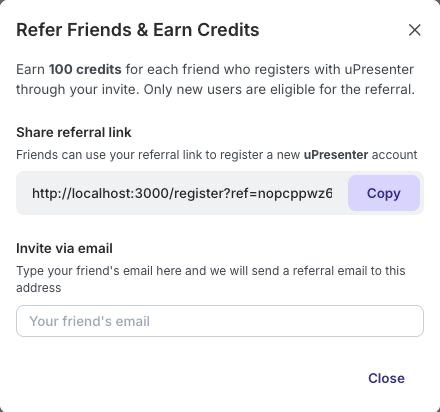
The localhost referral address in the screenshot is from a local test account. Copy the link displayed in your own dialog before inviting someone.
In Teacher View, select Refer a Friend under Resources. The current program awards 100 credits when an eligible new user registers through your invite.
- Select Copy to share the referral link yourself.
- Enter one valid address under Invite via email, then select Invite to have uPresenter send the referral message.
- Only new users are eligible. A person who already has an account should not create another account merely to trigger a referral.
If Refer a Friend is not visible, switch from Student View to Teacher View. The program may also be changed or disabled, so the open dialog is the source of truth for the current reward.
Troubleshooting
| What happens | What to do |
|---|---|
| Credits seem to disappear after switching teams | Check the active workspace. Each personal or team context has its own pool and limits. |
| An AI action says there are not enough credits | Open Get more credits, choose another eligible workspace, reduce the requested work when possible, or purchase a pack. |
| Purchased credits do not appear | Wait for the provider to finish, then reload. Check Transactions and the selected Your Team value. |
| The referral Invite button is missing | Enter a complete valid email address. The button appears only when the field passes validation. |
| A referral does not earn credits | Confirm that the person was a new user and registered from your referral link. Contact support with non-sensitive receipt details if needed. |
Previous: Manage Subscription And Billing · Next: Review Storage · Back to Part XIX · Back to the full guide