
12.2: Use Comments
Comments keep review work beside the presentation instead of scattering it across email or chat. Each thread belongs to a slide, records its author and time, and can hold replies until the issue is resolved.
In this section, you will create and reply to a comment, edit or delete your own contribution, filter the discussion, and resolve or reopen a thread.
Before You Begin
Open the presentation in the editor and move to the slide you want to discuss. Commenter, Editor, and owner access can participate in comments; a Viewer can read existing discussion but cannot add a comment.
1. Open And Filter Comments
Select Comments in the editor toolbox, or Comments in the More menu of a selected object. The badge on that tool and in the pane header counts open threads.
The pane starts with two filters:
| Control | Choices | Use it for |
|---|---|---|
| Status | All Comments, Open, Resolved | Showing every thread, only work that still needs attention, or completed discussion. |
| Filter | All Slides, Current Slide | Reviewing the whole presentation or concentrating on the active slide. |
If a thread seems to be missing, set Status to All Comments and Filter to All Slides before assuming it was deleted.
2. Add A Comment To The Current Slide
- Move to the slide the comment should reference.
- Select Add comment here in the Comments pane.
- Write a specific request or question. Include the intended outcome, not only a statement such as "fix this."
- Select Comment.
- Confirm that the new thread shows your name, the slide number, the time, and your message.
The arrow action on a thread is Jump to slide. Use it when All Slides is selected and you need to return to the thread's source slide.
3. Reply, Edit, Or Delete
Select Write a reply…, enter your response, and select Reply. Replies stay inside the thread so the decision remains connected to the original request.
Move the pointer over a contribution to reveal its actions. For content you are allowed to manage:
- select Edit to update the text, then save the edit;
- select Delete to remove a reply; or
- select Delete on the root comment to remove the entire thread and all of its replies after confirmation.
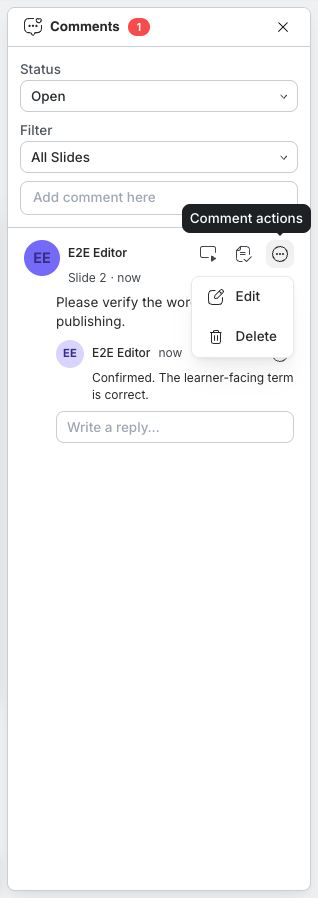
You normally edit or delete your own comment content. Actions that your role does not allow are not shown. A resolved thread cannot be edited until it is reopened.
4. Resolve And Reopen A Thread
Select Resolve when the requested change or decision is complete. The thread leaves the default Open view, the open-thread count decreases, and a Resolved marker appears when you view it through All Comments or Resolved.
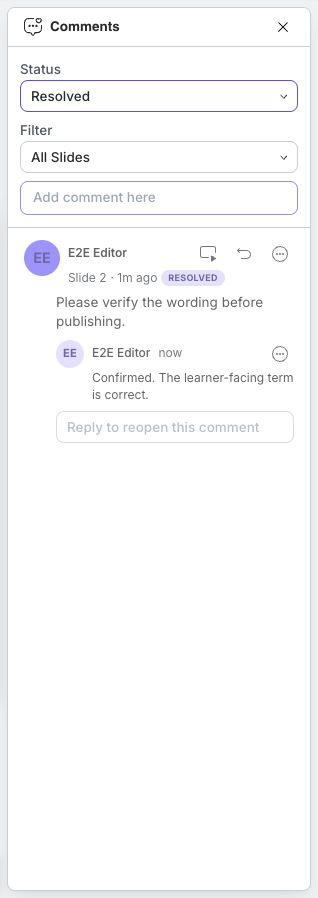
To return the discussion to active work:
- Set Status to Resolved or All Comments.
- Find the thread.
- Select Reopen, or enter a response in Reply to reopen this comment and submit the reply.
- Confirm that the thread returns to Open and the open-thread count increases.
Reopen a thread when the issue was not actually complete or new information changes the decision. Do not create a duplicate thread for the same unresolved question.
5. Run A Focused Review
A simple review cycle keeps the pane useful:
- Ask reviewers to use Commenter access unless they need to edit directly.
- Review Open comments with All Slides selected.
- Use Jump to slide, make or verify the change, and reply with the result.
- Select Resolve only after the issue is complete.
- Before publishing, check both Open and Resolved views so an important thread was not resolved by mistake.
Quick Check
Before continuing, make sure that you can:
- open the Comments pane and interpret its open-thread count;
- switch between All Comments, Open, and Resolved;
- switch between All Slides and Current Slide;
- add a comment and a reply;
- edit or delete content when permitted; and
- resolve and reopen a thread without duplicating it.
Previous: Share And Collaborate · Next: Use Version History · Back to Part XII · Back to the full guide