
8.2: Create Choice Questions
Choice questions are useful for quick checks of recognition, classification, and decision-making. Use Multiple Choice when one answer is correct, Multiple Response when several answers must be selected, and True/False for a single claim with two possible judgments.
In this section, you will create all three types, define their correct answers, and choose how the answer items appear.
Before You Begin
Write the question and its correct answer before drafting distractors. An incorrect choice should represent a plausible misunderstanding, but it should not overlap with or partly duplicate a correct choice.
1. Insert A Choice Question
- Open the slide where the question should appear.
- Select Questions in the editor toolbar.
- Choose Multiple Choice, Multiple Response, or True/False.
- Replace the sample prompt with your question.
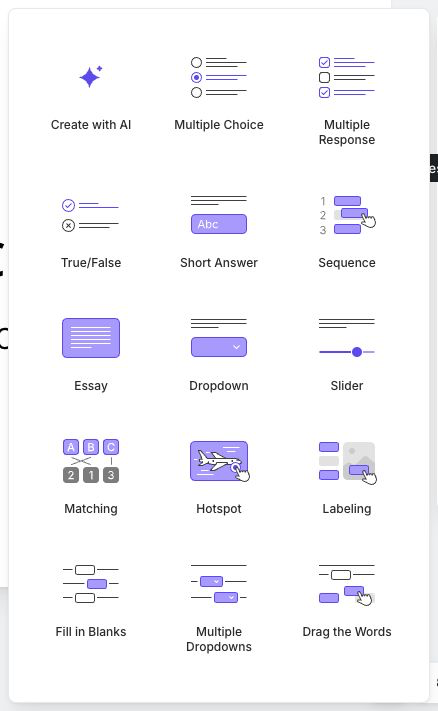
The editor adds the question and its answer area to the slide. Select the question or an answer item to show the controls that apply to it.
2. Build A Multiple Choice Question
Use Multiple Choice when the learner must choose exactly one answer.
- Edit the first answer item, then replace its sample text with an answer.
- Select Add Answer to add another item. Continue until the question has all required alternatives.
- Mark the one correct answer with its circular correct-answer control.
- Select any unused answer item and remove it with its item action.
- Open Present and confirm that choosing a new answer replaces the previous selection.
Only one answer can be marked correct. Marking another item moves the correct state to that item.
Keep the alternatives parallel. For example, do not mix a complete sentence, a single noun, and “All of the above” unless the wording genuinely requires it.
3. Build A Multiple Response Question
Use Multiple Response when two or more answers must all be selected.
- Insert Multiple Response and write the prompt.
- Add the alternatives with Add Answer.
- Use the square correct-answer controls to mark every valid answer.
- Add an instruction such as “Select all that apply” to make the interaction clear.
- Test one partially correct selection and one fully correct selection in Present.
The learner receives the question score only when the selected set exactly matches the authored correct set. Selecting only some correct answers, or selecting an extra incorrect answer, makes the whole response incorrect; the question does not award a partial point value.
4. Build A True/False Question
Use True/False for one statement that can be judged without hidden assumptions.
- Insert True/False.
- Replace the sample prompt with one clear statement.
- Mark either True or False as the correct answer.
- Preview both selections and submit the correct one once and the incorrect one once.
The two answer items are fixed, so this type does not provide Add Answer. Avoid double negatives and words such as “always” or “never” unless they are part of the concept being assessed.
5. Choose Default Or Card Display
Select the question, then use Display Style to choose:
- Default for compact text answers;
- Card when each answer needs a larger visual surface or an image.
In Card display, select an answer card to use the available image-source controls. Use images of similar dimensions and visual weight so an answer does not look correct merely because it is more prominent.
Important: Changing a choice question from Card back to Default removes the images assigned to its answer cards. Confirm the change only after deciding that those images are no longer needed.
6. Test The Complete Interaction
Open Present and check:
- the question and every answer remain readable;
- the intended answer or answer set is accepted;
- an incorrect answer is rejected;
- a partially correct Multiple Response submission is rejected; and
- the configured feedback and attempt behavior appear as expected.
If a learner can defend two different answers, revise the wording instead of relying on feedback to explain the ambiguity.
Troubleshooting
| Problem | What to check |
|---|---|
| Multiple Choice accepts the wrong item | Select the intended answer and verify its circular correct-answer control is active. |
| Multiple Response is incorrect even though correct items were selected | Check for a missed correct item or an extra selected distractor. The selected set must match exactly. |
| Add Answer is not available | Confirm that the question is Multiple Choice or Multiple Response. True/False uses a fixed pair. |
| Answer-card images disappeared | The question may have been changed from Card to Default display. Reassign the images if Card display is still required. |
| The answer order suggests the solution | Reword and rebalance the alternatives, then preview the question again. |
Quick Check
You have completed this section when the correct state is defined for every choice question, Multiple Response clearly tells learners to select more than one answer, and the question behaves correctly in Present.
Previous: Choose A Question Type And Create With AI · Next: Create Text, Number, And Open-Response Questions · Back to Part VIII · Back to the full guide