
13.3: Complete And Review Attempts
An attempt is one learner's working session and result for a presentation. It connects answers and slide activity to completion, success, score, resume behavior, retries, and—when the delivery method supports it—reports or LMS records.
In this section, you will continue or restart an attempt, submit a final result, review it, and understand how tracking differs between hosted uPresenter, HTML5, xAPI, and SCORM delivery.
The screenshots here use a separate practice lesson with a scored question so the submission and review states are visible.
1. Start Or Continue An Attempt
Opening a lesson starts an attempt unless an unfinished or finalized attempt already applies to that learner and learning context.
The author's Resume on restart setting controls the next launch:
- Ask to resume opens Welcome back with the last visit time. Select Continue to restore the saved slide and answers, or Start over to begin another attempt when one is available.
- Always resume restores the current saved attempt automatically.
- Always restart starts a new attempt after a finished lesson is opened again. If the learner leaves before finishing, the unfinished attempt is still resumed.
When no new attempt remains, the welcome dialog keeps Continue available for the existing unfinished session but does not offer Start over.
2. Understand The Attempt Limit
Max attempts can be a finite number or Unlimited. One attempt covers the whole presentation; question-level tries are separate and apply only to a particular question.
Every new presentation attempt preserves the previous finalized result. Starting again does not edit or replace that earlier record. When the maximum has been reached, uPresenter shows Attempt limit reached and does not start another attempt.
If an author changes the attempt limit after learners have started, their existing registrations and results remain part of the history. Ask the instructor before assuming that a settings change grants a particular learner another submission.
3. Submit Questions Before Finishing
On each question slide:
- Enter the response.
- Select Submit to record and evaluate the current slide's eligible questions.
- Read the feedback and follow the configured navigation.
- Continue until the completion rule is met and the presentation can be finalized.
If eligible questions are still unanswered, the player warns that some questions remain. Select Keep working to return to them, or submit only when leaving them unanswered is intentional.
With multiple presentation attempts, answer details can remain hidden until the final allowed attempt. Scores can still be recorded even when the answer key is not yet shown.
4. Submit The Lesson
Select Submit lesson when it becomes available. This is the learner-facing action controlled by the author's Finish button player setting.
The confirmation explains that finishing submits the result and prevents changes to answers in the current attempt.
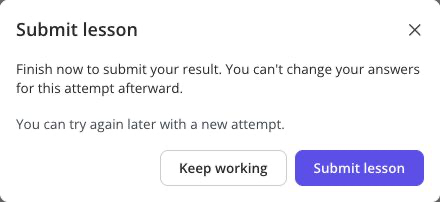
Select Keep working if you need to check an answer or another slide. Select Submit lesson in the dialog only when the attempt is ready to become final.
A finalized attempt can be complete but failed. Completion answers “Did the learner finish enough of the lesson?” while success answers “Did the learner meet the pass rule?”
5. Review The Result
After submission, Review opens when the author permits review and the attempt's answer-reveal policy allows it.
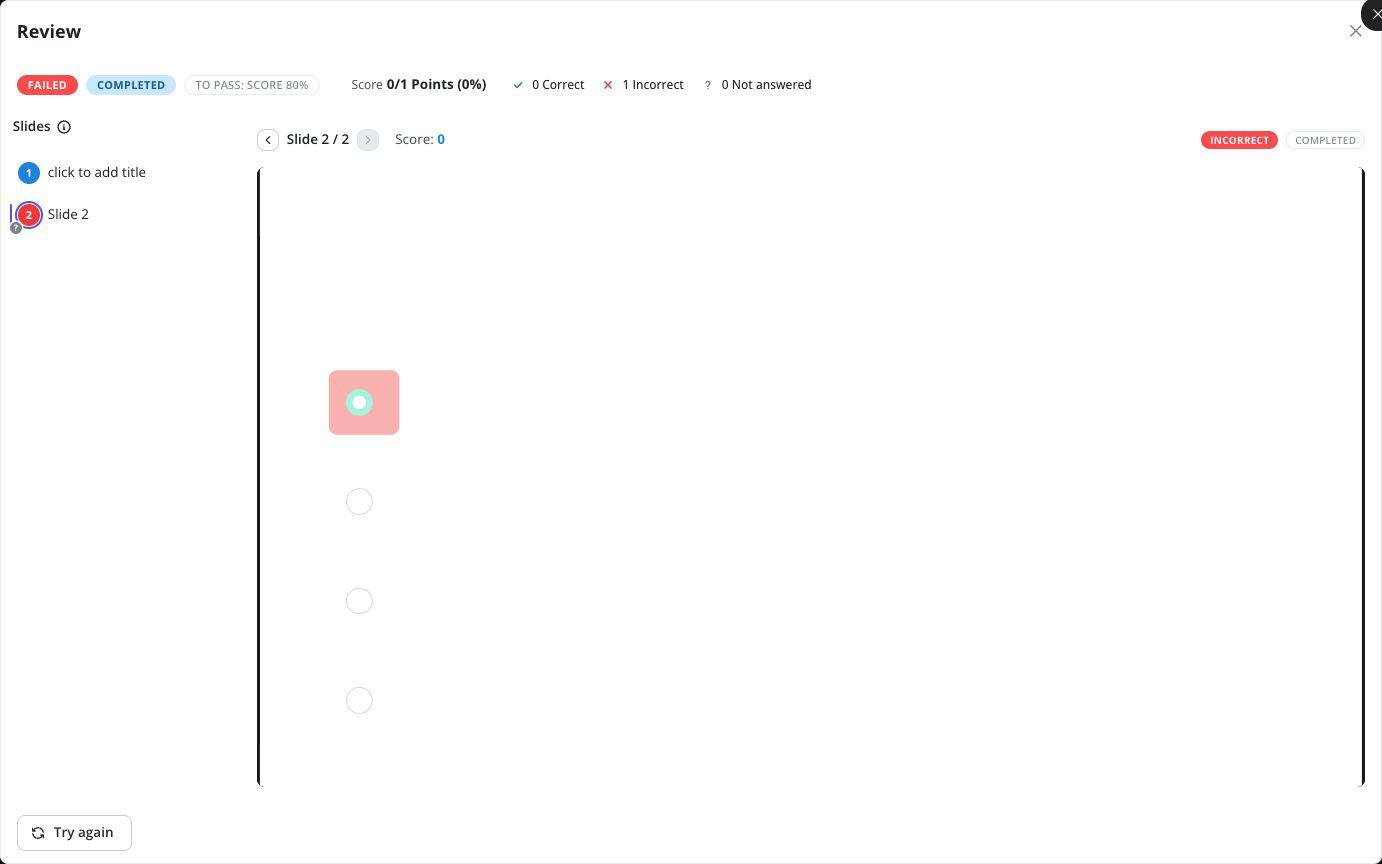
Review can show:
- Completed or incomplete status;
- Passed or Failed status and the authored pass threshold;
- earned points and percentage;
- totals for correct, incorrect, and unanswered questions;
- a slide list with question and status markers; and
- the saved response and status for the selected slide.
Use the Review slide list and Previous/Next controls to inspect the attempt. Review is read-only; it does not reopen submitted answers for editing.
6. Try Again Or Restart
Select Try again after a question-based attempt when another attempt is allowed. The confirmation states that the current attempt remains saved and, for a finite limit, shows how many attempts remain including the new one.
A presentation without questions uses Restart instead. It returns to the beginning without implying that there is a question score to improve.
The new attempt begins with cleared local responses. Re-answer the questions and select Submit lesson again to create its final result.
7. Know What Each Delivery Method Tracks
| Delivery method | Attempt and tracking behavior |
|---|---|
| Editor Present preview | Uses a fresh in-memory attempt and does not write to the Learning Record Store or reports. Closing and reopening the preview starts fresh. |
| Hosted uPresenter link | Uses a learner registration and saves slide activity, responses, score, completion, success, and attempt state for supported reports. Anonymous tracking uses the access identity established for that browser. |
| Class launch | Uses the class learning context so the attempt contributes to that learner's class record. Independent practice is separate and is not recorded in the class. |
| Standalone HTML5 package | Keeps attempt state locally in the browser and can restore it across reloads, but does not send a result to uPresenter or a class. Local state belongs to that browser/device, and Try again clears it for the new local attempt. |
| xAPI package | Sends statements and attempt state to the Learning Record Store supplied by the launch configuration. The host must provide a valid endpoint, actor, and registration for tracking. |
| SCORM 1.2 package | Uses the LMS SCORM runtime for lesson status, a 0–100 score, interactions, session time, and suspend data. Completion and success share the older combined lesson-status field. |
| SCORM 2004 package | Uses the LMS runtime with separate completion and success status, raw/scaled score, interactions, session time, and suspend data. |
Closing a tracked lesson before Submit lesson can preserve a resumable session, but it is not the same as finalizing the attempt. Reopen the lesson through the same class, LMS, browser, or launch context so the correct saved state can be found.
8. Verify Tracking After A Test
For an important release, test through the same delivery path learners will use:
- Start with a dedicated test learner rather than the author's Present preview.
- Submit a known combination of correct, incorrect, and unanswered responses.
- Finalize with Submit lesson.
- Open the uPresenter report or LMS record and verify the attempt, score, completion, success, duration, and question details that the delivery method supports.
- Start another attempt only if retry behavior is part of the test.
Preview proves appearance and interaction. A real hosted, class, xAPI, or SCORM launch proves the tracking connection.
Troubleshooting
| What happens | What to check |
|---|---|
| The lesson opens at an earlier slide | The current launch may be resuming an unfinished attempt. Check the welcome choice and the author's resume setting. |
| Try again is missing | The attempt may not be finalized, the maximum may be exhausted, or the author may have hidden the control. |
| Correct answers are not revealed | The presentation may withhold answer details until the final allowed presentation attempt. |
| A class result is missing | Confirm that the learner chose Open class lesson, submitted the lesson, and did not use independent practice or editor preview. |
| An HTML5 result is absent from uPresenter | Standalone HTML5 keeps local state but does not report to uPresenter. Use a hosted, class, xAPI, or SCORM delivery path for centralized tracking. |
| An LMS result is missing | Confirm that the package was launched by the LMS—not opened directly—and that the LMS supports and accepted the selected xAPI or SCORM runtime calls. |
Previous: Use The Player · Next: Publish A Public Link · Back to Part XIII · Back to the full guide