
11.2: Configure Presentation Settings
Presentation settings turn a group of slides into a measurable learning experience. They define the content language, what counts as completion, what counts as success, how many attempts a learner receives, and what happens when an unfinished lesson is opened again.
In this section, you will review layout and localization, configure completion and success separately, and choose attempt and resume rules.
Before You Begin
Open the presentation you intend to deliver. Decide what evidence should prove that a learner finished the lesson and what evidence should prove that the learner met its objective. Those are different decisions.
1. Confirm Layout And Page Background
Select Design and expand Layout.
- Type chooses Slide (Traditional) or Fluid (Web-like).
- Positioning chooses Freeform or Auto Layout.
- A traditional slide uses Slide Size, including the fixed presets and custom dimensions.
- A fluid lesson uses Max Width, including preset, full-width, and custom values.
- Page Background fills the area around the slide or fluid content. Leave it on Auto to use the theme value, or choose a local fill for this presentation.
Changing layout affects the whole presentation. Recheck object placement and use Present at more than one window width, especially after converting between traditional and fluid layout. Part V explains these layout choices in detail.
2. Set The Presentation Language
Select Settings in the top bar. Under Localization, choose the content language in Language.
This is a presentation setting, not your personal interface language. It supports language-aware player behavior and text direction, including right-to-left behavior for Arabic, Hebrew, Persian, and Urdu. It does not translate text already on the slides.
3. Separate Completion From Success
Use Completion Criteria to decide when the attempt is finished. Use Success Criteria to decide whether that completed attempt passes.
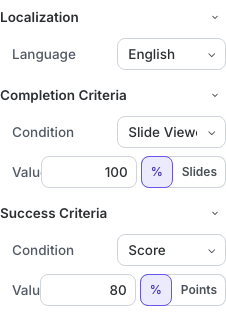
For each criterion:
- Set Condition to Score when questions or scored activities are the evidence, or Slide Viewed when coverage of the lesson is the evidence.
- Enter the required Value.
- Select % for a percentage, or select the available absolute unit: Points for score and Slides for slide views.
Percentage values are limited to 0–100. An absolute score cannot exceed the presentation's available points, and an absolute slide-view target cannot exceed its slide count. The editor clamps the displayed target when the presentation contains fewer available points or slides.
Choose Criteria That Match The Objective
| Learning goal | Completion example | Success example |
|---|---|---|
| Learners must inspect every policy page and pass a quiz | 100% Slide Viewed | 80% Score |
| Learners may skip reference pages but must pass the assessment | 80% Slide Viewed | 90% Score |
| The lesson has no scored questions | 100% Slide Viewed | Use a Slide Viewed target that reflects the required coverage |
A learner can complete an attempt without succeeding when the completion target is reached but the success target is not. This distinction is useful for compliance, remediation, and reporting.
4. Set Maximum Attempts And Resume Behavior
Expand Attempts & Resume.
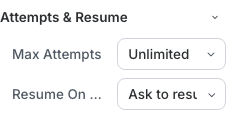
Max Attempts
Choose 1–10 from the list, enter a custom value from 1 to 500, or choose Unlimited. A limited number makes each submitted attempt consequential; unlimited attempts support practice and self-paced mastery.
When Max Attempts is greater than one, correct/incorrect answer status and an enabled answer key are held until the learner reaches the final presentation attempt. This prevents a learner from seeing the solution before using the remaining attempts.
Resume On Restart
- Ask to resume lets the learner choose whether to continue the unfinished attempt or begin again.
- Always resume returns the learner to the saved attempt automatically.
- Always start over starts a new attempt after a finished lesson is opened again. If the learner left before finishing, the current unfinished attempt is still resumed.
Choose the policy that matches the delivery context. Mandatory training usually benefits from preserving progress; short practice activities can reasonably start over.
5. Verify The Rules In Present Mode
Select Present and test both a passing and non-passing path when the lesson contains scored questions. Confirm that:
- the attempt becomes complete at the intended threshold;
- success is reported only at the intended threshold;
- slide-view rules do not require an inaccessible or intentionally skipped slide;
- resume behavior preserves or restarts the expected state; and
- another attempt is available only when Max Attempts permits it.
Imported authoring-tool packages can own their own completion, success, and player rules. When uPresenter hides those controls, configure the rules in the source package and use the uPresenter settings that remain available around it.
Quick Check
Before continuing, make sure that you can:
- choose the correct traditional or fluid layout model;
- distinguish presentation language from interface language;
- explain completion versus success;
- choose percentage or absolute values correctly;
- set a finite or unlimited attempt policy; and
- select a resume rule that fits the learning activity.
Previous: Apply And Customize Themes · Next: Control Player And Answer Behavior · Back to Part XI · Back to the full guide