
9.5: Insert And Edit Formulas
The formula editor keeps mathematical notation readable inside text objects and table cells. Use it for structured expressions such as fractions, roots, integrals, matrices, and superscripts instead of approximating them with ordinary characters.
In this section, you will insert a formula, work with visual structures or LaTeX, update an existing expression, and format the surrounding text.
Before You Begin
Open a presentation and select the destination slide. If the formula belongs in a sentence or table cell, enter text-editing mode and position the insertion point first. If no text is being edited, uPresenter inserts the result as a new centered text object on the slide.
1. Open The Formula Editor
While editing text, select Insert Formula in the floating text toolbar. The Formula editor opens with an equation area, a LaTeX field, and structure menus.
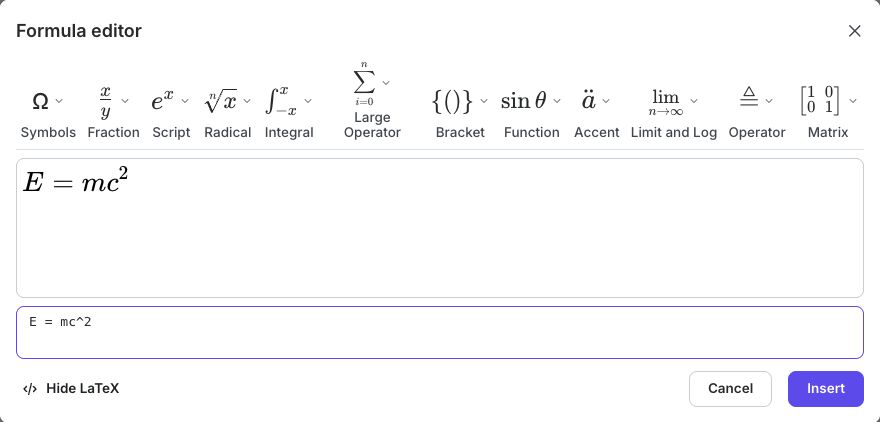
The toolbar includes Symbols, Fraction, Script, Radical, Integral, Large Operator, Bracket, Function, Accent, Limit and Log, Operator, and Matrix.
2. Build The Expression
Use either method, or combine them:
- Select a structure menu and choose a template or symbol.
- Type into the active placeholders in the equation area.
- If you know LaTeX, edit the LaTeX field directly. The rendered equation updates with it.
- Select Hide LaTeX when you want more room for the visual editor; select Show LaTeX to reveal the field again.
For example, E = mc^2 renders the 2 as a superscript. Use structure templates when the syntax is unfamiliar, especially for matrices, limits, and nested fractions.
Select Insert when the expression is correct. Selecting Cancel closes the dialog without applying the new formula.
3. Update An Existing Formula
Enter text-editing mode and select the rendered formula. The Formula editor reopens with the existing expression and the confirmation button changes to Update.
Revise the visual expression or its LaTeX, then select Update. uPresenter replaces the selected formula while leaving the surrounding text in place.
4. Format And Place The Formula
A formula behaves as an inline part of its text content. Use the surrounding text object's font size, alignment, color, and text-box settings to make the line fit the slide. For a standalone expression, select its text object and use the normal resize and position controls.
Do not shrink a long equation until it is technically visible but difficult to read. Break a derivation into several lines or slides, and explain the meaning of unfamiliar symbols in nearby text or narration.
Use Present to confirm that the expression renders correctly in the learner view and in any export format you intend to deliver.
If A Formula Does Not Work As Expected
| What you see | What to do |
|---|---|
| The formula appears in a new object | Enter text-editing mode and place the insertion point before choosing Insert Formula. |
| LaTeX appears as ordinary text | Enter it in the Formula editor's LaTeX field, not directly into a normal text box. |
| The rendered expression is wrong | Reopen the formula, check braces and structure, and use a visual template for the affected part. |
| Selecting the formula does not open the editor | Make sure the text object or table cell is in text-editing mode, then select the rendered formula itself. |
| A long expression is unreadable | Increase the text box or table cell size, split the expression, or move it to a dedicated slide. |
Quick Check
Before continuing, make sure that:
- the expression is mathematically correct;
- the formula sits at the intended insertion point;
- symbols, superscripts, fractions, and brackets render correctly;
- the formula is large enough to read in Present; and
- unfamiliar notation has a text or spoken explanation.
Previous: Create And Edit Infographics · Next: Build Interactions · Back to Part IX · Back to the full guide