
12.3: Use Version History
Version History lets you inspect earlier saved states without first replacing the live presentation. It is useful when a collaborator removed important content, a redesign needs to be compared with the previous state, or you need a package from an earlier point in the project.
In this section, you will open the history, preview an earlier version, return safely to the live document, restore a selected version, and download a version when your plan allows it.
Before You Begin
Wait until the cloud control in the editor top bar says All changes saved. Version History contains saved versions, so a brand-new or unchanged presentation may show No saved versions available yet.
Tell active collaborators before restoring. A restore changes the shared document for everyone with access.
1. Open Version History
Select Version History, the clock control beside Undo and Redo in the editor top bar. The normal editing toolbar is replaced by history controls, and the history pane lists saved entries from newest to oldest.
Each entry can show:
- the saved date and time;
- a version number such as V375;
- the author of the saved change; and
- Current version for the live document state.
2. Preview An Earlier Version
Select an entry that is not marked Current version. uPresenter loads that snapshot into the canvas for inspection and highlights the selected card.
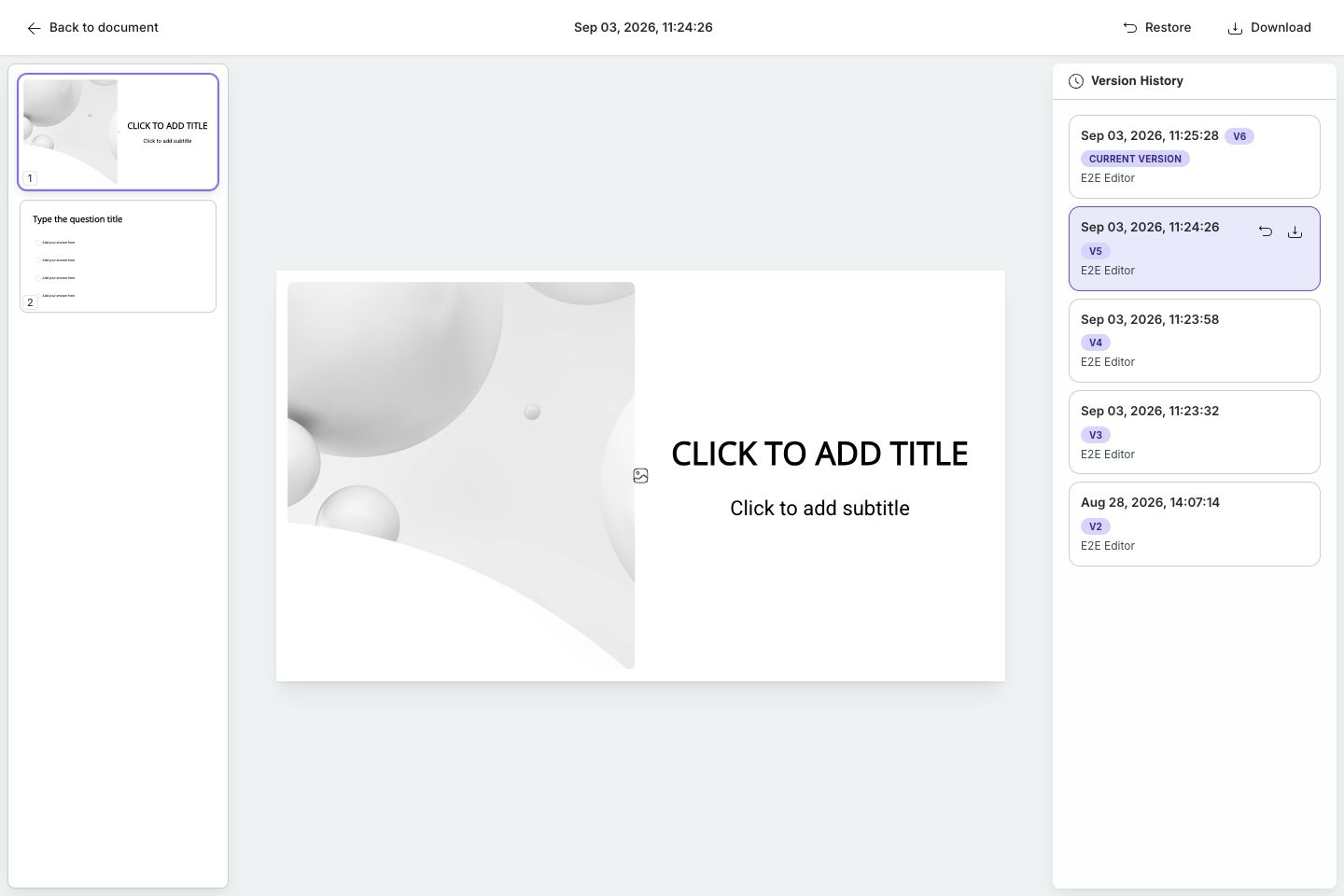
During preview:
- the centered timestamp identifies the selected snapshot;
- Restore becomes available for a non-current version;
- Download applies to the selected version; and
- normal editing controls remain unavailable because you are inspecting history, not editing the live document.
Move through the slide thumbnails and compare the content, structure, and settings you care about. Previewing alone does not change the current presentation.
3. Return Without Restoring
Select Back to document to leave Version History. uPresenter returns the canvas to the live document state that was active when you opened the history.
Use this path whenever you were only comparing versions. Do not select Restore simply to leave the preview.
4. Restore A Version
Restore only after you have inspected the complete snapshot:
- Select the version you want.
- Select Restore in the top bar or Restore this version on the highlighted card.
- In Restore Version, review the warning that the selected version will replace the current document.
- Select Restore Version to confirm, or Cancel to keep reviewing.
- After restoration, check the slides and wait for All changes saved.
Restoring replaces the shared document content with the selected snapshot. It is not a selective merge, so copy any newer material you still need before confirming. If other editors are active, ask them to pause until the restore has saved and they have rechecked the document.
5. Download A Version
Select a history entry, then select Download in the top bar or Download this version on the selected card. The downloaded package is generated from that snapshot rather than from the current canvas.
Version-history downloads require an active Pro plan. If the control opens pricing instead of starting the download, check the subscription for the current account or active team. Downloading does not restore the version or change the live presentation.
Use download when you need a separate archive or offline package of the earlier state. Use restore only when that earlier state should become the shared working document.
6. Handle Missing Or Failed History
| What happens | What to do |
|---|---|
| No saved versions available yet. | Make a meaningful change, wait for All changes saved, and reopen Version History later. |
| Failed to load version history. | Check the connection, then select Retry. |
| A preview does not load | Return to the document, confirm the presentation is still available, and reopen Version History. |
| Download opens pricing | Version-history download is Pro-only; check the subscription for the active account or team. |
| Restore is not shown | Select an entry that is not marked Current version and confirm that you have edit access. |
Quick Check
Before finishing Part XII, make sure that you can:
- open Version History and recognize the current version;
- read a version's timestamp, number, and author;
- preview an earlier snapshot without replacing the live document;
- use Back to document safely;
- explain the effect of Restore Version; and
- distinguish a Pro version download from a restore.
Previous: Use Comments · Next: Preview A Presentation · Back to Part XII · Back to the full guide