
15.2: Export eLearning Packages
An eLearning package preserves the player, questions, feedback, navigation, interactions, and media needed for browser-based delivery. Choose the package that matches the system where learners will launch the lesson and where their results should be stored.
In this section, you will compare HTML5, xAPI, SCORM 1.2, and SCORM 2004, download the correct ZIP, and test it in its destination environment.
Before You Begin
Preview the complete presentation and confirm its completion, success, attempt, resume, feedback, and player settings. Package export uses the current saved presentation, so resolve any saving or resource-loading problem before downloading.
All four eLearning exports require Pro. Confirm the exact standard and version supported by the destination LMS or learning system before you choose a package.
1. Choose The Delivery Standard
Select Download and review eLearning packages.
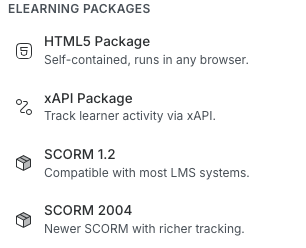
| Choose | Use it when | Where results go |
|---|---|---|
| HTML5 Package | The lesson should run as a self-contained browser experience without an LMS runtime | The standalone browser stores local resume state; results do not enter uPresenter reports |
| xAPI Package | The launch environment supplies an xAPI Learning Record Store connection | The package sends supported activity statements to that LRS |
| SCORM 1.2 | The LMS requires the widely supported SCORM 1.2 standard | The LMS runtime receives status, score, interactions, session time, and resume data supported by the course |
| SCORM 2004 | The LMS supports SCORM 2004 and its newer data model | The LMS runtime receives the corresponding SCORM 2004 tracking data |
Do not choose xAPI or SCORM only because it sounds more advanced. The package must match the target platform's import and launch support.
2. Download An HTML5 Package
- Select Download > HTML5 Package.
- Keep the editor open while the download notification reports byte progress.
- Extract the completed ZIP archive.
- Open
index.htmlin a supported browser or place the extracted files together on the intended web host. - Test questions, media, navigation, completion, review, retry, and resume behavior.
The package includes its player assets, presentation data, theme data when used, presentation resources, required language resources, and packaged web fonts. Keep the extracted folder structure intact. Moving only index.html breaks references to the other package files.
Standalone HTML5 delivery does not create hosted uPresenter attempts. Local resume information belongs to the browser and device where the package runs and can be lost when site data is cleared.
3. Download An xAPI Package
- Confirm that the destination supports importing and launching an xAPI package and can supply the LRS endpoint, learner identity, and authorization data.
- Select Download > xAPI Package.
- Keep the downloaded ZIP intact unless the destination explicitly requires extraction.
- Import it into the target learning system and launch it through that system.
- Complete a test attempt and confirm the expected statements in the target LRS.
The ZIP includes tincan.xml as its xAPI package descriptor. Opening package files directly outside the target launch flow does not supply the LRS connection needed for tracked xAPI delivery.
4. Download A SCORM Package
- Ask the LMS administrator whether the course should use SCORM 1.2 or SCORM 2004.
- Select Download > SCORM 1.2 or SCORM 2004.
- Upload the downloaded ZIP as a course or learning package. Most LMS import workflows expect the archive itself, not a separately uploaded folder.
- Launch the course from the LMS as a test learner.
- Submit the lesson, close and resume it, then check completion, success, score, interactions, and time in the LMS report.
Each SCORM ZIP contains an imsmanifest.xml file and launches through index.html. Do not rename, remove, or rearrange package files before import.
5. Validate In The Destination System
A successful download proves that uPresenter created the archive; it does not prove that a particular LMS accepted or tracked it correctly.
Run a short acceptance test in the same environment learners will use:
- Import the package without editing its contents.
- Launch it through the course item, not from a file browser.
- Complete one passing and, when useful, one failing attempt.
- Close mid-course and confirm the expected resume behavior.
- Compare the LMS or LRS result with the presentation's authored criteria.
- Repeat at the learner screen sizes your audience uses.
When you replace a package, follow the LMS's versioning rules. Uploading a new ZIP may create a separate course item or may affect existing learner records.
Troubleshooting
| What happens | What to check |
|---|---|
| The LMS rejects the ZIP | Confirm the selected standard and version, upload the original archive, and check the LMS package-size and file-name rules. |
| The package opens but does not report results | Launch through the LMS or xAPI system, confirm its runtime/LRS configuration, and make sure the learner completes the authored submission flow. |
| HTML5 works on one device but does not resume on another | Standalone HTML5 resume data is local to the browser and device; it is not synchronized through uPresenter. |
| Media or fonts are missing | Re-export after confirming every resource loads in the editor, then preserve the package folder structure. Also check whether the destination blocks a required media host. |
| The LMS records the wrong completion or score | Recheck Settings for completion criteria, success criteria, attempts, and answer behavior, then publish a new package and retest it as a new attempt. |
| A package download fails with an access message | Confirm the active Pro subscription and current Terms status, then retry from the editor. |
Previous: Export Documents And Images · Next: Manage Export Access And Source Data · Back to Part XV · Back to the full guide